How to use automatic index increase in ZenTreasury
ZenTreasury supports Lease Indexation, which helps you automatically increase or decrease lease values based on market index rates (such as inflation or rent adjustment indexes). This guide explains how to configure and manage lease indexation from start to finish.
Example of how it works:
- If the CPI (Consumer Price Index) goes up 4%, your lease cost can go up by 4%
- If your lease is set to change every 12 months, ZenTreasury automatically applies the change at the right time
In this article we explain how to set the indexation on in ZenTreasury.
1. Add index name in the system
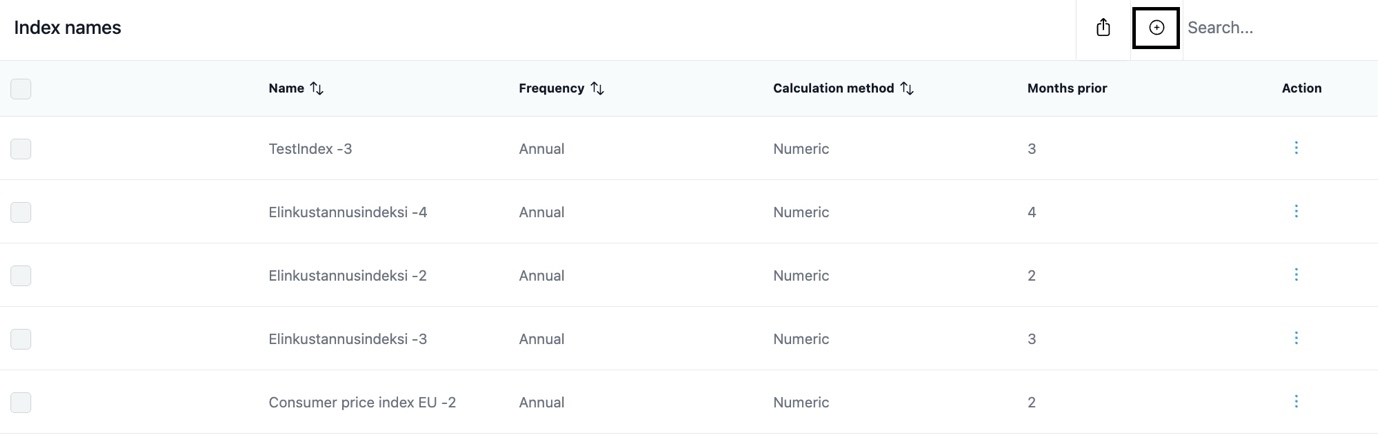
In order to add a predefined index name and rate to ZenTreasury you need to navigate to Settings > Market data > Index names.
By selecting plus sign and ‘Add’ you will be able to save the name of your index.
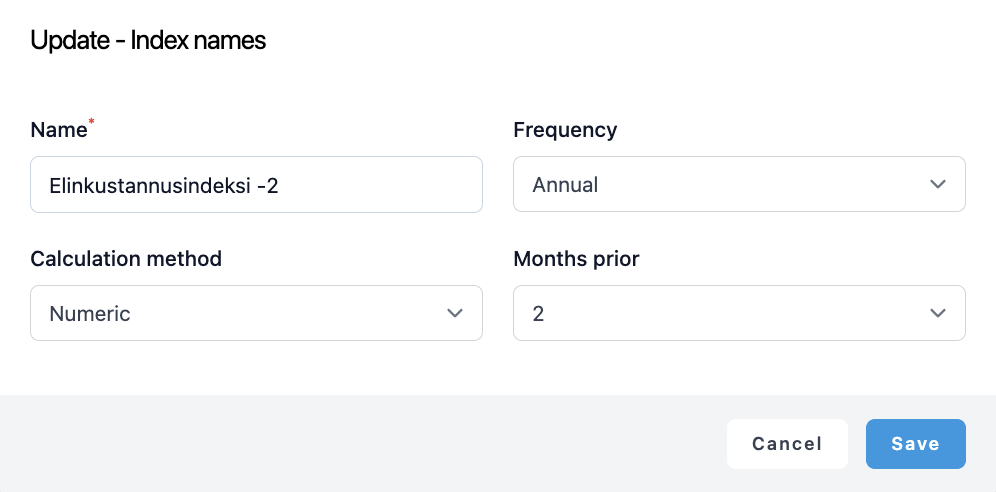
Next, you can fill in the details for fields index name, frequency, calculation method and months prior.
- Frequency determines how often the index is updated
- For ‘Percentage’ system applies this rate as a percentage increase whereas for ‘Numeric’ system compares with previous value to determine whether an increase will be applied or not.
- Months prior field determines from how many months prior to index update date the index data is picked. In practice this means, that if you have a lease contract for which the index is updated December onwards, but the index value is determined in October, you insert “2”.
2. Add index rate for the right date
When navigating to Settings > Market data > Index names, you can select index name for which you proceed to saving value date and value. Value date is that exact date from which updated lease index is saved for. Monthly indexes are therefore saved as values on the first day of the index month.
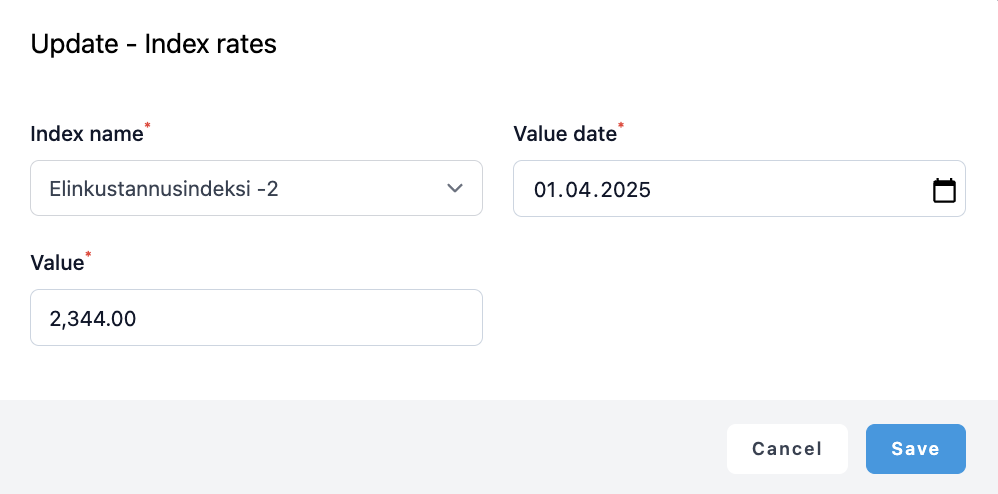
For each Index name, add new rate value for period as defined in the frequency. System will check if a rate has changed and automatically applies it to the related leases when due.
3. Assign right index to your lease
Now you can go and update the lease contract with the index by navigating to ‘Leasing’ register and selecting edit and opening the ‘Indexation’ tab.
Select the Index name that you previously saved in the market data page. Next, fill in next indexation date and indexation interval in months. You can then select to apply the indexation for the specific lease by choosing “Active” for “Apply next indexation”.
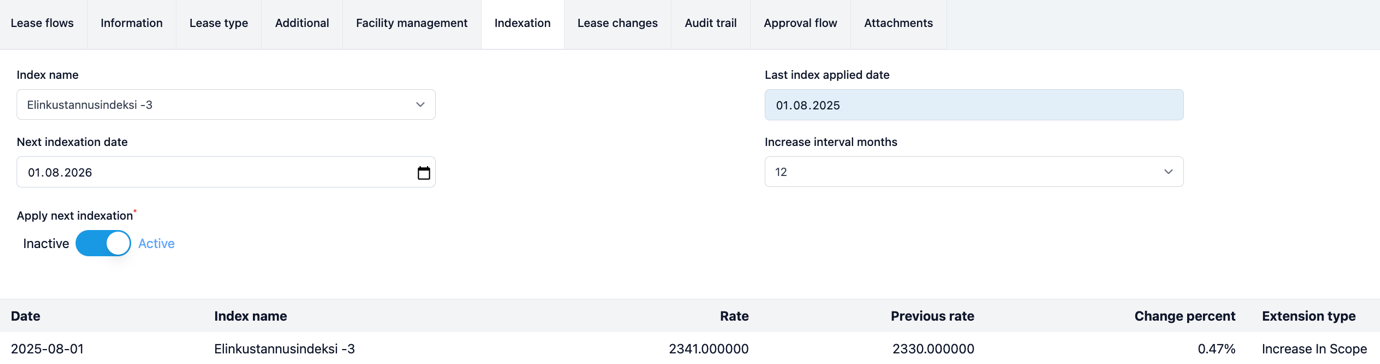
A log of past index rates applied to your lease is saved on the rows below your selection.
After these settings the system will automatically apply the latest index value for those leases that have the “Apply next indexation” selection on. On the first day of each month the system checks all open leases and for those that an index is linked and an update is due, it:
- applies ‘Increase in Scope’ change based on method (percentage or numeric) and automatically updates the lease flows for the remaining periods
- sends a notification in the system for user
- sets next indexation date and
- saves the log on indexation page.
Was this article helpful?
That’s Great!
Thank you for your feedback
Sorry! We couldn't be helpful
Thank you for your feedback
Feedback sent
We appreciate your effort and will try to fix the article