In order to edit, copy or delete an instrument type, you can navigate to the three dots at the end of the row and activate your selection. You can add lease types from Settings -> Instruments -> Lease types by choosing + sign on the top right and filling in the requested data.
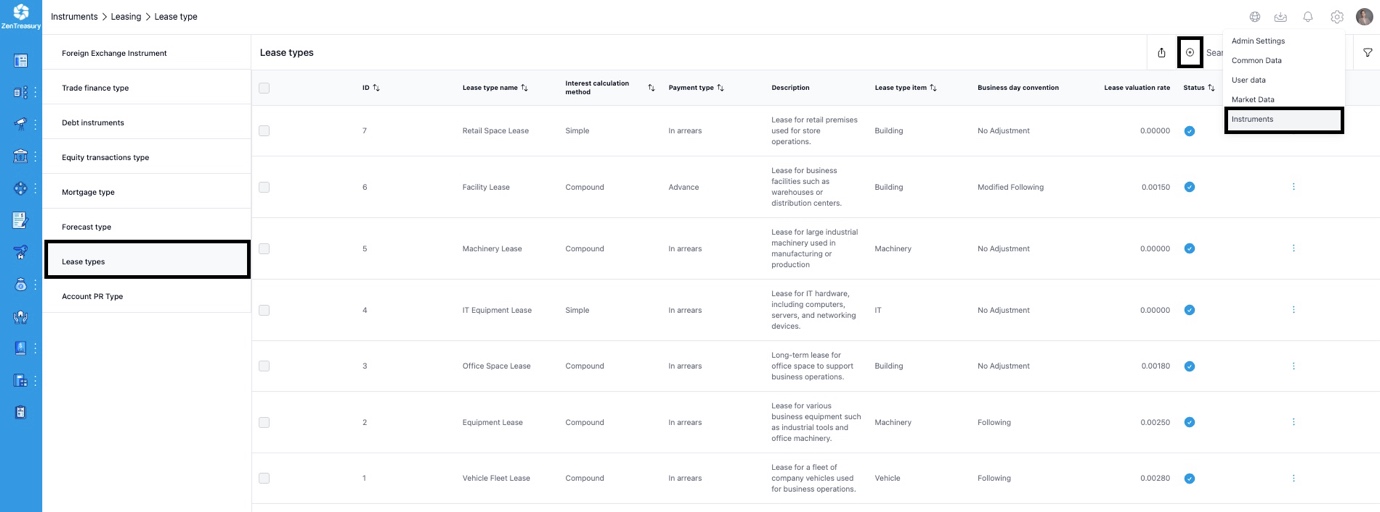
- Lease type name defines the lease instrument name.
- Choose interest calculation method by choosing from compound, simple or simple actual days.
- Payment type gives you a decision between payments in arrears or advance payment.
- Description is for free wording of description for your lease.
- Lease type item defines the specific category for your lease (machinery, building, IT, vehicle, other).
- Business day convention let’s you set the rule for the payment day when the payment falls on a weekend. Select 'Previous' (for working day before Payment day), 'Following' (for next working day after), 'No Adjustment' to leave it as is or choose other options as explained in the dropdown menu.
- Lease valuation rate: If you want the system to also calculate a valuation to the agreement, you can set the "Calculate valuation" active. Then, based on the interest rate set here, you will get a market valuation to your lease agreement in the ‘Lease Valuation Report’.
- Include service into price increase selection relates to the situation where lease price is changed in the middle of the term and the service fee is specified in the agreement.
- Exclude first payment from discount calculation if agreement is paid in advance and 12 times a year option is selected for this specific scenario.
- Status will determine weather the lease type is inactive or active.
Was this article helpful?
That’s Great!
Thank you for your feedback
Sorry! We couldn't be helpful
Thank you for your feedback
Feedback sent
We appreciate your effort and will try to fix the article