ZenTreasury’s system enables you to add regular price increases at the stage of creating the lease flows. Once the price increases become irregular, the payments need to be edited payment-by-payment to match the payment schedule. To enter the lease as quickly as possible, follow the steps outlined below.
1. Check if your lease’s payment schedule is fully irregular or if it follows a regular price increase pattern for some time. The price increase pattern can be regular in respect to change percentage or absolute payment amount change (examples below).
Here are two exemplary payment schedules to illustrate this. Both leases start at 1.1.2025, end on 31.12.2032 and have monthly payments on 1st of the month:
Lease 1:
Year Monthly payment (€)
2025 1000
2026 1010
2027 1020
2028 1030
2029 1050
2030 1070
2031 1090
2032 1110
Lease 1 has a regular absolute change of +10 € for the first 3 price increases, until the change that brings the payment amount to 1030 €.
Lease 2:
Year Monthly payment (€)
2025 1000
2026 1005
2027 1010.25
2028 1015.08
2029 1025
2030 1035
2031 1045
2032 1055
Lease 2 has a regular percent change of +0.5% for the first 3 price increases, until the price change that brings the payment amount to 1015.08€.
For both of the leases, the first 3 price increases were regular, after which irregular price increases start. This becomes relevant in step 6. and 8.
Once you have determined the longest regular price increase model for this lease, start entering the lease in the system.
2. In the navigation menu on the left, go to LEASING.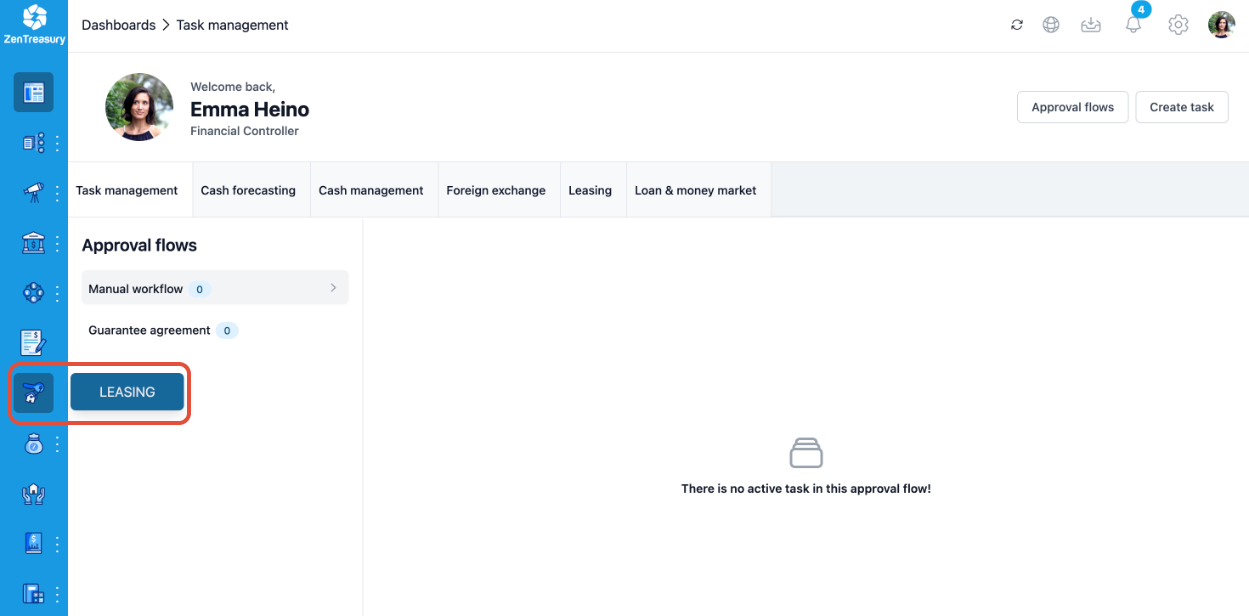
3. On the top-right press the add button and select a lease type.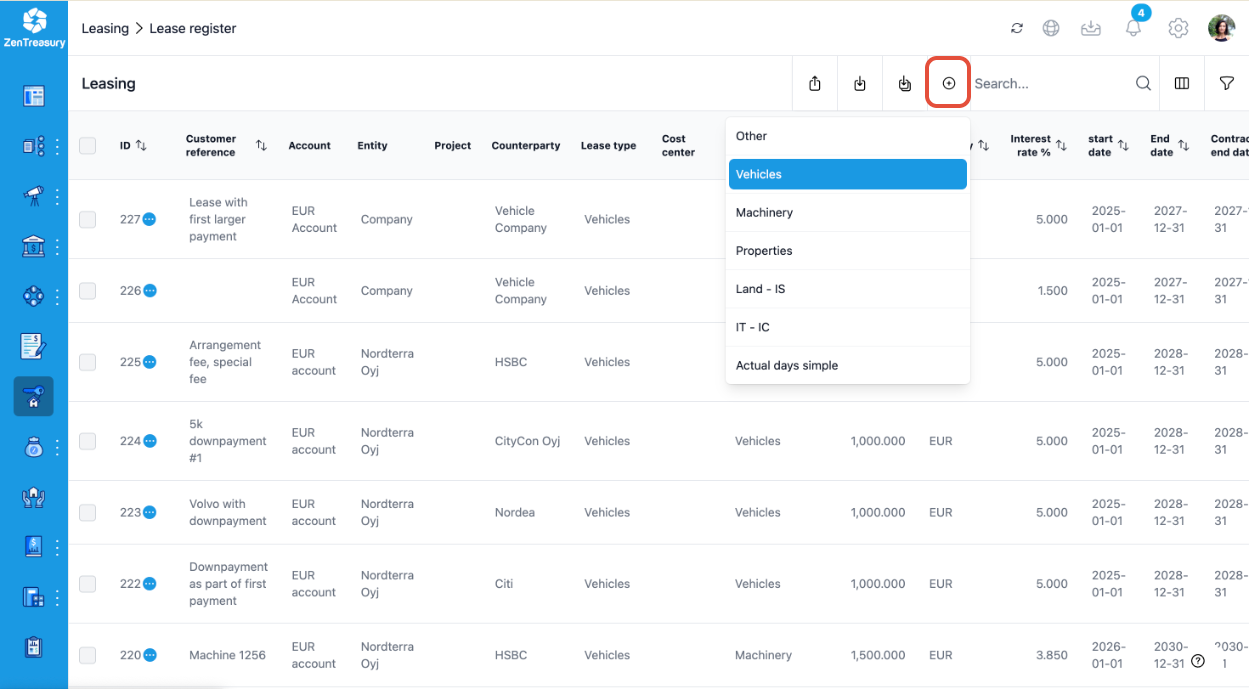
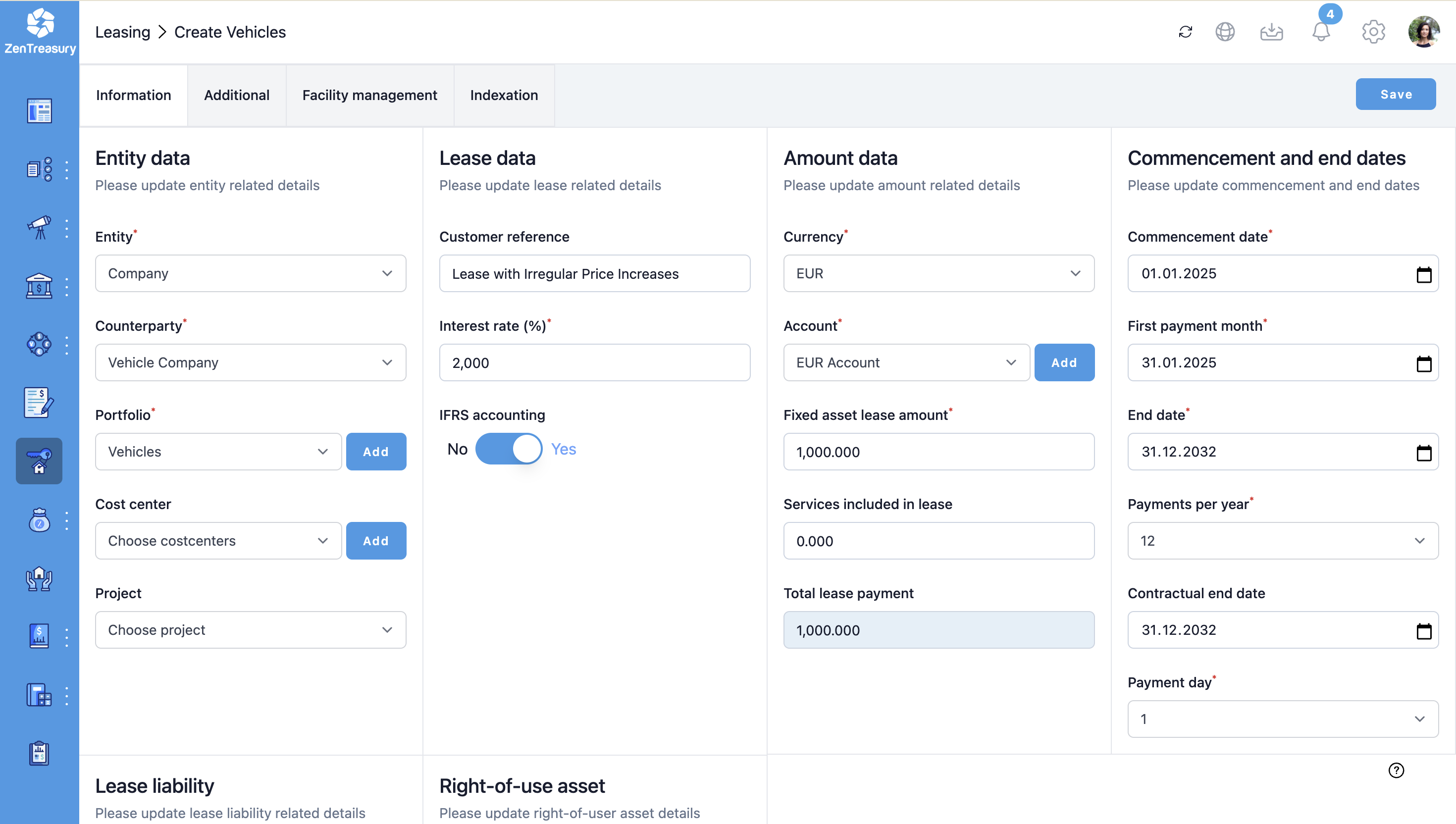
4. Fill-out the new lease information as you would for a lease with regular payments.
5. Generate the lease flows for the new lease by clicking on the cog symbol.
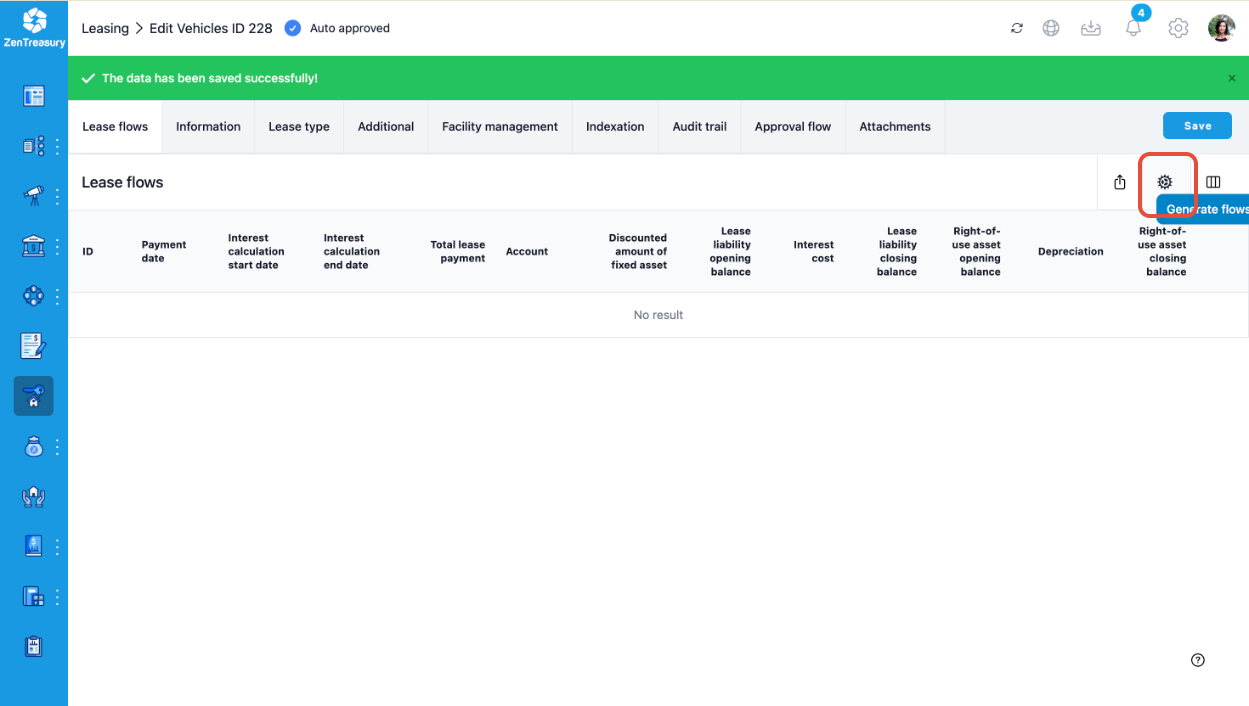
6. In the opening window, choose a value for
- Price increase interval (months) - most often this will be 12
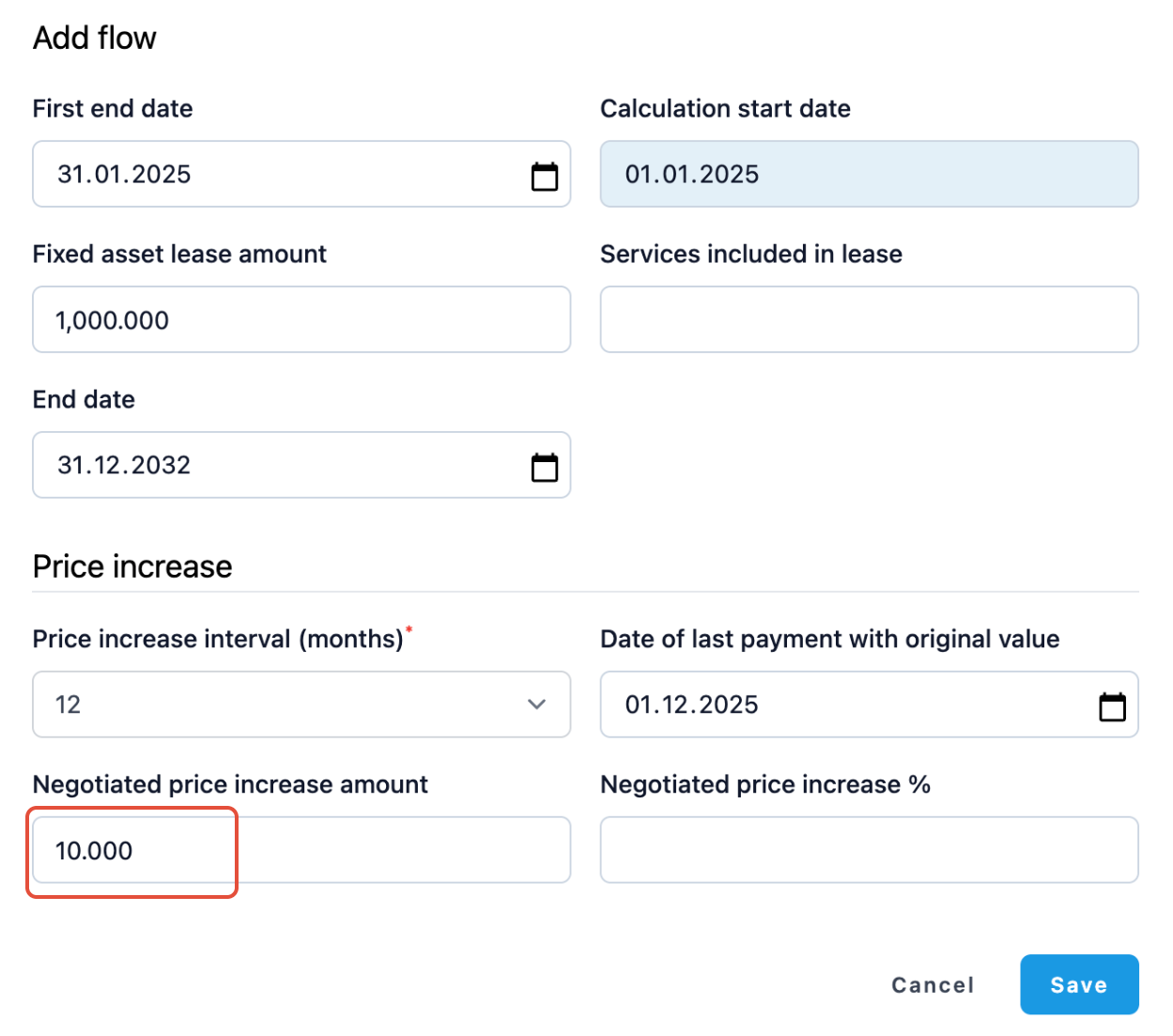
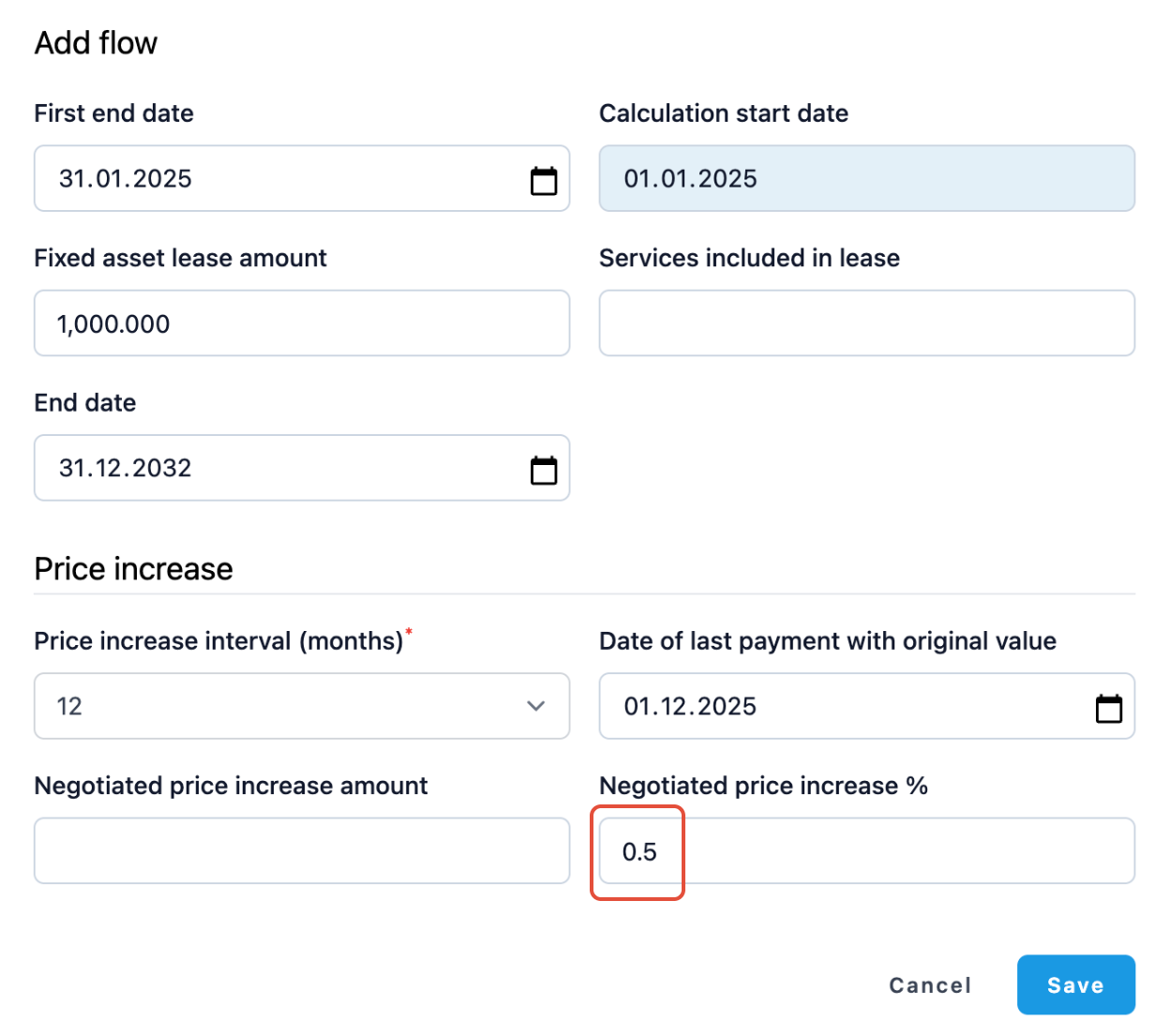
- Date of last payment with original value - for lease 1 and 2, this will be 1.12.2025.
and/either
- Negotiated price increase amount or
- Negotiated price increase %.
For lease 1, we will fill Negotiated price increase amount (10)
For lease 2, we will fill Negotiated price increase % (0.5)
Lease 1:
Lease 2:
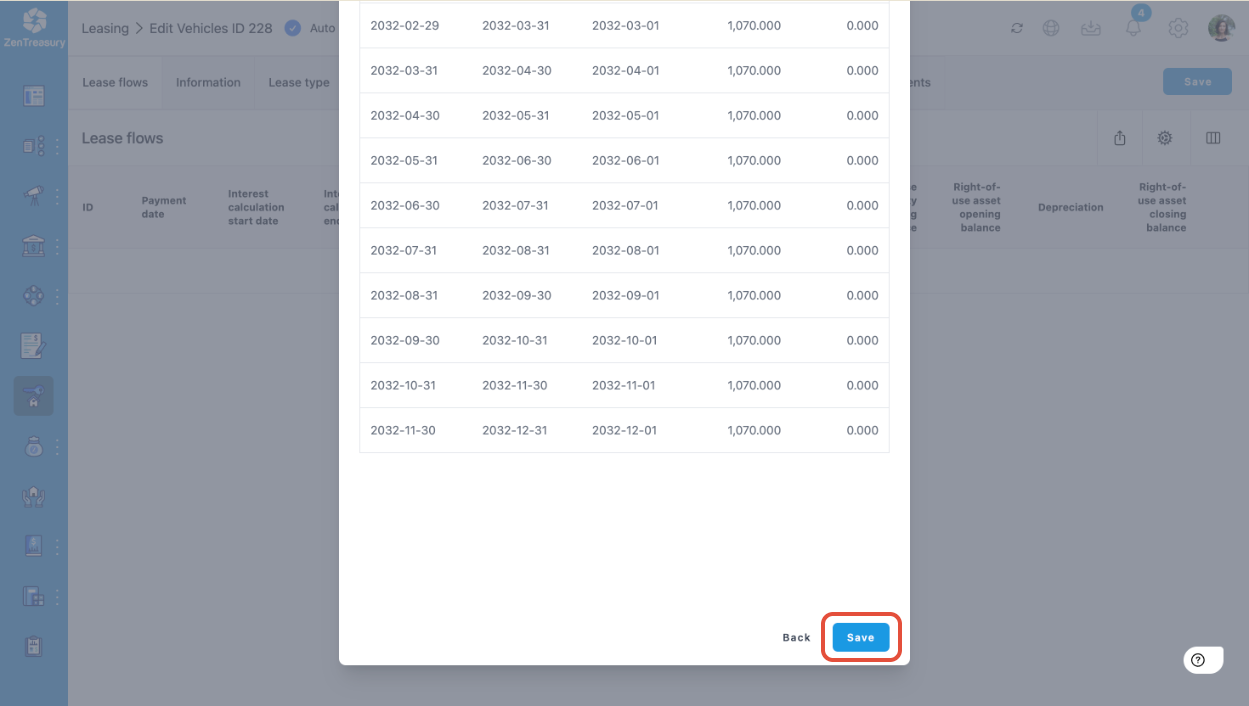
7. Check that your price increase is happening at the right moment.

Scroll down to the bottom of the second page of the opened window and press save again.
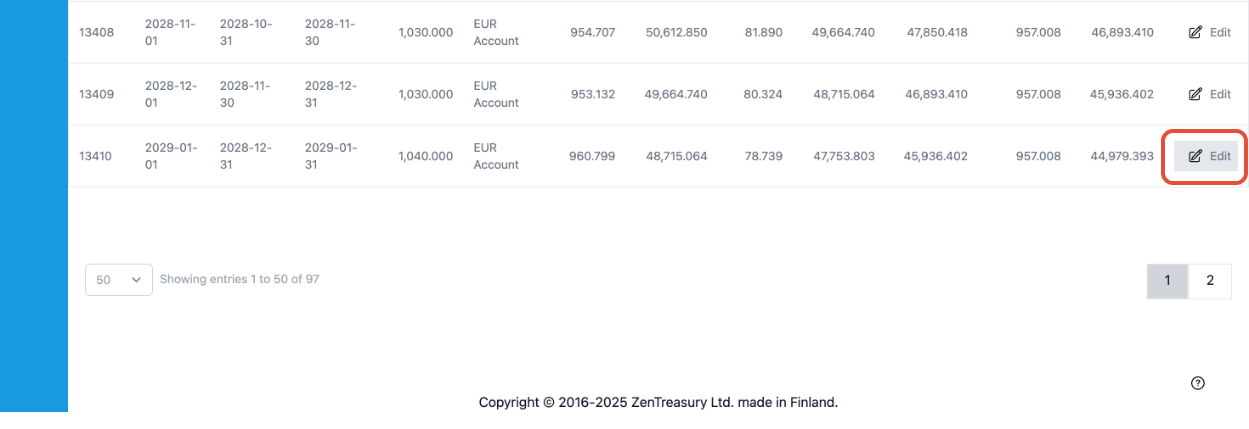
8. Now, scroll down and identify the row on which the first irregular price increase happens. For lease 1, this will be on 1.1.2029, where the system proposes 1040 € as the new payment (but it is 1050 € according to the agreement). On this row, on the right, click Edit.
9. In the opening window, correct Fixed payment amount to be the correct value for the monthly payment, in this case 1050 € and press save.
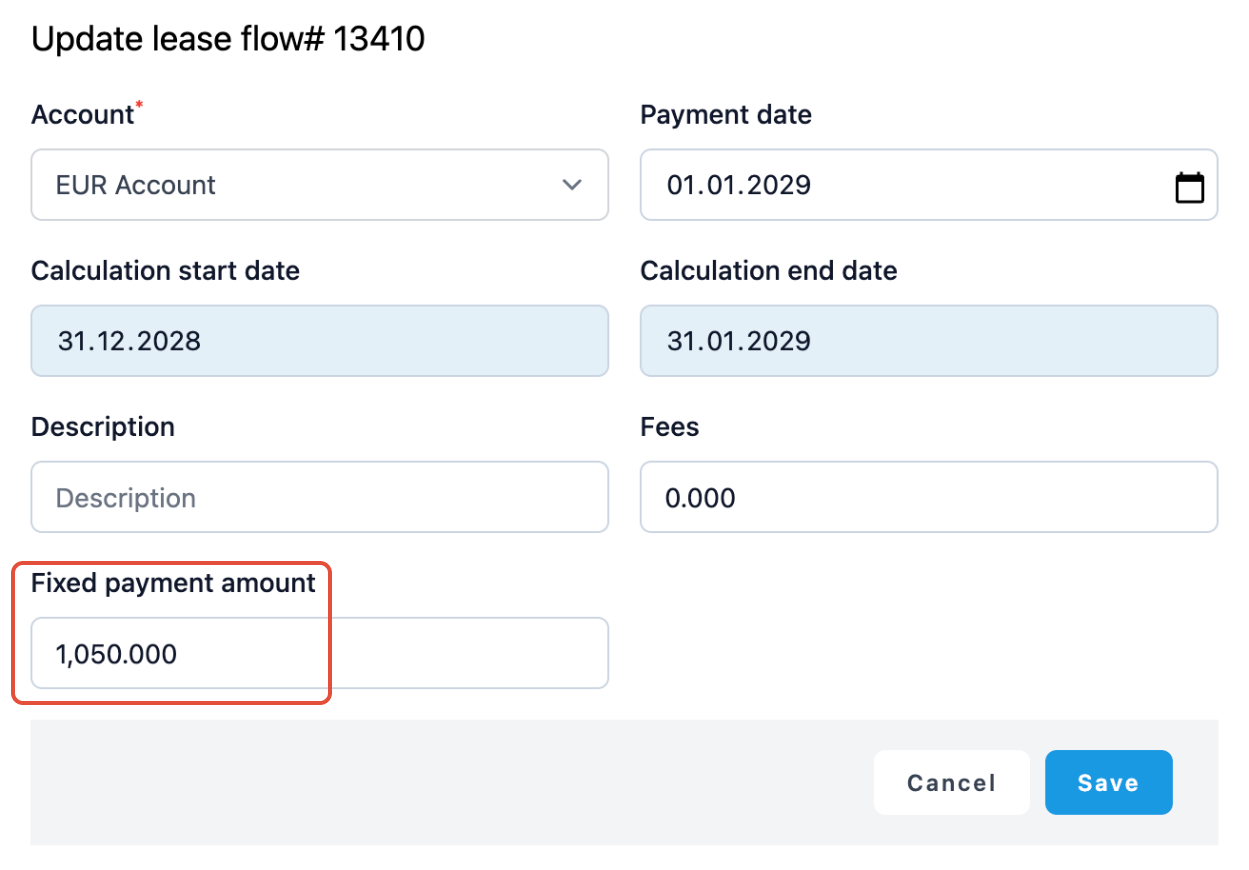
10. Now you can see in the lease flows that the monthly payment on 1.1.2029 has been modified to the correct value of 1050 €.
11. Repeat steps 9 and 10 for all payments starting from the first irregular price increase. In this case, payments from February 2029 to December 2032 need to be edited.
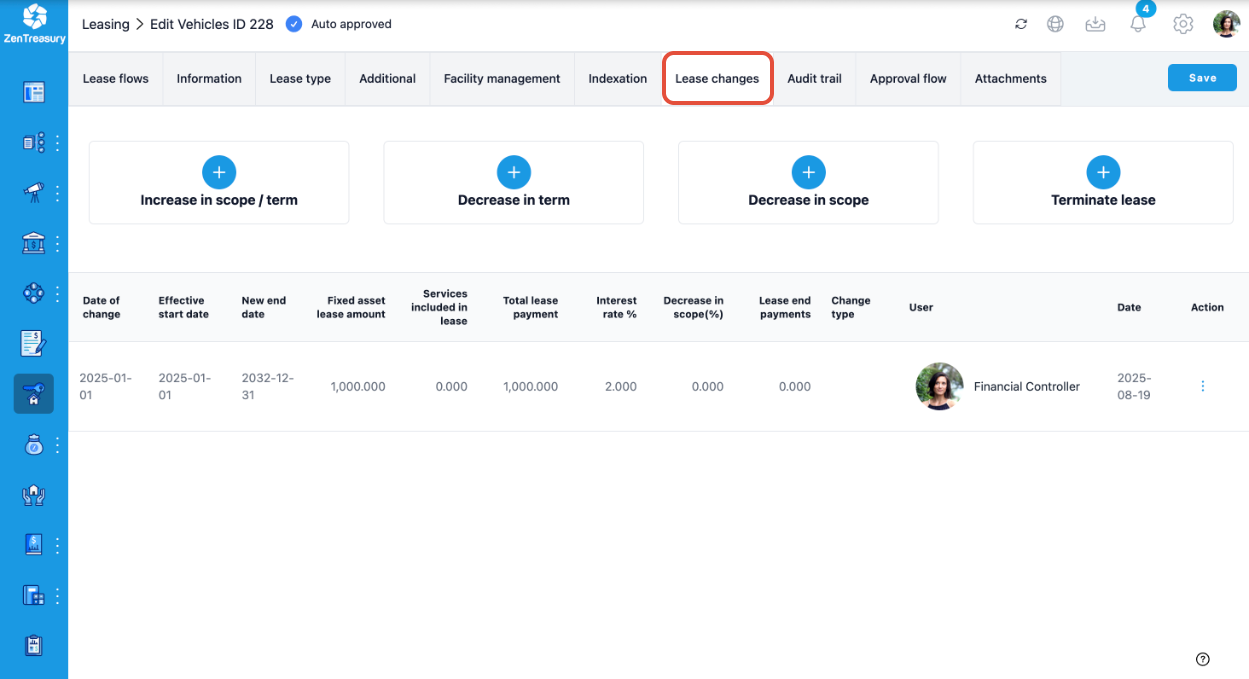
NOTE: Do not use this method to change individual lease payments during the lifetime of the lease (e.g. if the agreement is modified and the price changes). Lease changes during the lifetime of the lease should be made under the LEASE CHANGES tab.
Was this article helpful?
That’s Great!
Thank you for your feedback
Sorry! We couldn't be helpful
Thank you for your feedback
Feedback sent
We appreciate your effort and will try to fix the article