Managing user accounts in ZenTreasury is an admin-exclusive task. Admins have the ability to create new user accounts, as well as inactivate them when necessary. This article explains how to add new users to your ZenTreasury environment and manage them.
Creating a new user
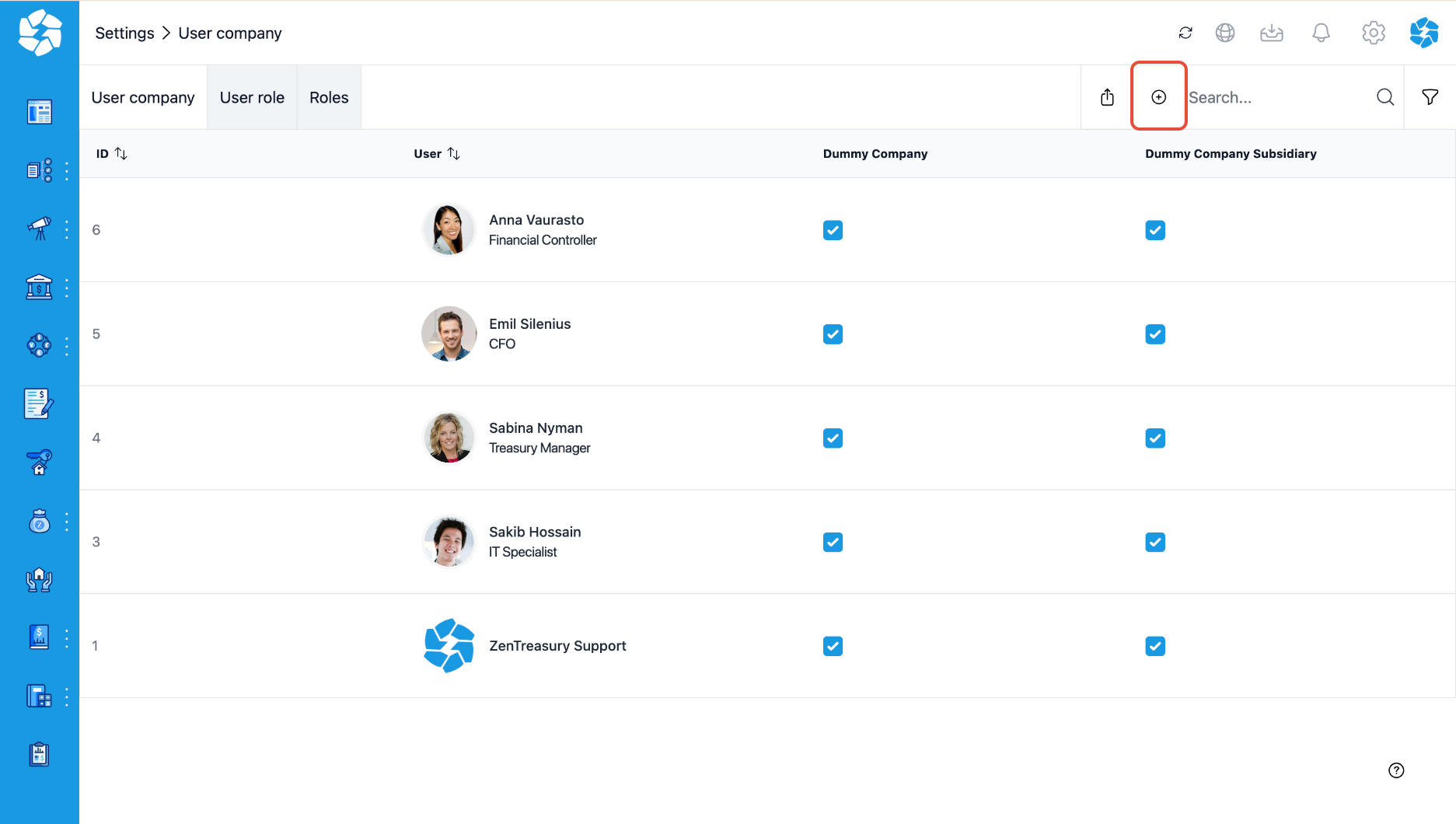
1. Navigate to Settings > User data and click the "+" icon located at the top right corner to add a new user
2. Enter User Information: name, email address, and enter the password two times.
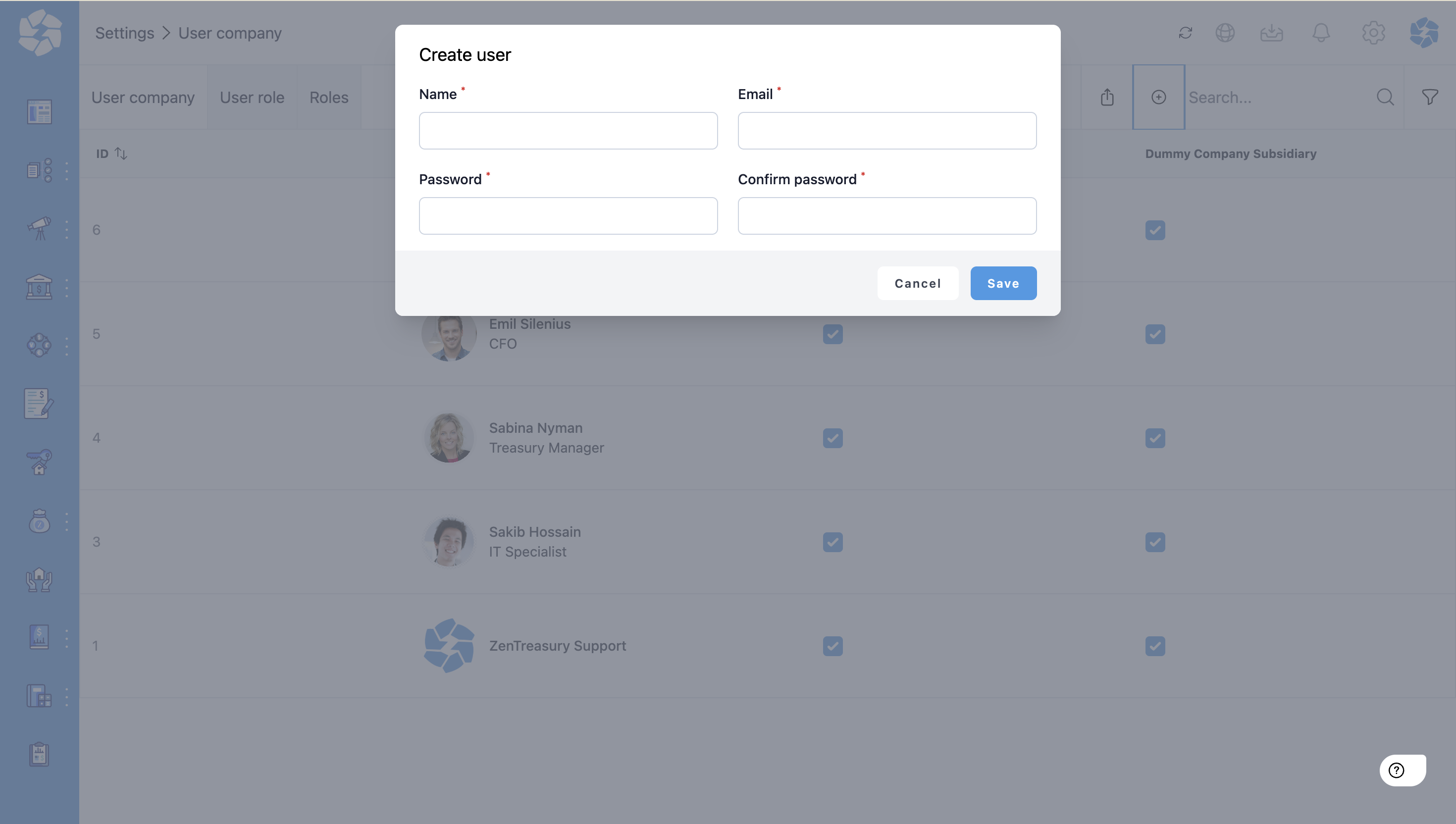
3. Click "Save", and a verification email will be sent to the new user.
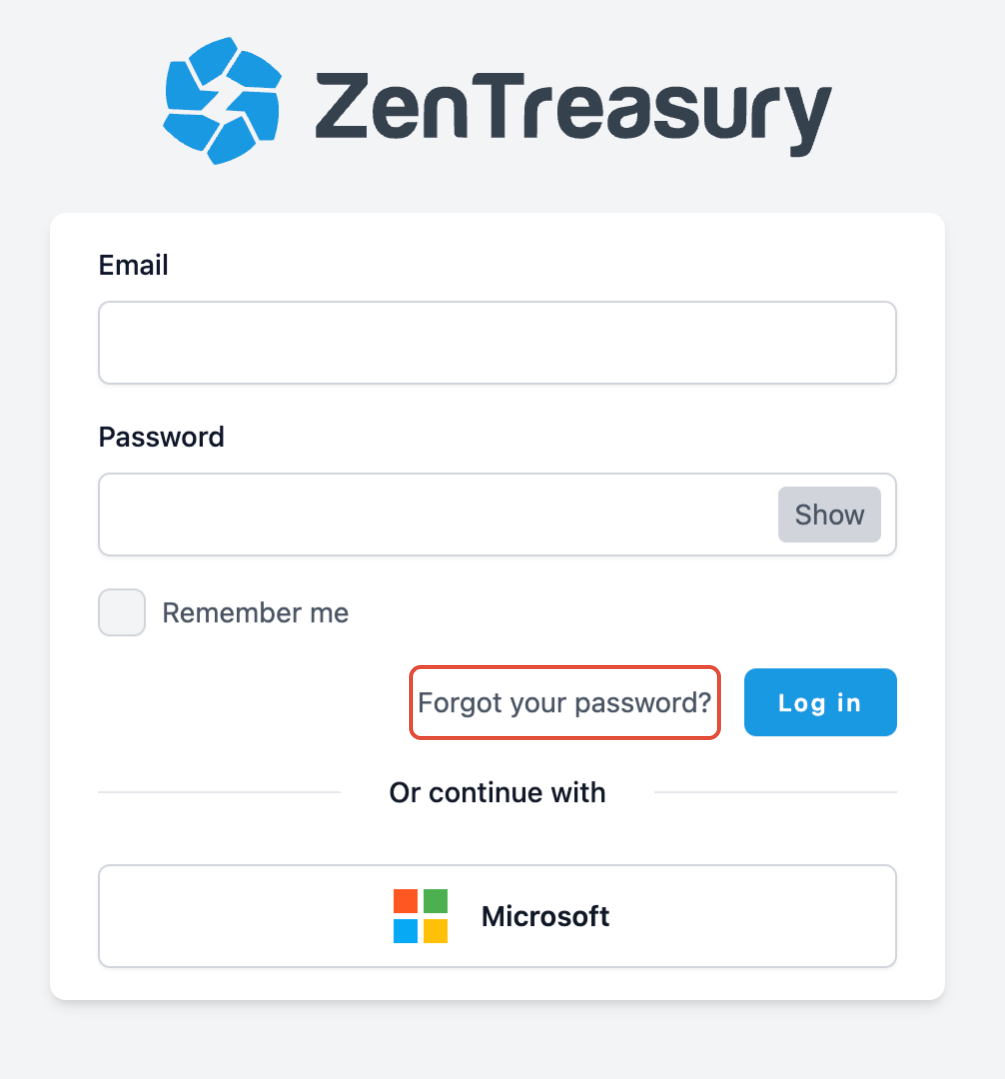
4. If the user is unable to find verification email, we suggest you to instruct the user to simply click on the ''Forgot your password?'' button on the log in page.
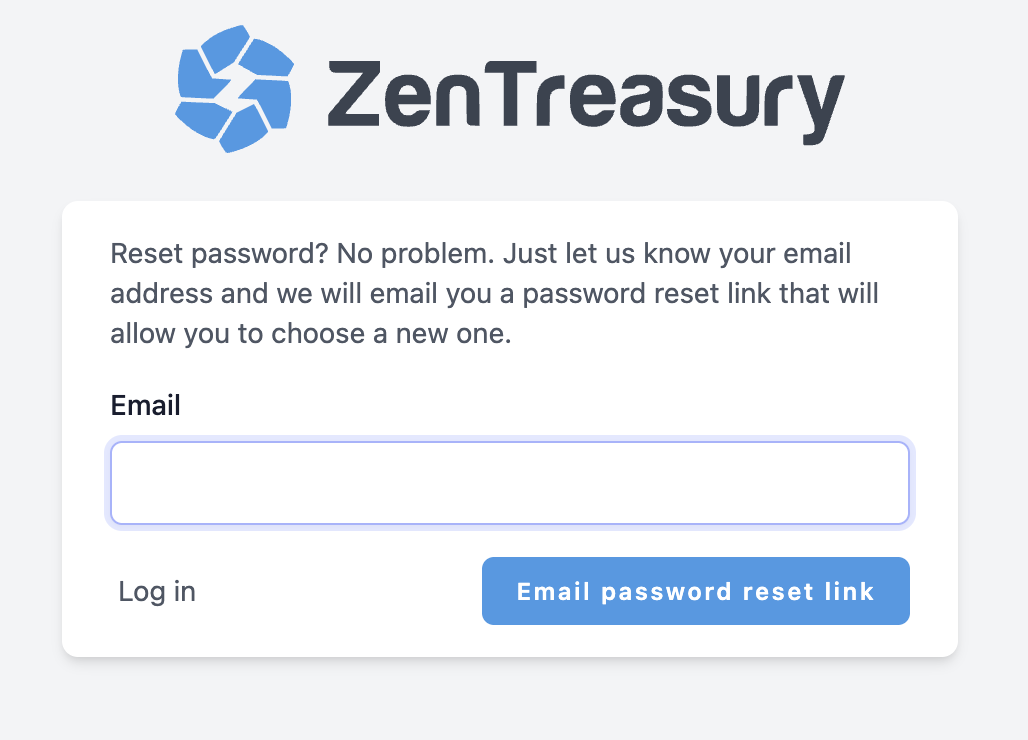
5. Here, user can and insert an email address to receive the password reset link.
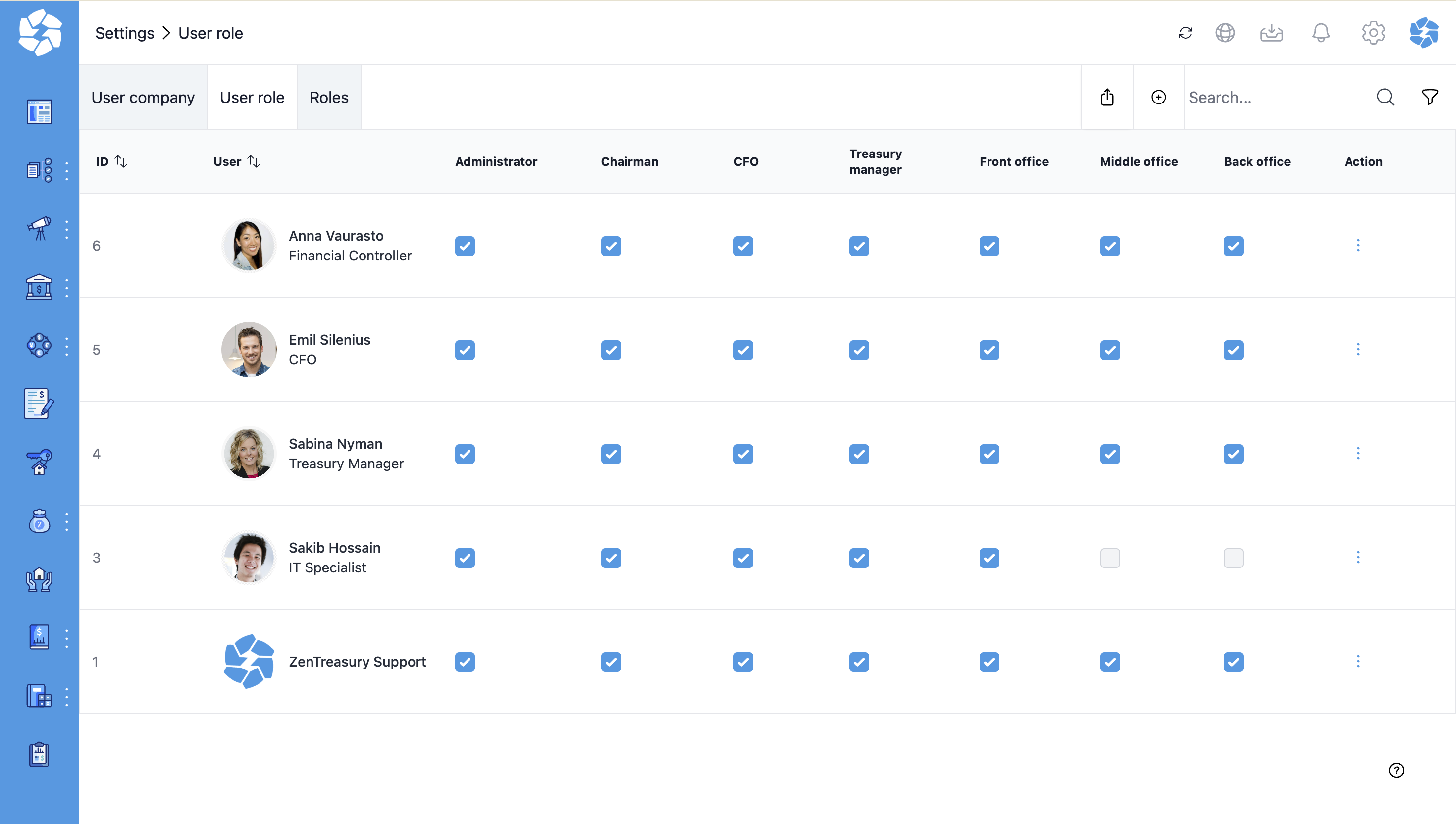
6. The new users will now appear in the user listing, along with the role(s) assigned to them.
Inactivating a user
If a user leaves the company or no longer needs access to ZenTreasury, their account should be inactivated. Only admin can inactivate a user.
1. Go to Settings > User data > User Role and locate the user you wish to inactivate.
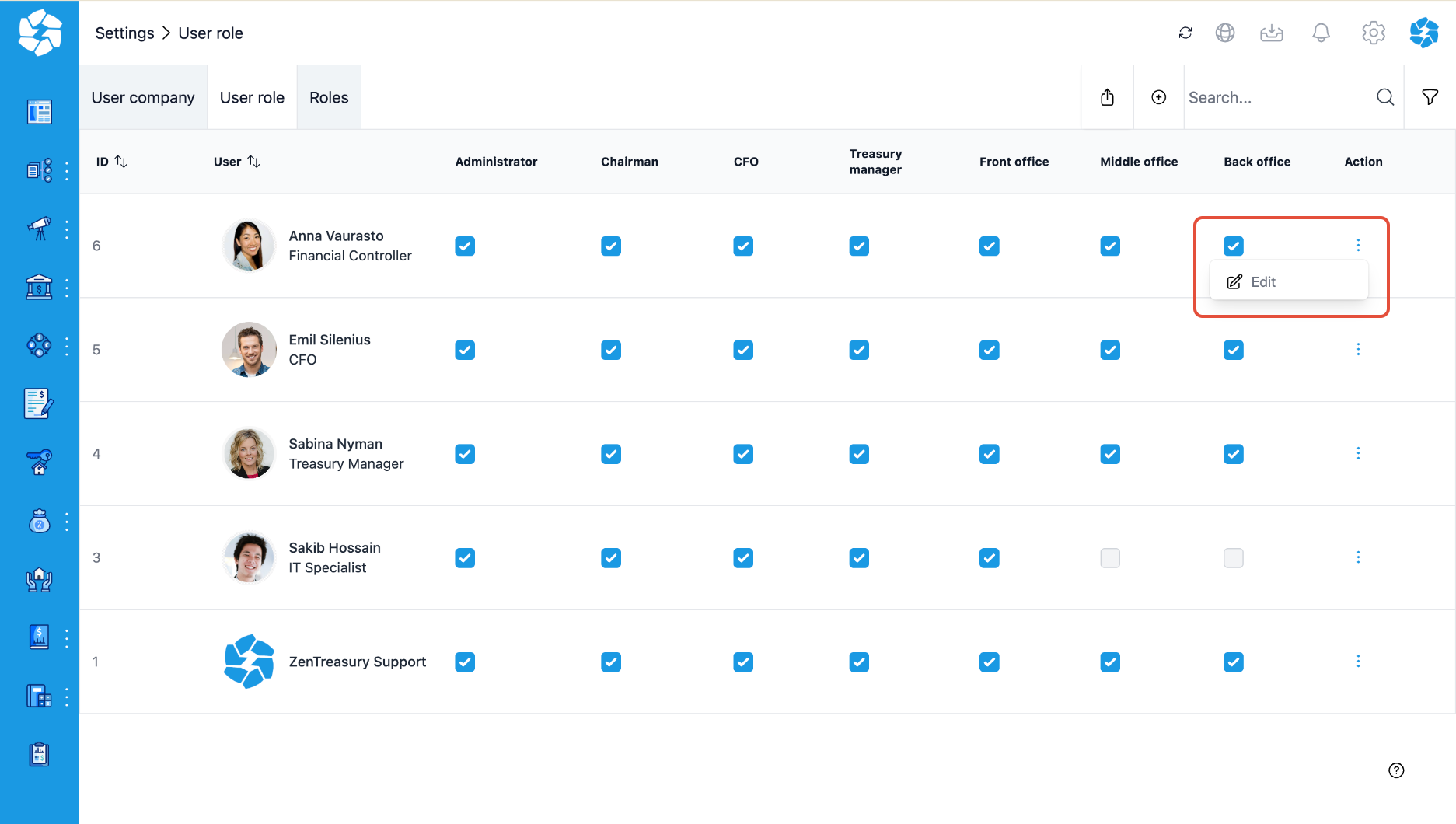
2. Click the three dots at the end of the user's row and select "Edit".
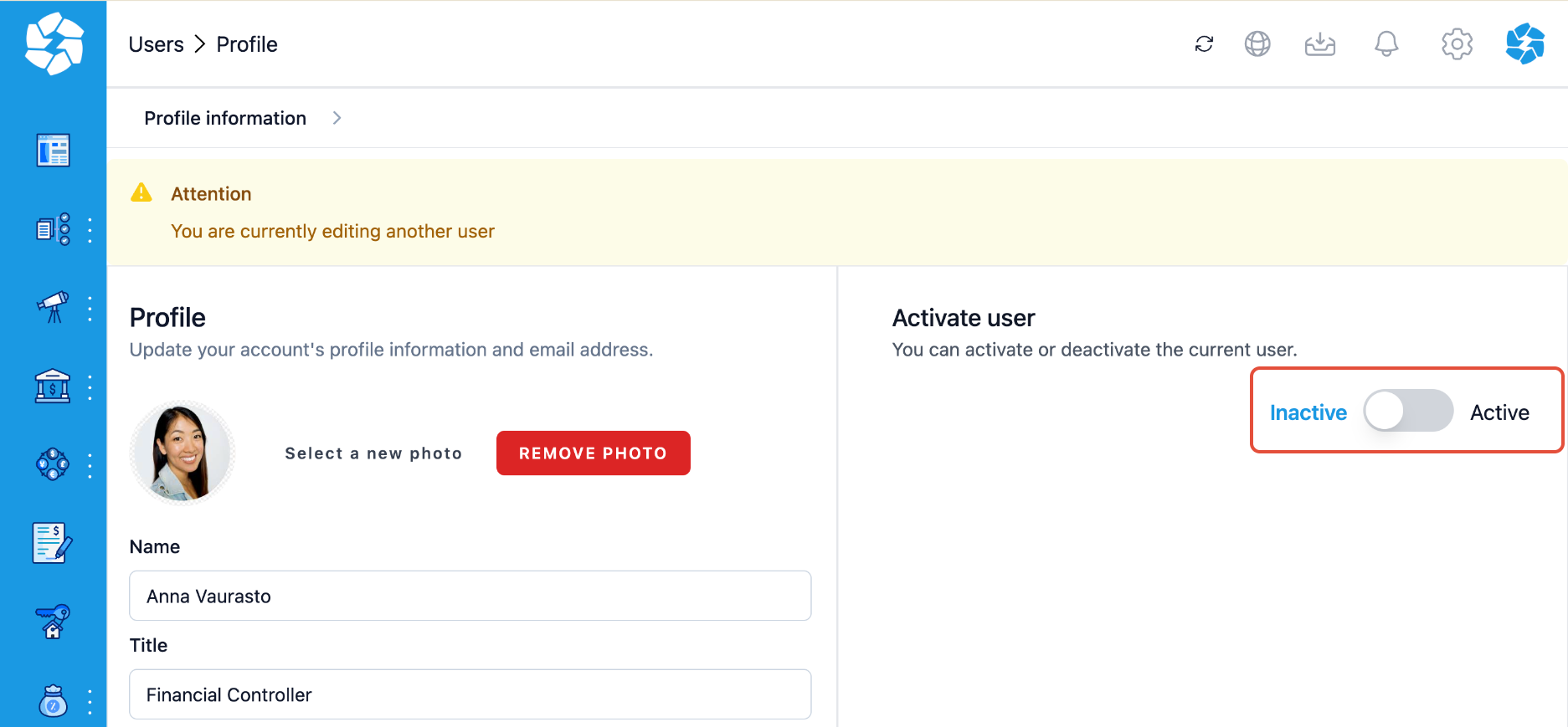
3. Change Account Status: Push the Inactive/Active button to "Inactive" to inactivate the user's account.
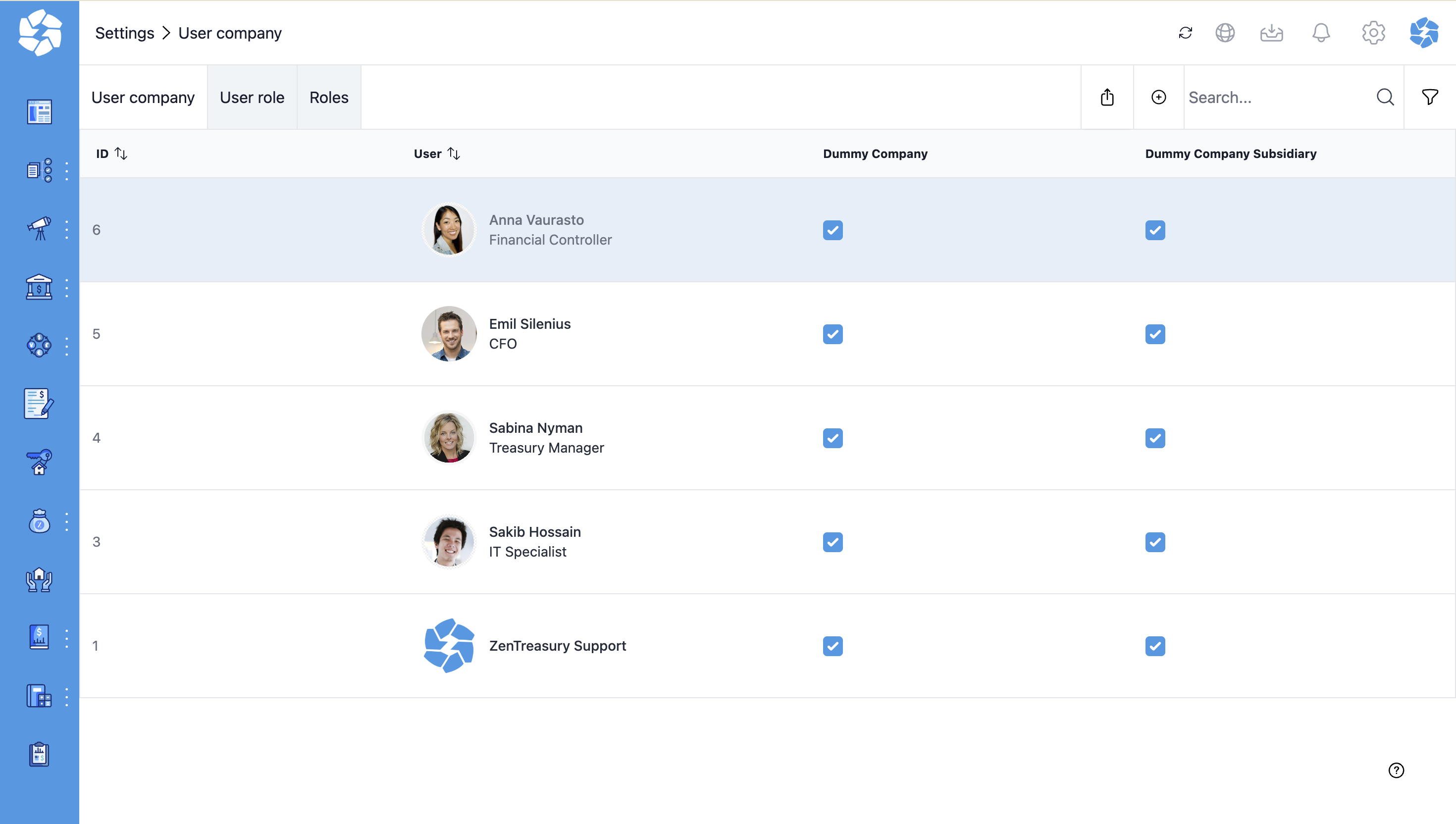
4. Inactivated users are highlighted in blue in the user listing. To reactivate a user, follow the same steps but toggle the Inactive/Active button to "Active".
Was this article helpful?
That’s Great!
Thank you for your feedback
Sorry! We couldn't be helpful
Thank you for your feedback
Feedback sent
We appreciate your effort and will try to fix the article