This document outlines the key differences between the old ZenTreasury (ZenTreasury 1.0) system and the new system (ZenTreasury 2.0). Please review carefully when migrating, as some workflows, defaults, and settings have changed.
User Data & Roles
- Audit trail throughout the system
- Task Management and Approval Flow throughout the system to ensure company’s hierarchy and decision-making processes
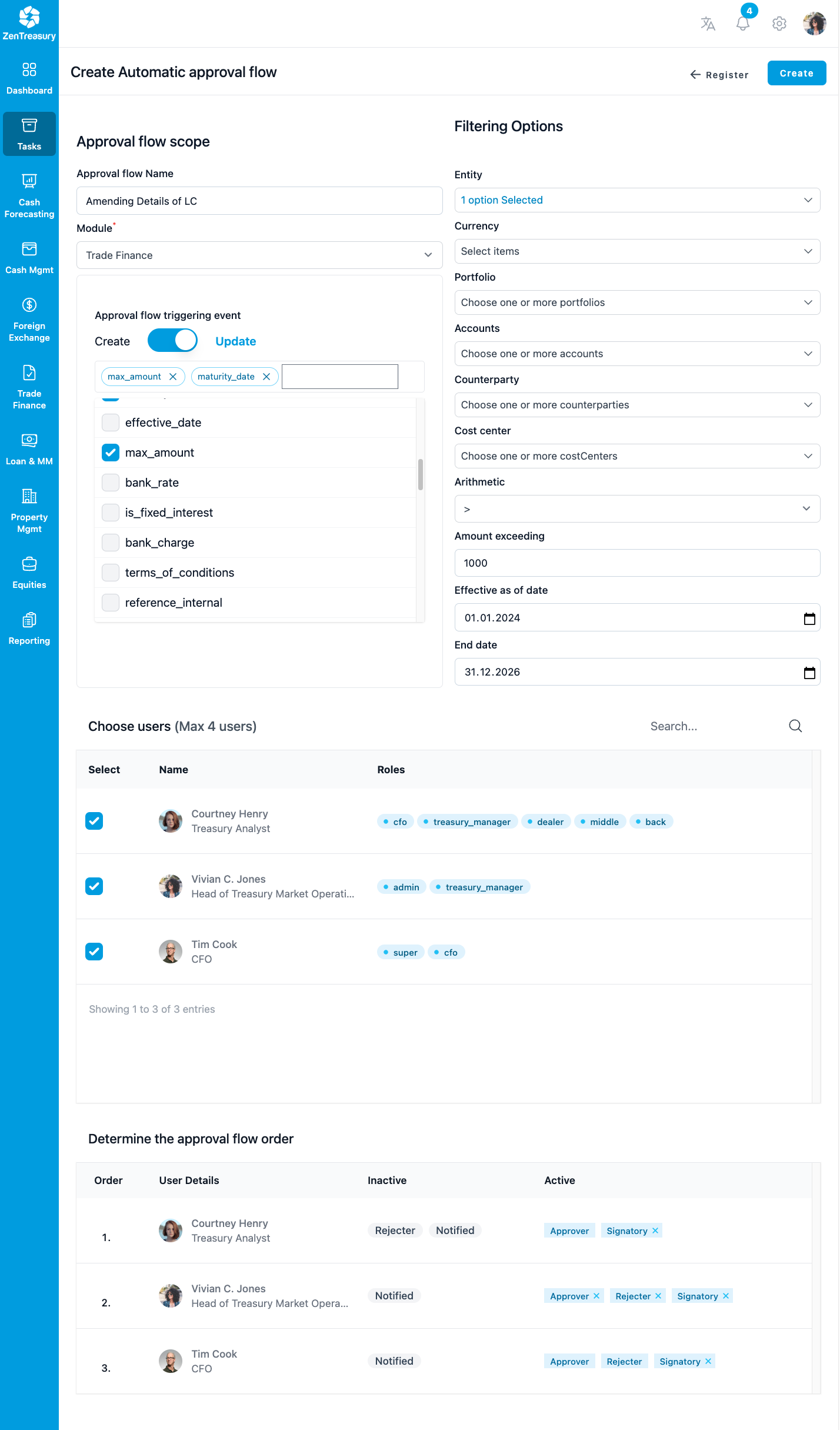
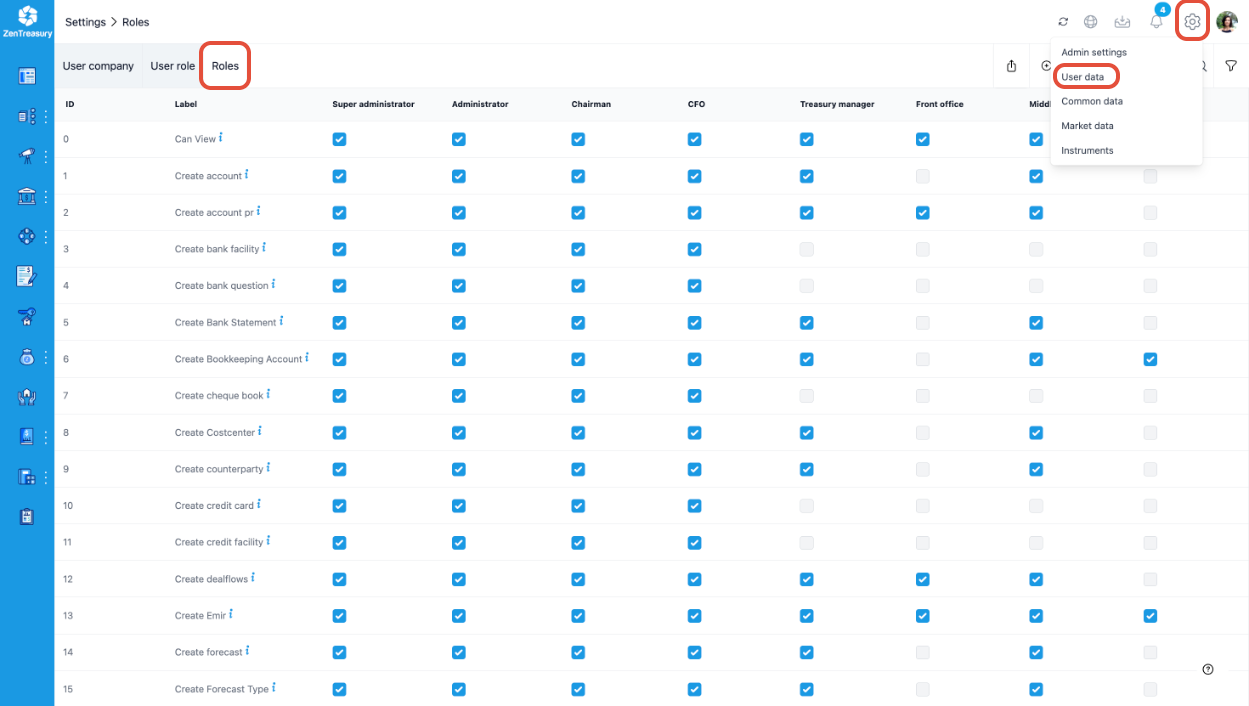
- The number of tasks and related permissions has increased significantly (from 78 in the ZenTreasury 1.0 to 145 in the ZenTreasury 2.0). Admins must review and reconfigure role settings after migration. Navigate to Settings > User data > Roles.
Instruments
- Instruments must be defined and selected before saving an agreement. We recommend not to change your instruments after they have been attached to any agreements in the system.
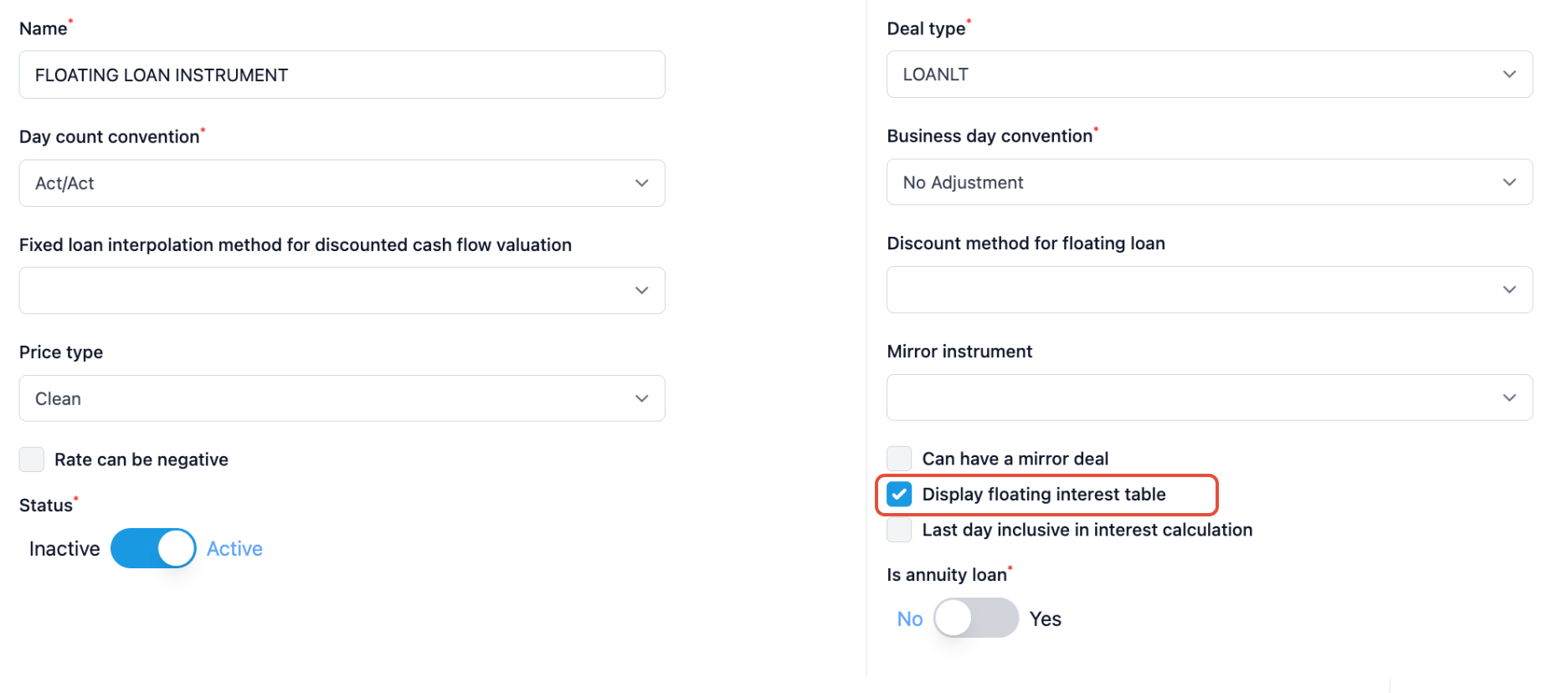
- Prior to creating a floating interest loan agreement in the system, ensure that the instrument selected is a floating one.
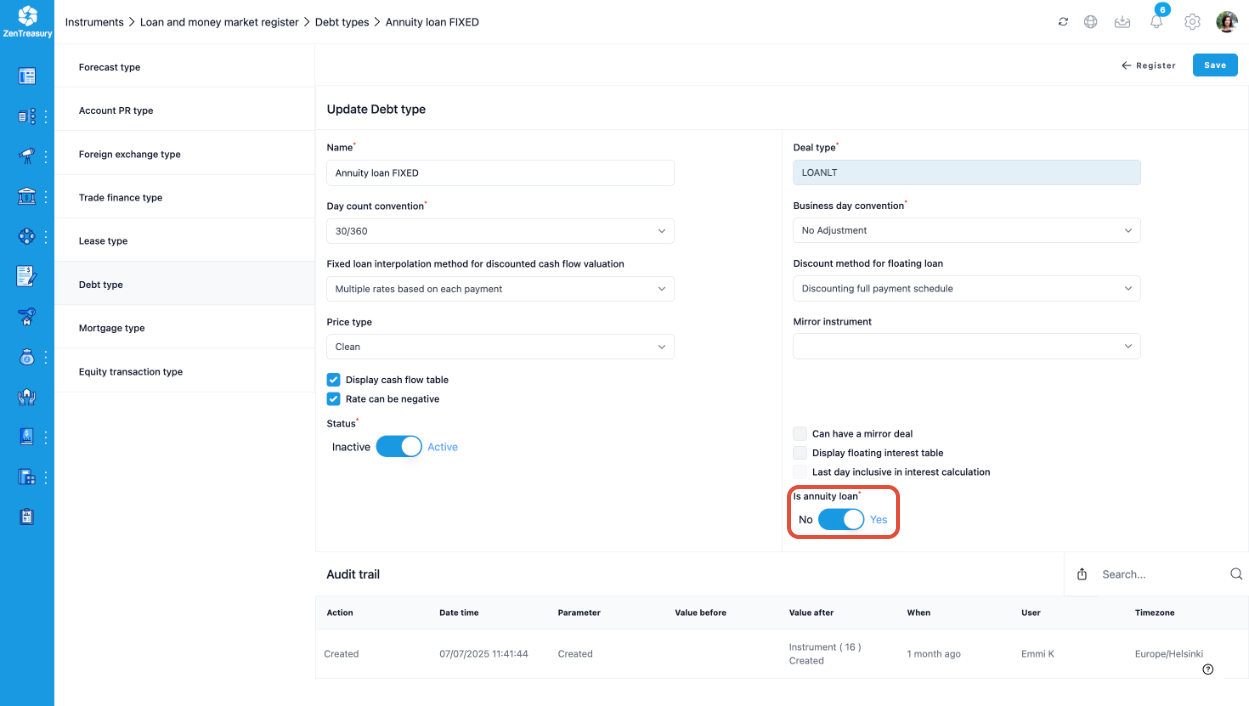
- Annuity loan is supported in ZenTreasury 2.0
There is a functionality difference in Zen 2.0 on the loan instrument side. Automation has been created for bullet-structure short-term loans (deal types LOANST and INVST). In practice, this means users no longer need to manually create the payment schedule i.e. select an interest payment or amortization schedule. Instead, the system automatically generates the flows at the start and end, as well as the interest flow at loan maturity.
For this reason, the ‘Clear all’ and ‘Generate payment schedule’ functions are not available on the cash flow page.
For clients migrating to Zen 2.0, we recommend reviewing your loan instrument types in detail before migration to ensure the necessary deal type changes are made prior to data migration.
The ‘Loan changes’ tab does not exist in Zen 2.0. Since the ‘Clear all’ function allows you to remove the most recent change, a separate tab for this functionality is no longer needed.
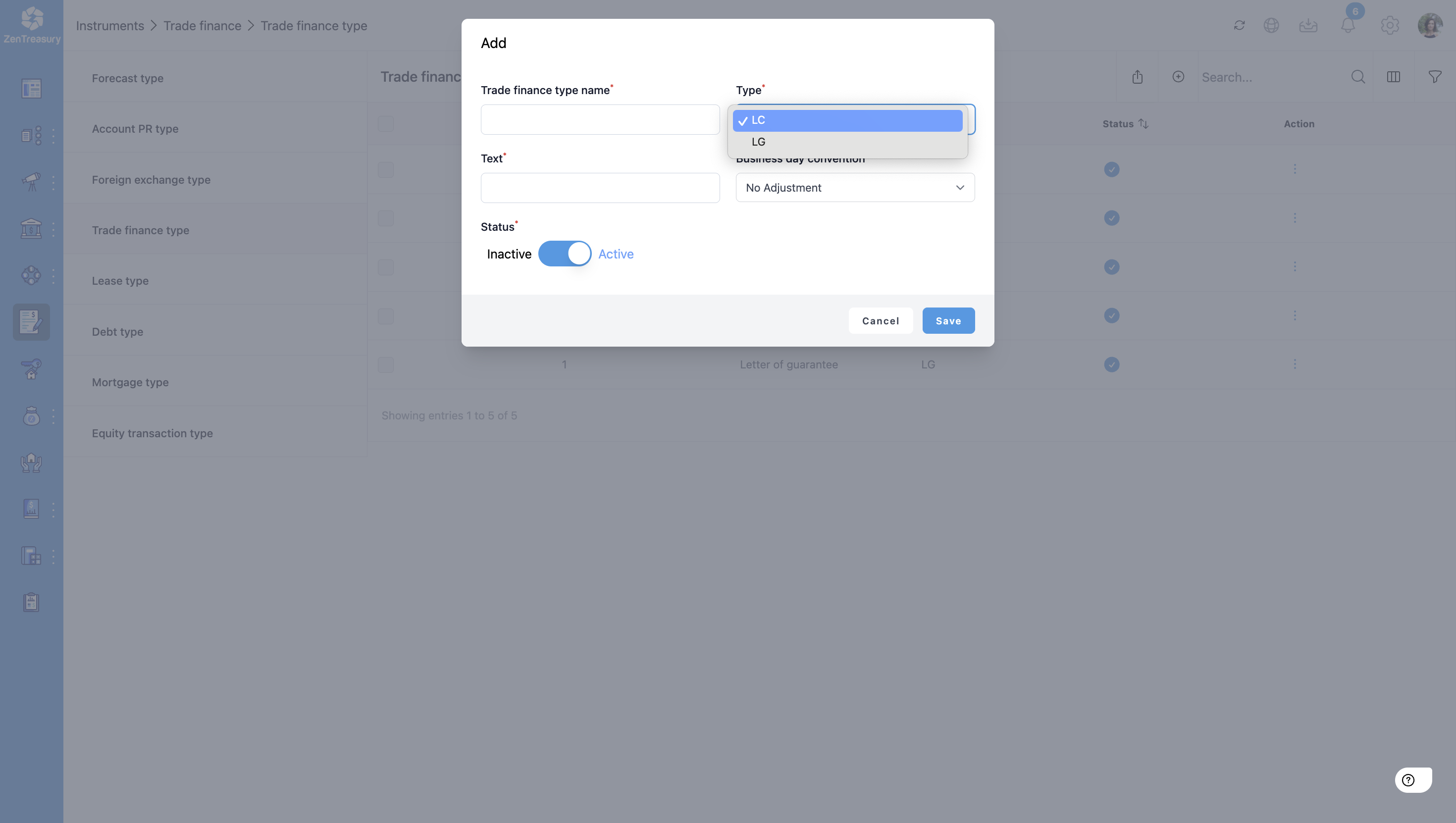
- Trade Finance Instruments: LG (Guarantees) and LC (Letter of Credit)
- Interest Rate Swaps (IRS): In the ZenTreasury 1.0 system new instruments were created through the Loan Register and in the ZenTreasury 2.0 you can create an IRS instrument first, then link it via Loan & Money Market Register.
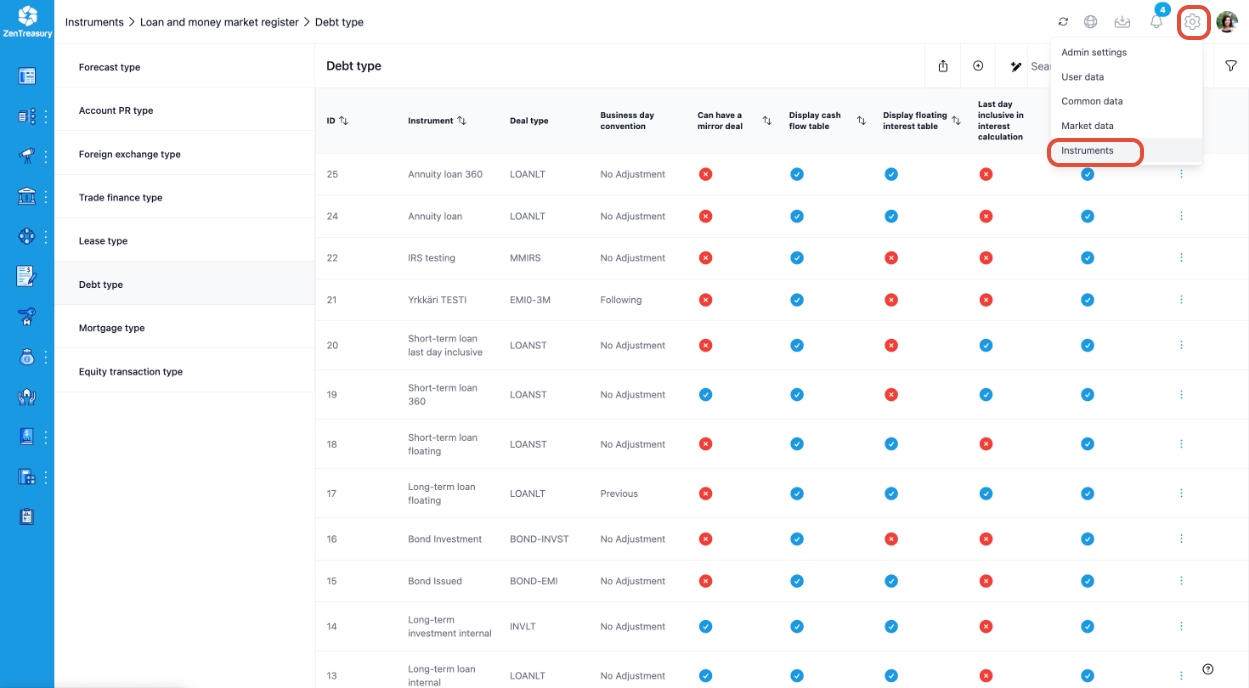
We reccommend our clients to review and reconfigure instrument settings after migration.
Navigate to Settings > Instruments.
Leasing module
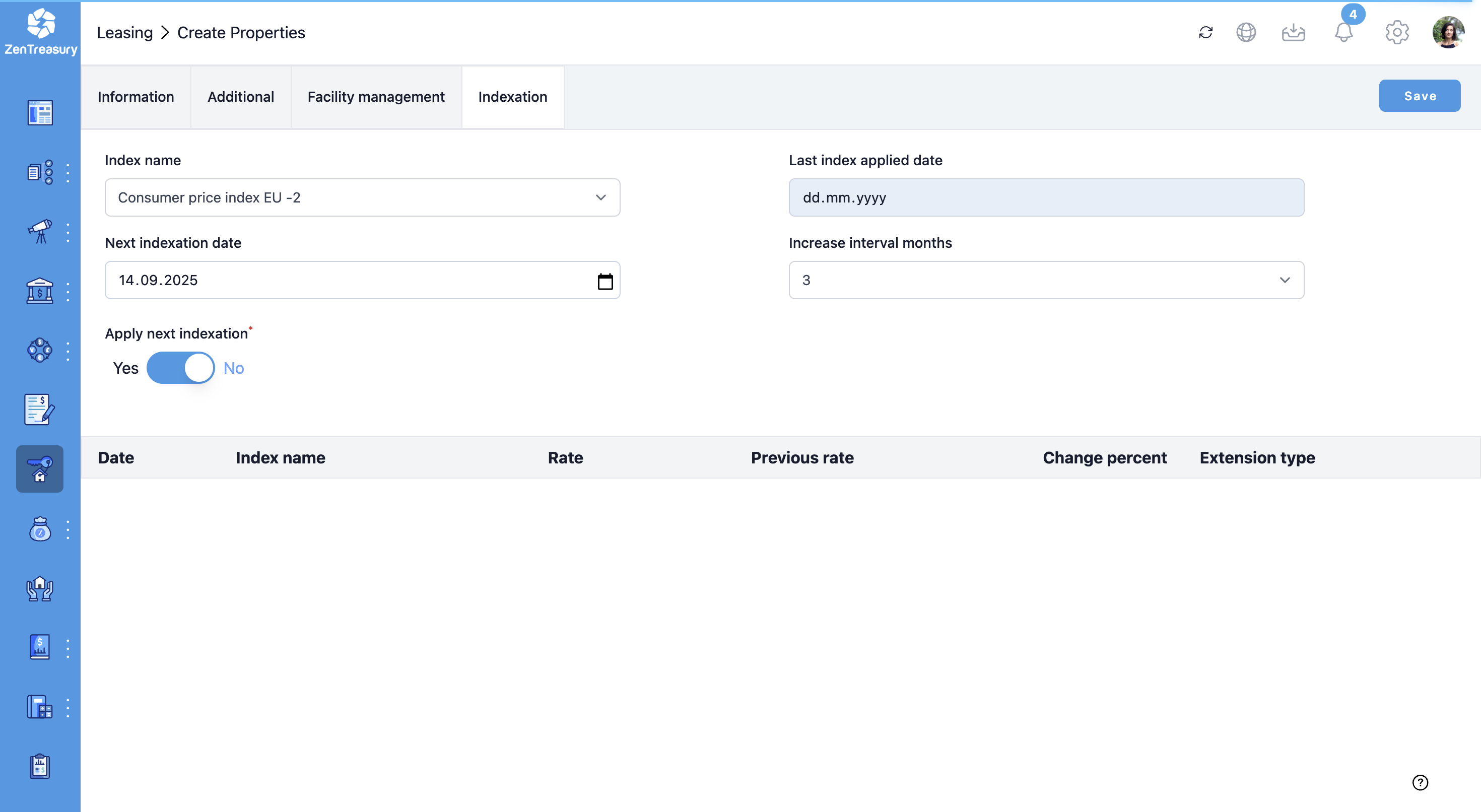
- Lease indexation feature is available in ZenTreasury 2.0
Cash Flow Forecasting
- ZenTreasury 2.0 consolidates your global cash positions and connects to all your banks, enabling you to optimize liquidity across your enterprise.
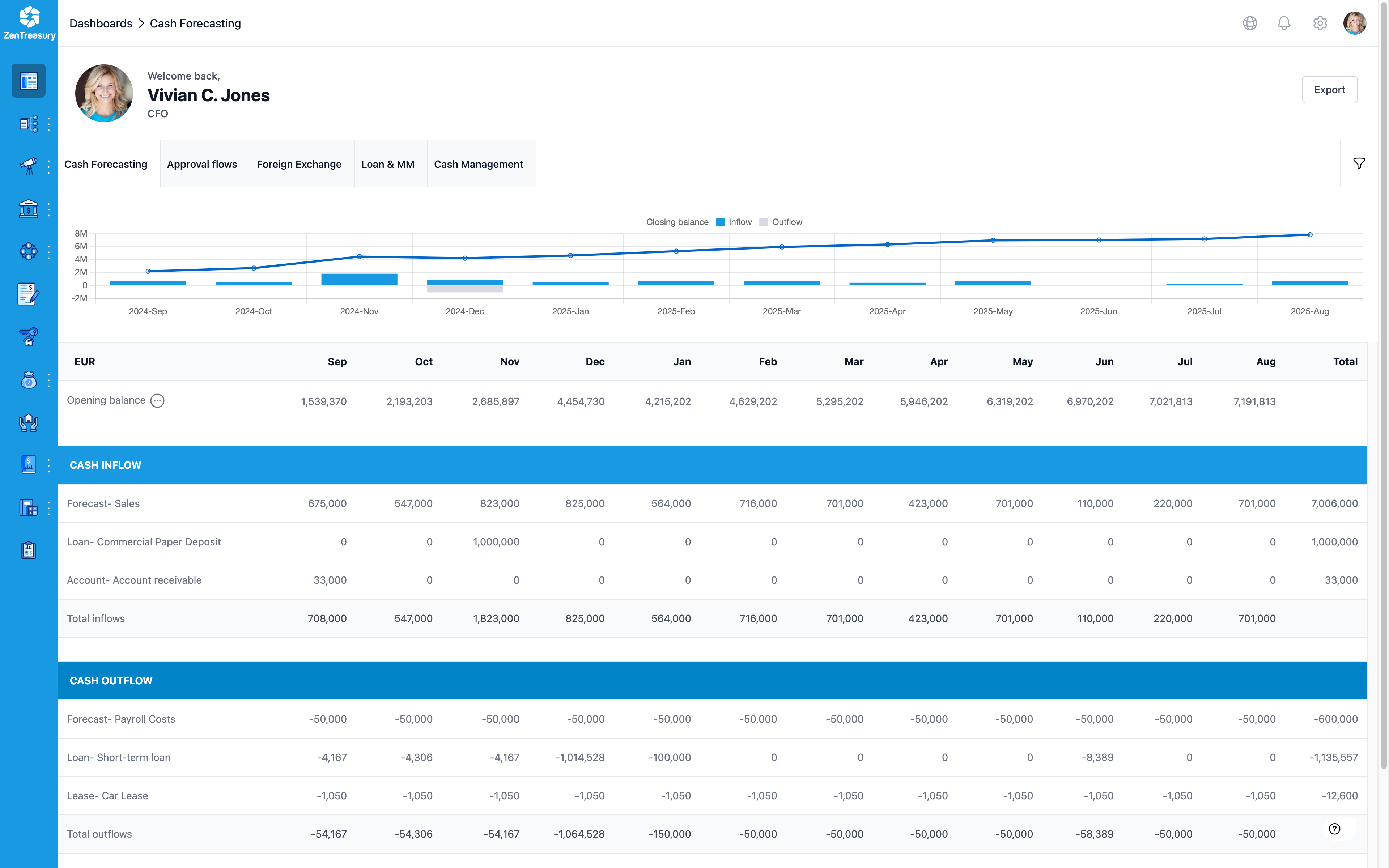
- ZenTreasury 2.0 enhances forecasting accuracy by unifying data from various sources, helping you manage daily, weekly, and monthly forecasts with ease.
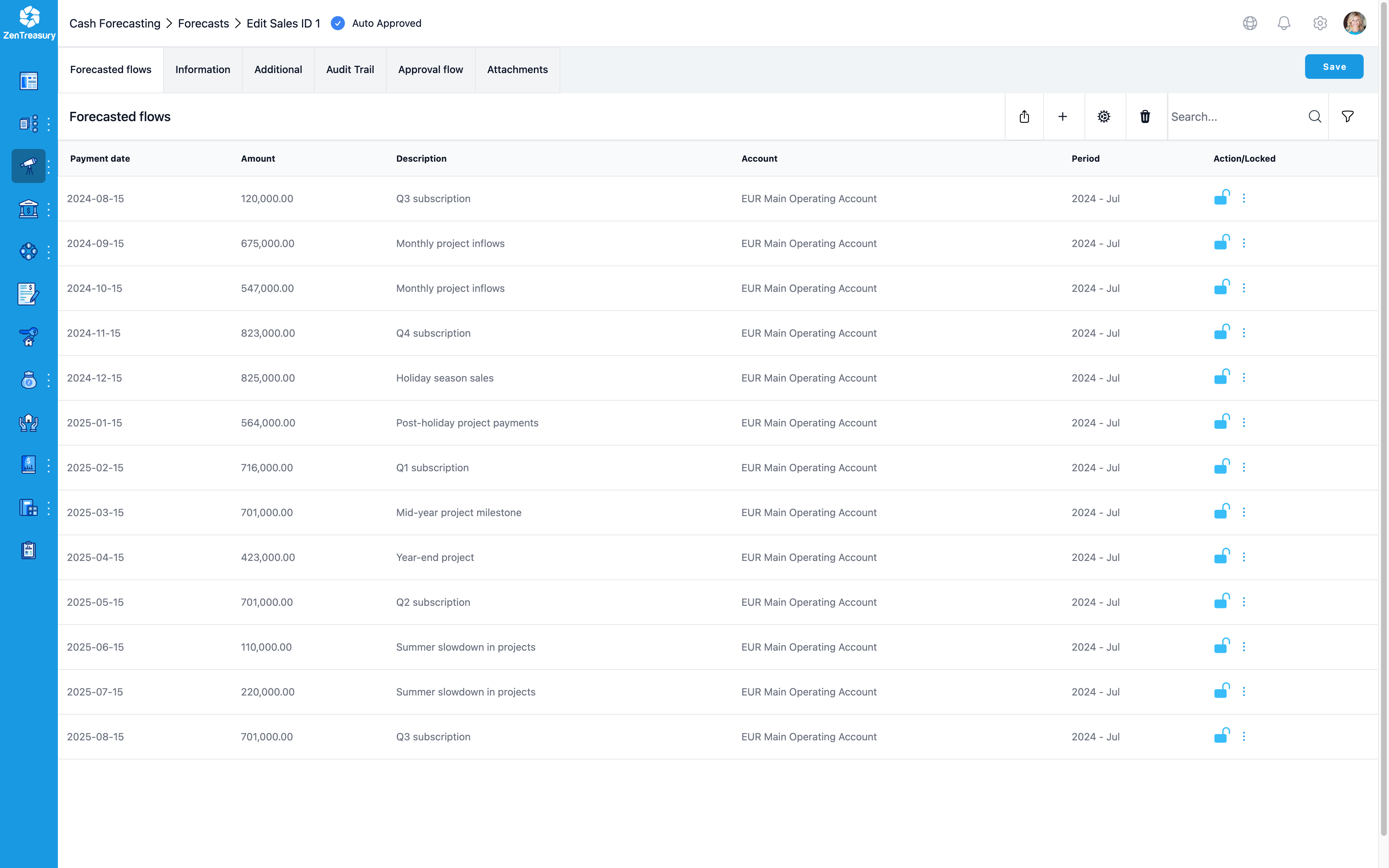
- ZenTreasury 2.0 consolidates all of your group's bank accounts, fixed deposits, short-term investments, and foreign currency balances into one comprehensive view, providing an overall balance with ease.
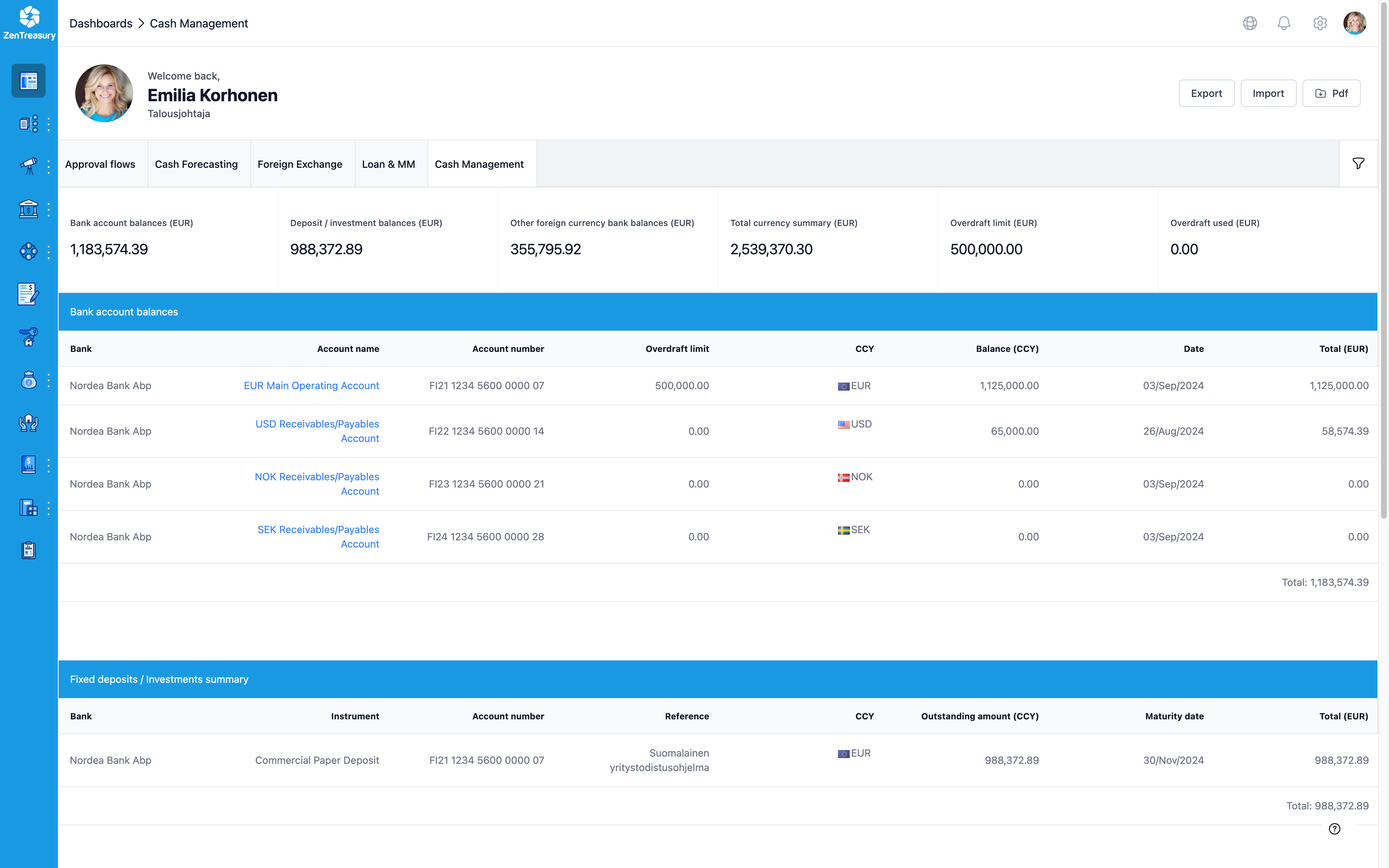
- ZenTreasury 2.0 automates the import of bank statements from multiple banks. You can also manually enter bank account balances to ensure your data is always up to date.
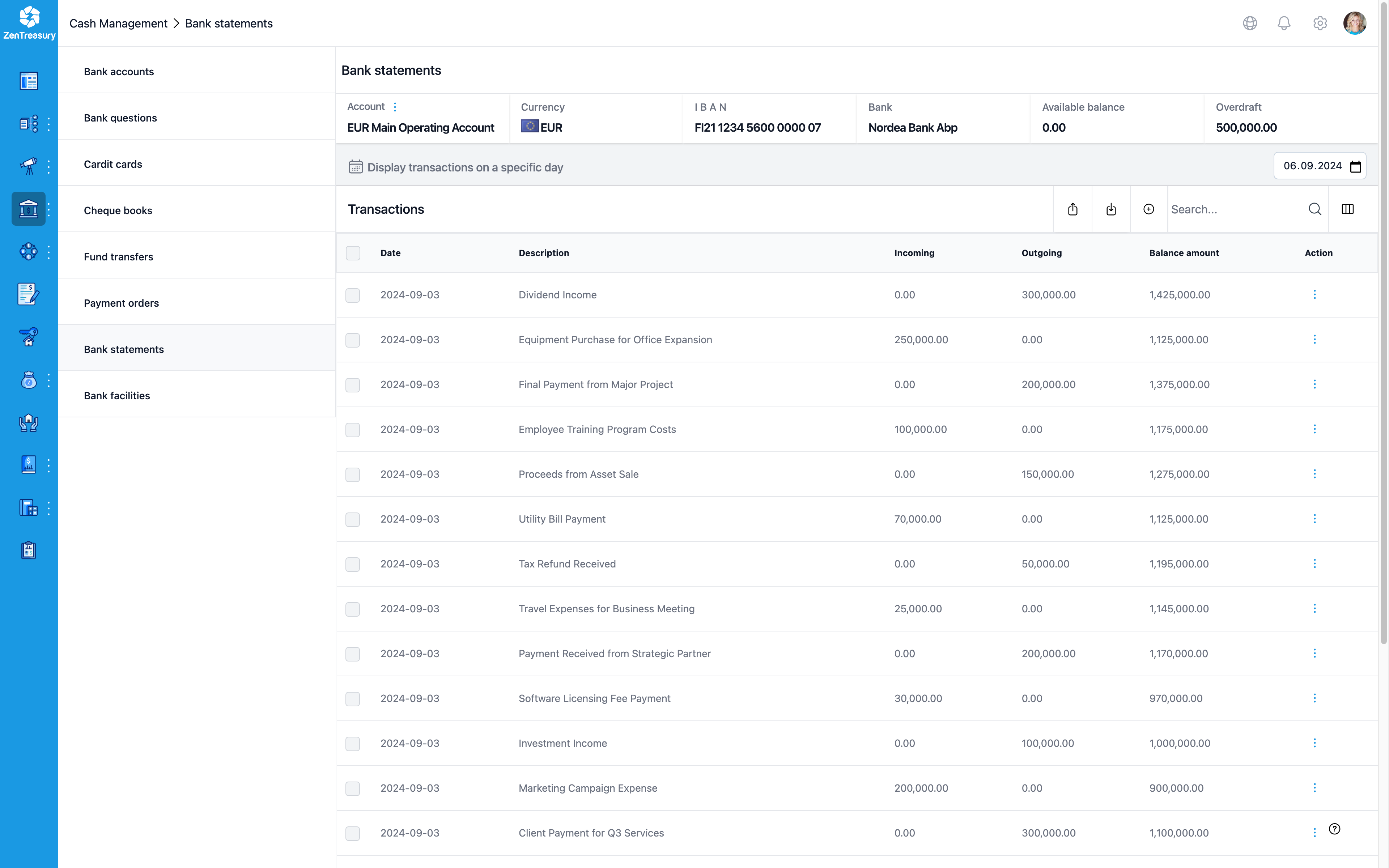
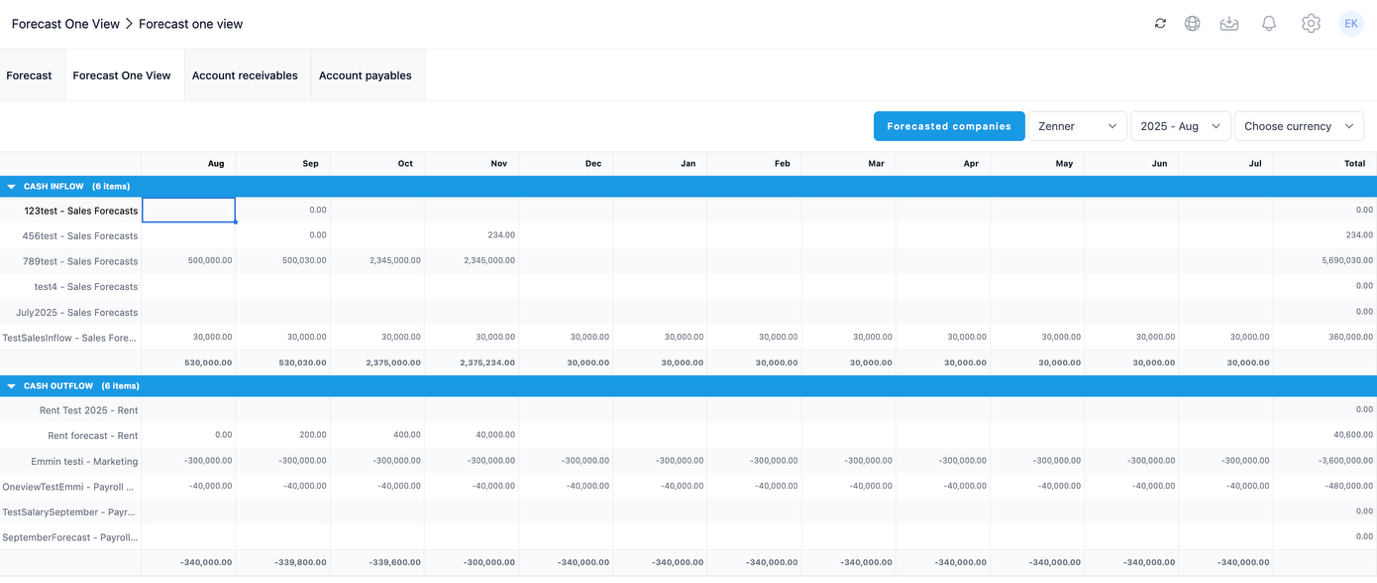
- Forecast One View is built to help you through forecasting process. It works similarly to Excel with its grid editor and allows you to insert large datasets at once while manually editing cells. Learn more in the support article about Forecast One View.
Reporting
- Guarantee Reports: Default setting in ZenTreasury 2.0 includes the last day (inclusive), whereas in ZenTreasury 1.0 it was exclusive.
- In the Lease accounting related reports the decrease to liability in base currency, decrease to right-of-use assets in base currency, realised difference in PL in base currency are calculated slightly differently in the new ZenTreasury system. The difference in data between the old and new systems is due to the FX rate logic used for currency conversion. In the old ZenTreasury all terminated leases used the FX rate from the lease effective date. In the new Zen 2.0, the FX rate from the termination date is used for those leases. This change in rate reference is causing the variation in reported values for terminated leases.
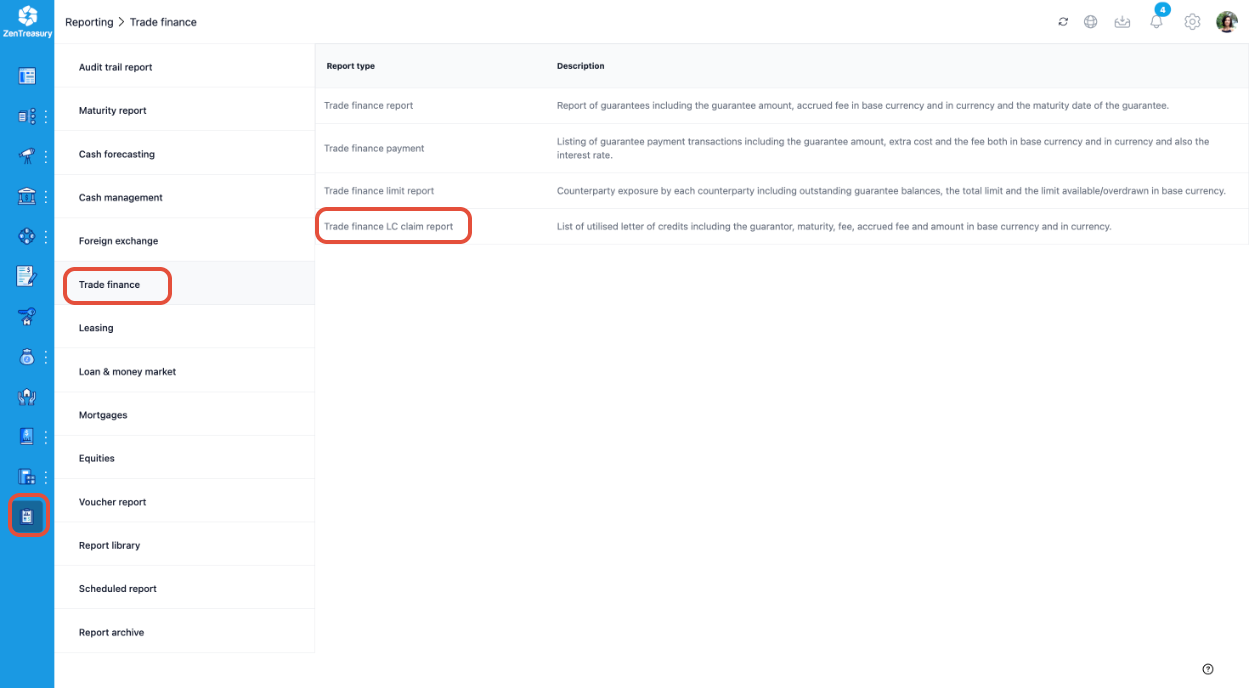
- New Report: LC Claim Report is now available. Navigate to Reporting > Trade finance > Trade finance LC claim report
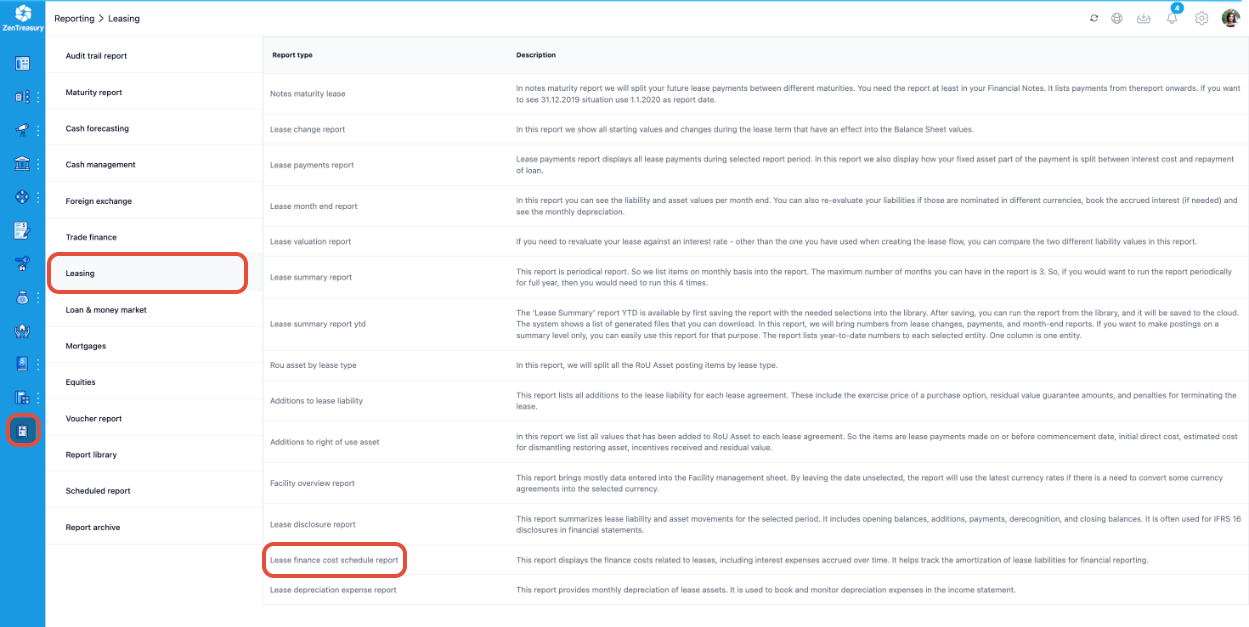
- New Report: Lease finance cost schedule report. Navigate to Reporting > Leasing > Lease finance cost schedule report
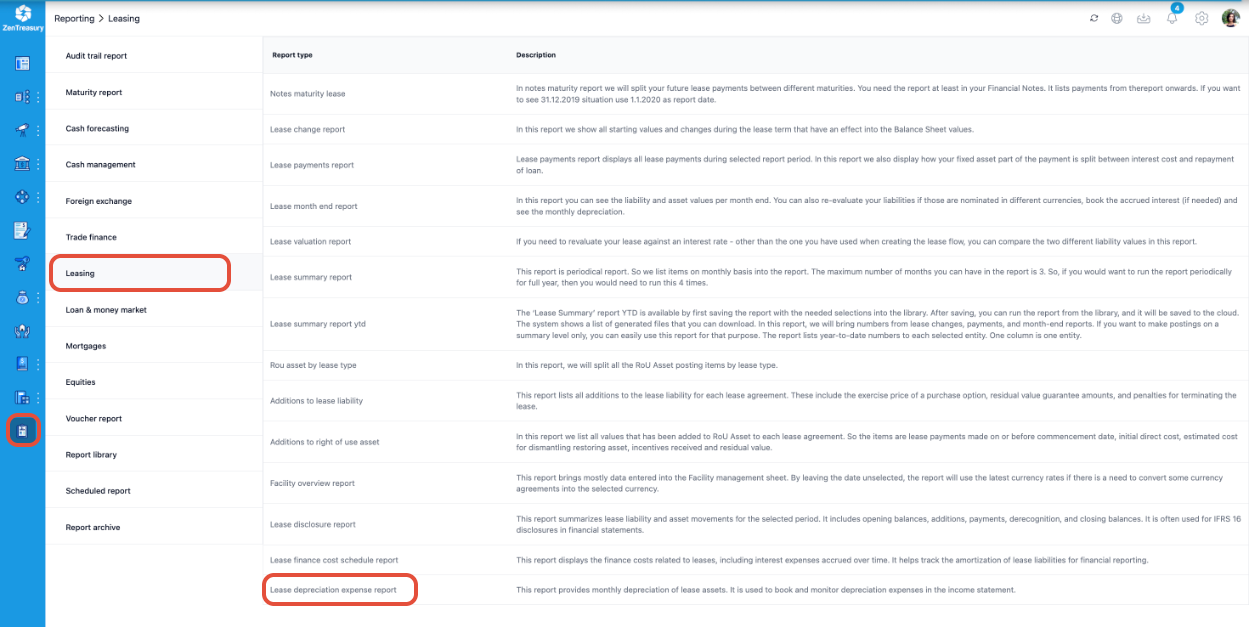
- New Report: Lease depreciation expense report. Navigate to Reporting > Leasing > Lease depreciation expense report.
- Scheduled Reports: Users can set up automated report delivery. Read more in the Scheduled Report support article.
Admin Settings
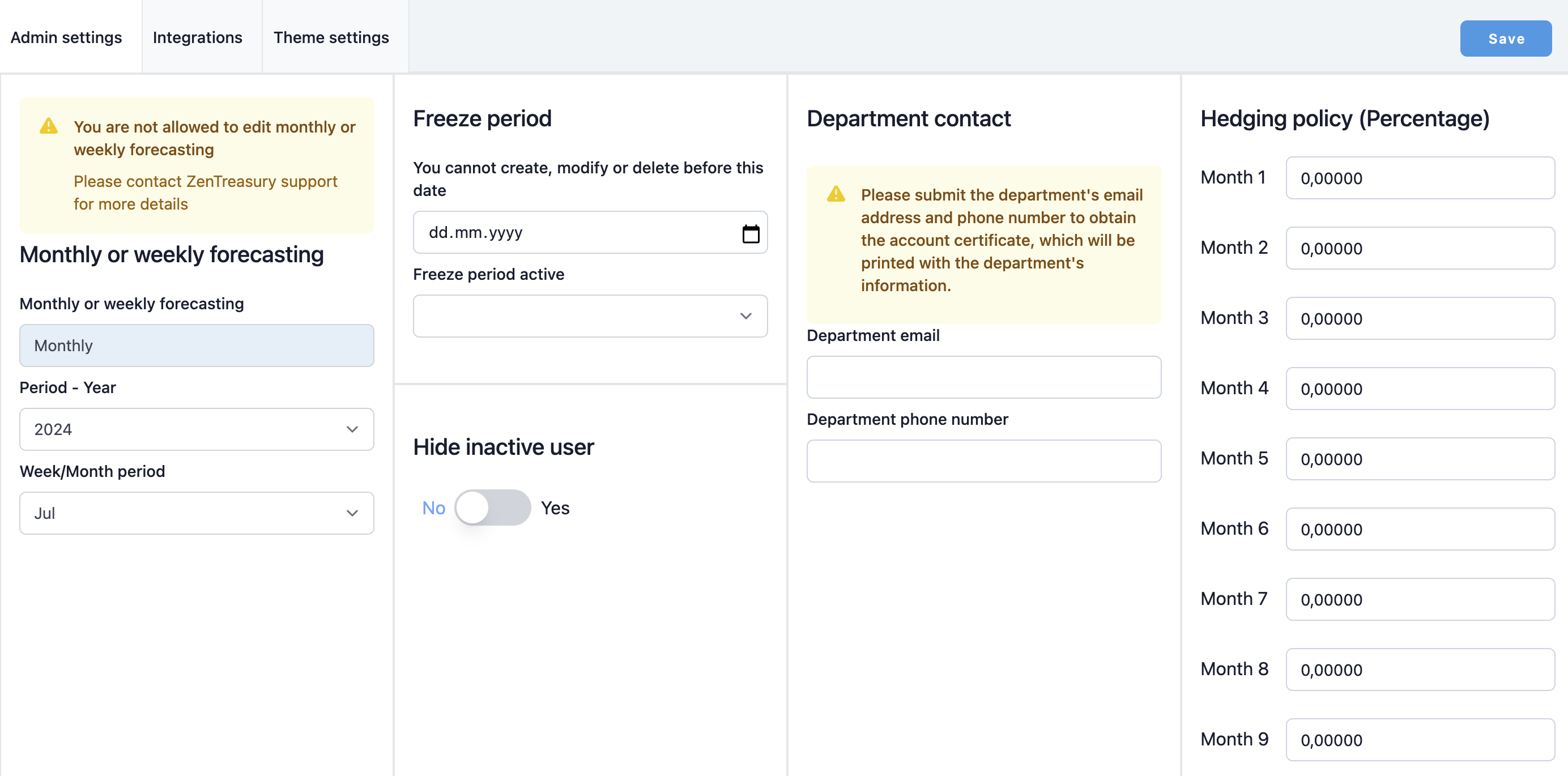
- Forecast Periods: Forecasts can now be created for periods beyond the original setting.
- Hedging Policy: New configurable setting under Admin.
- Hide inactive users feature: You can hide inactive users from the users list by turning the ''Hide inactive user'' feature on.
- IFRS Accounting Defaults: Leasing counterpart defaults are now found under:
Settings → Common Data → Companies → Edit.
User Experience & Navigation
- User specific decimal and format settings
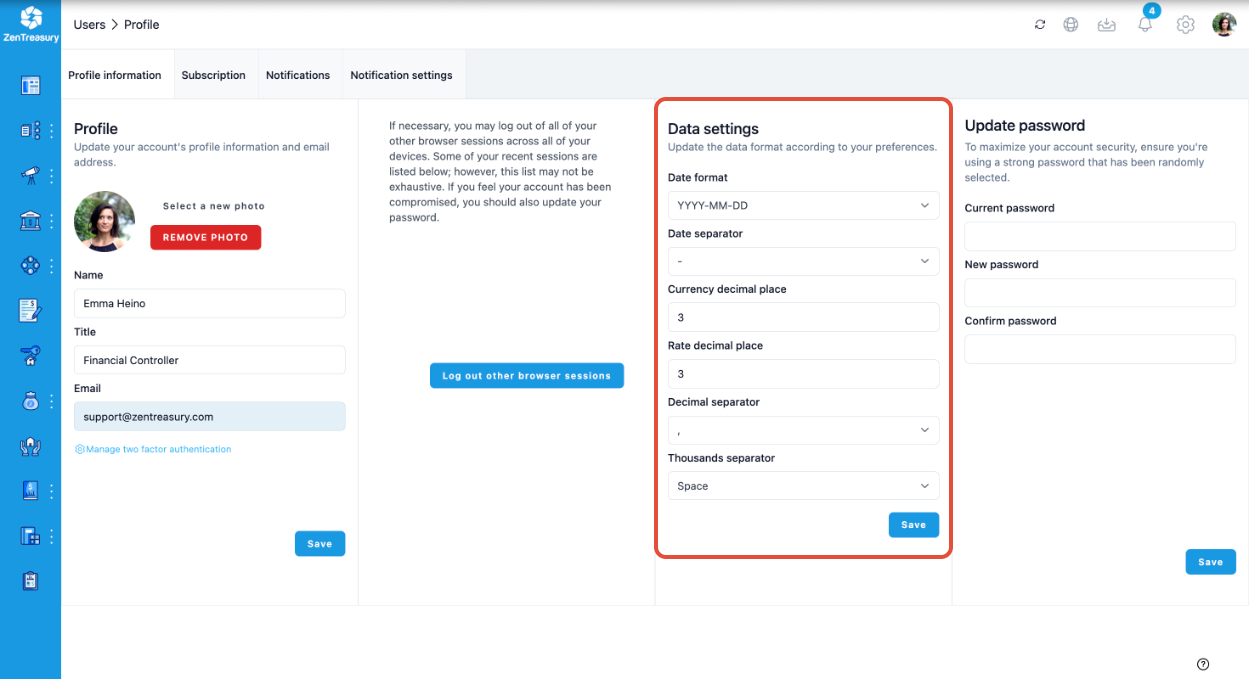
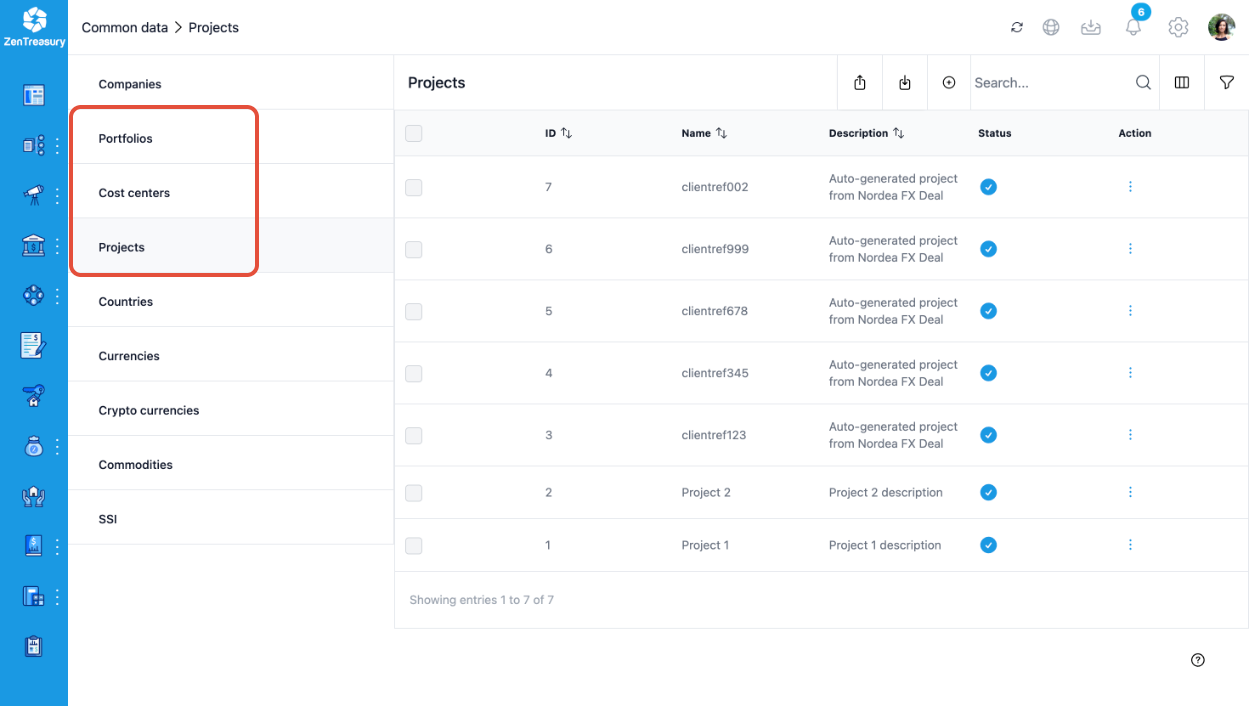
- Project management via functionality to group your tasks, financial instruments and related flows under a project in addition to using cost centers and portfolios.
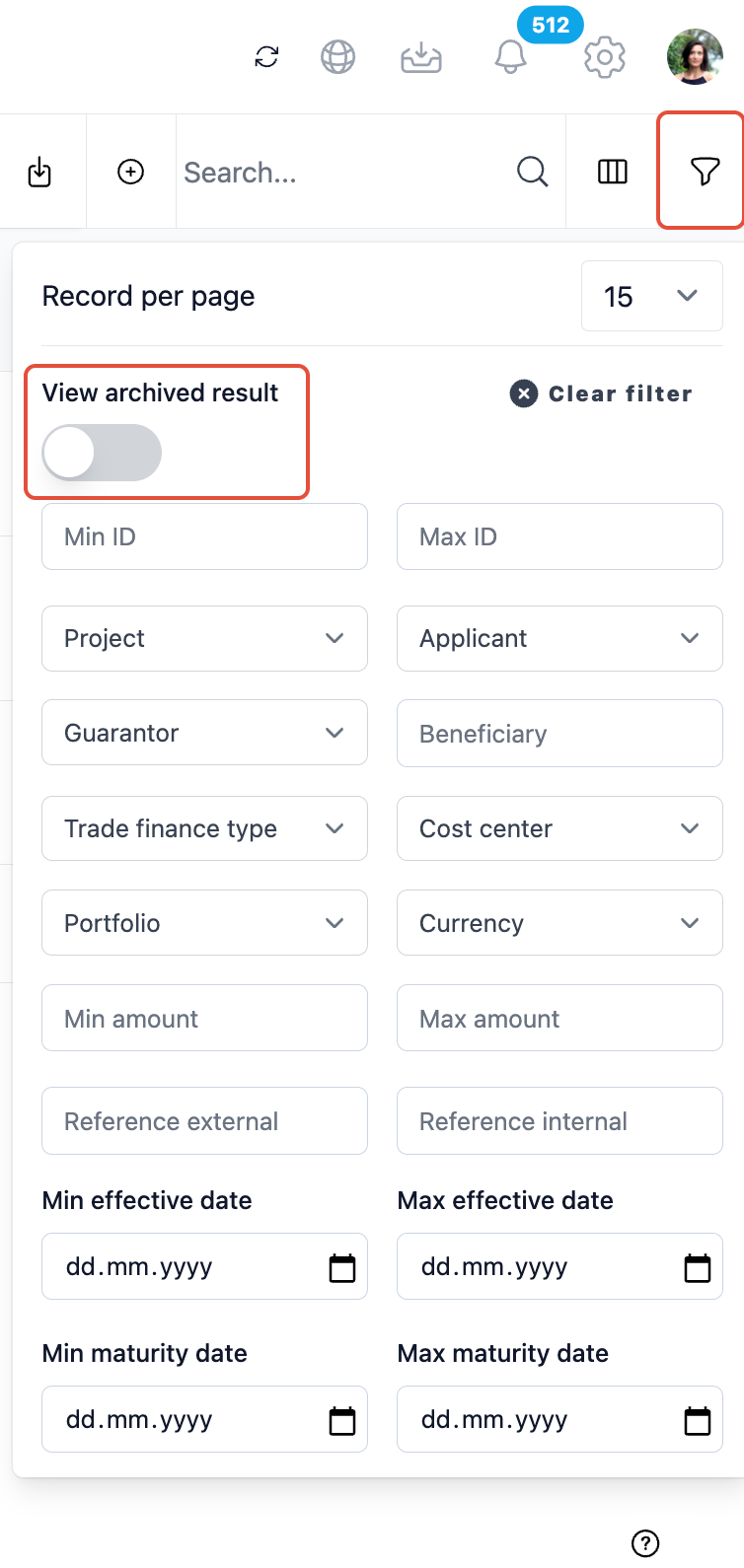
- Filters: Filtering options in ZenTreasury 2.0 are expanded and the filter option for archived data can be now found in the filter menu.
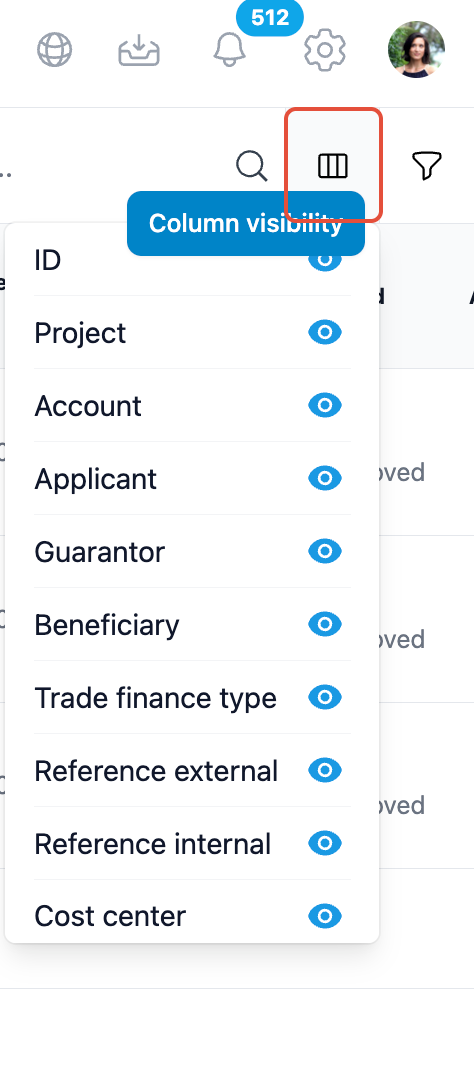
- Column Visibility: Users can customize which columns are visible per preference.
- Notifications: Each user can configure their own notifications under User Profile → Your Profile.
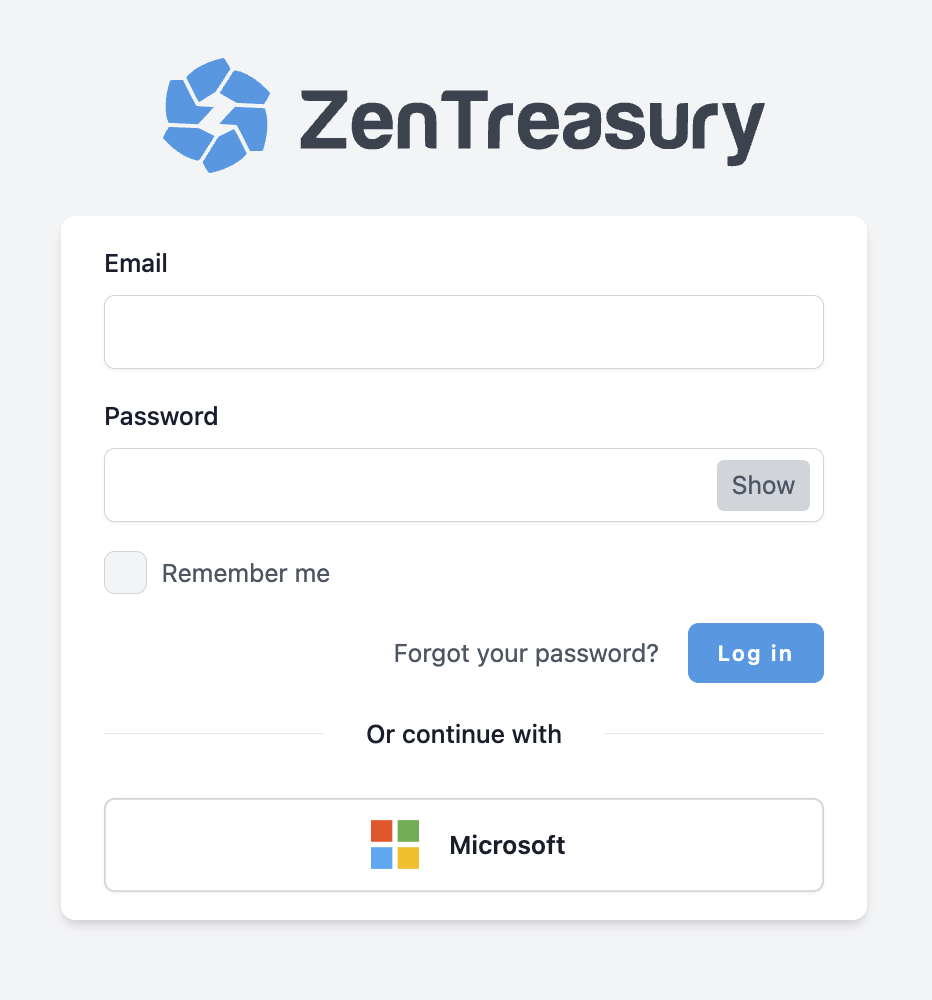
- Single Sign-On (SSO): Login with Microsoft accounts supported.
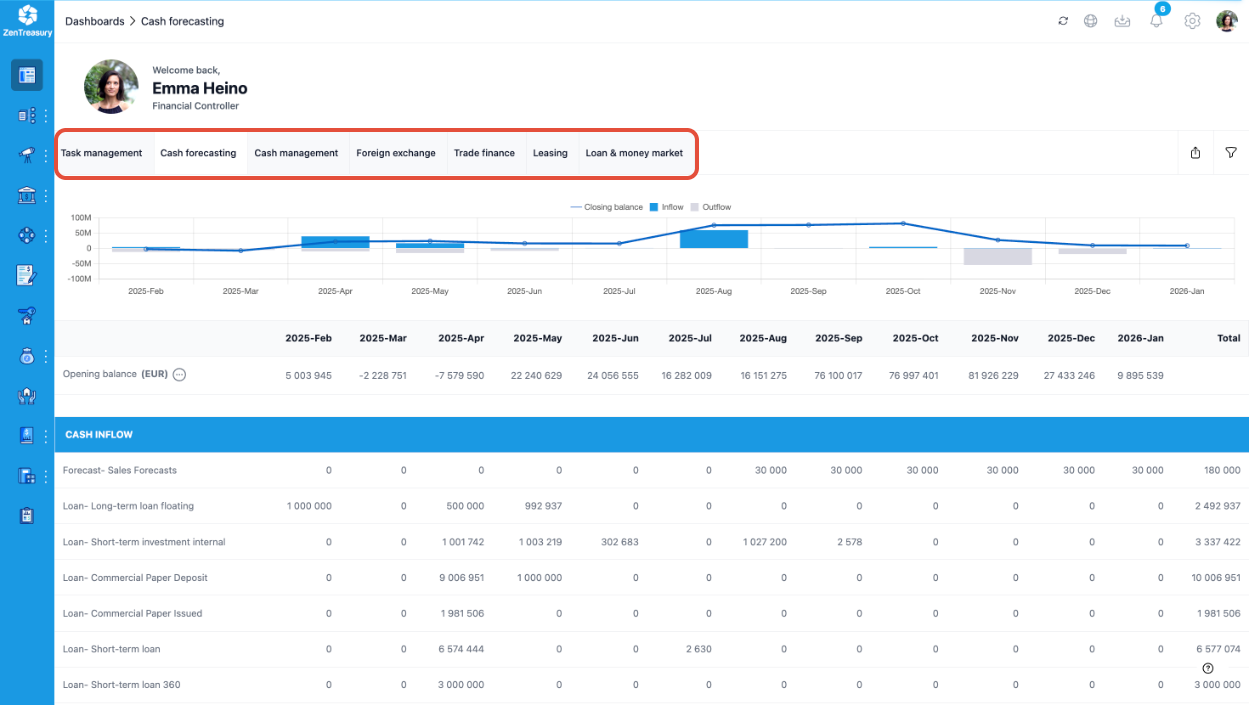
- New dashboards to support data visualization.
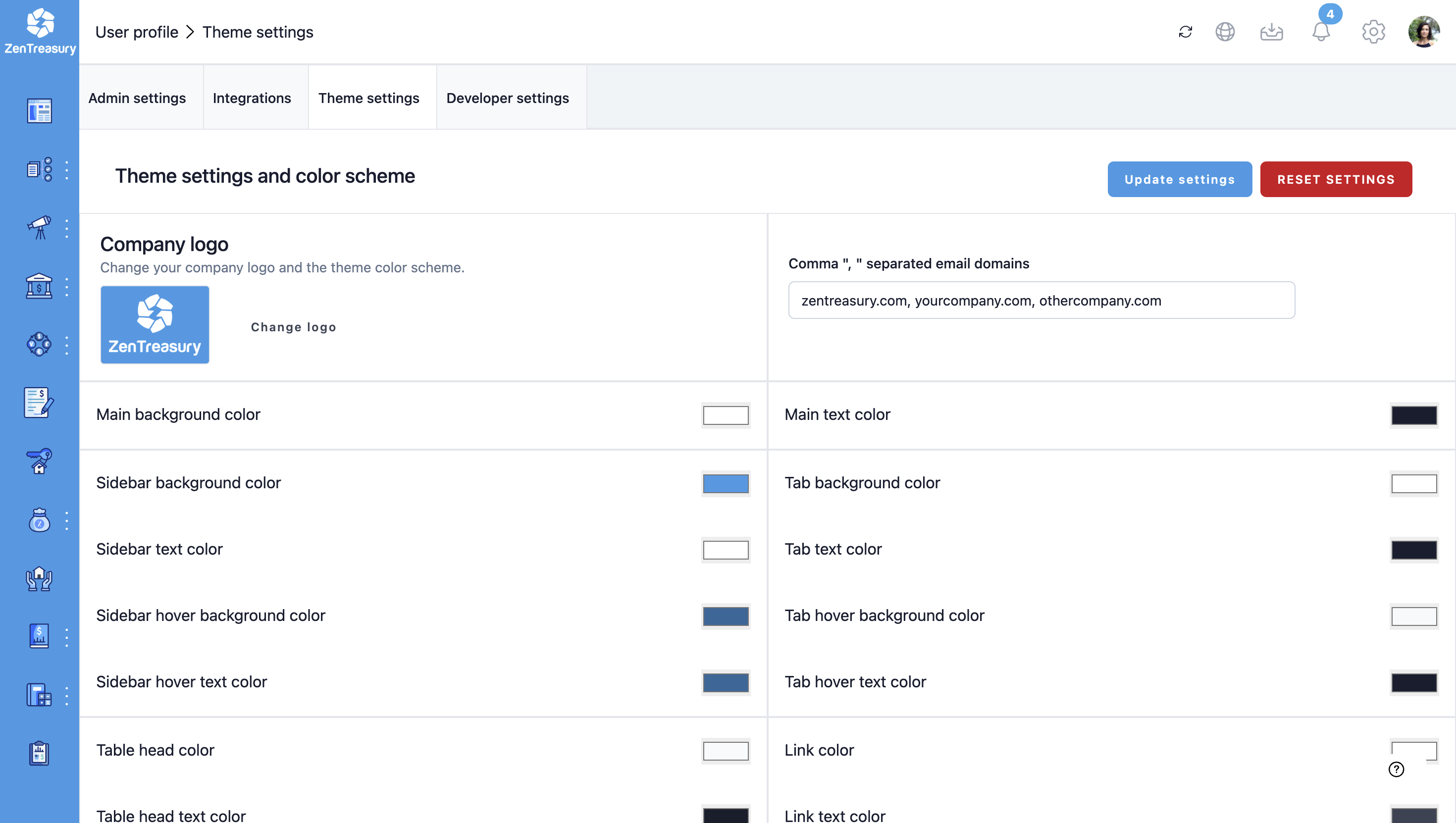
- Theme-settings allow you to customize the look of your environment to match your company brand. Please note that Theme settings require the white-label add-on subscription.
Integrations
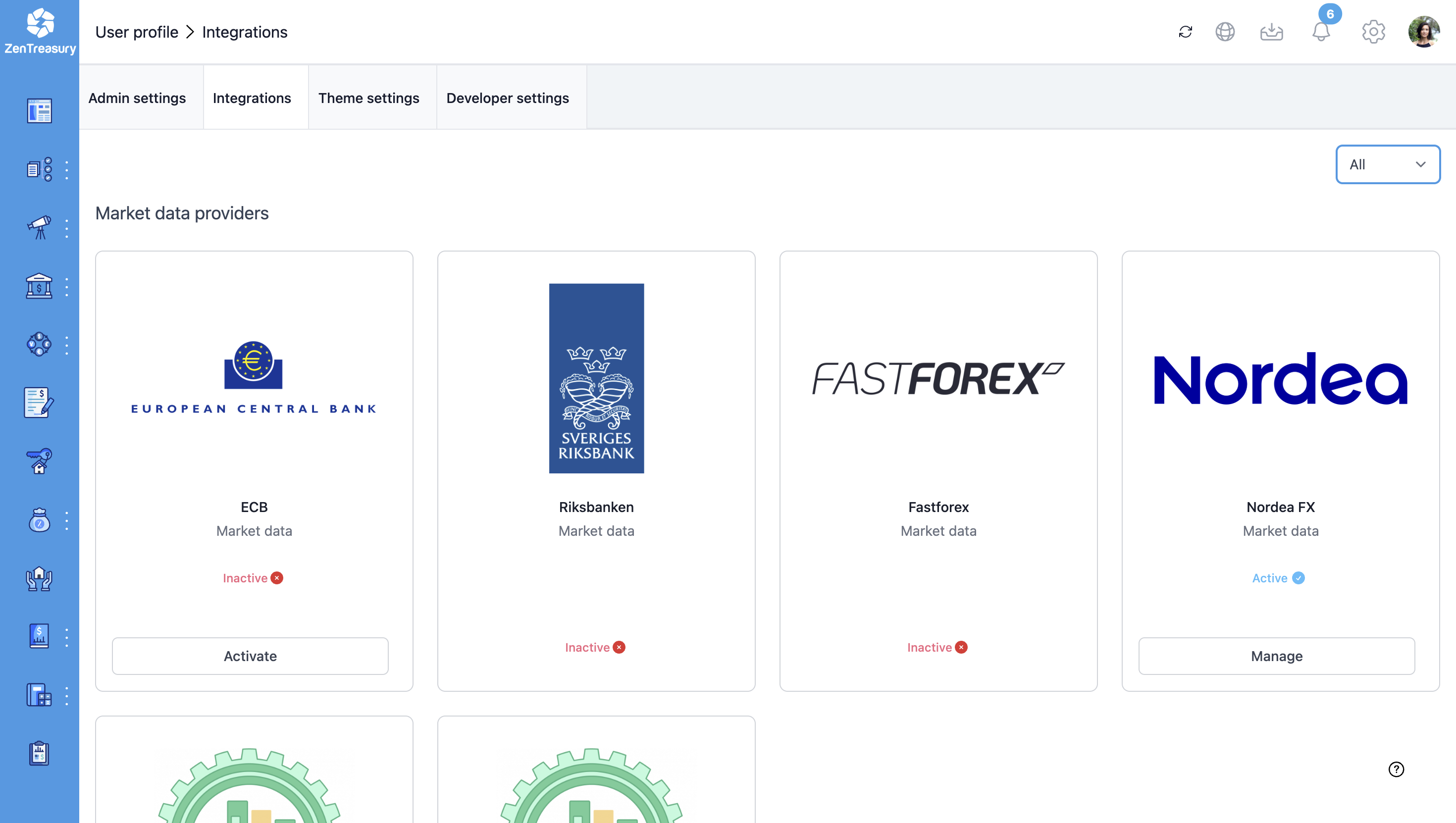
- Advanced integration capabilities with already inbuilt integrations to Market Data - providers, E - Dealing platforms, Financial management softwares, ERP systems and Business Intelligence tools such as Bower BI.
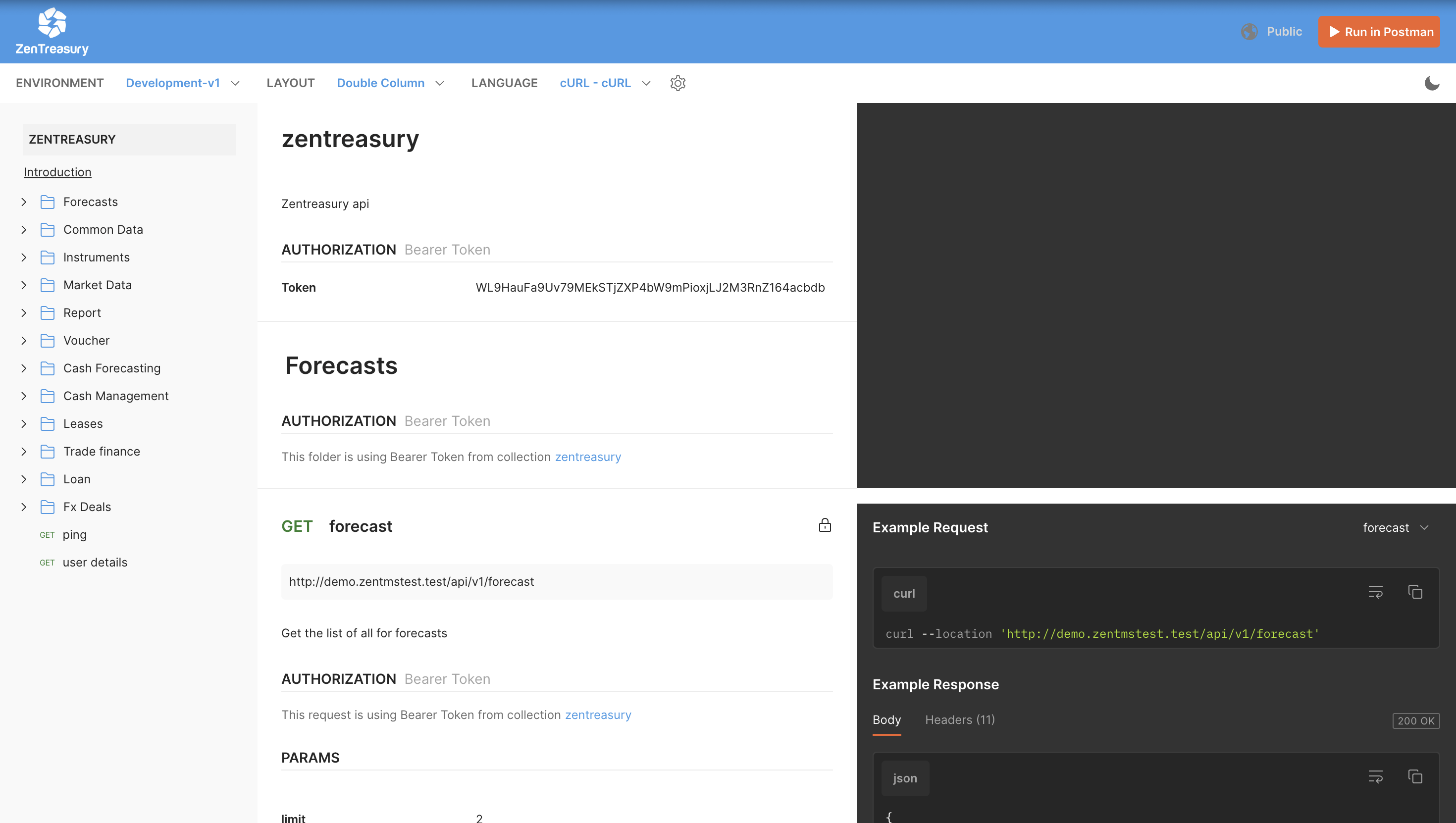
- Public Restful API with OAuth2 enaibles you to build the integrations even further.
Data & Counterparties
- ECB rates management by customers themselves
- Alias Information: When migrating counterparties, alias fields are included on the counterparty page.
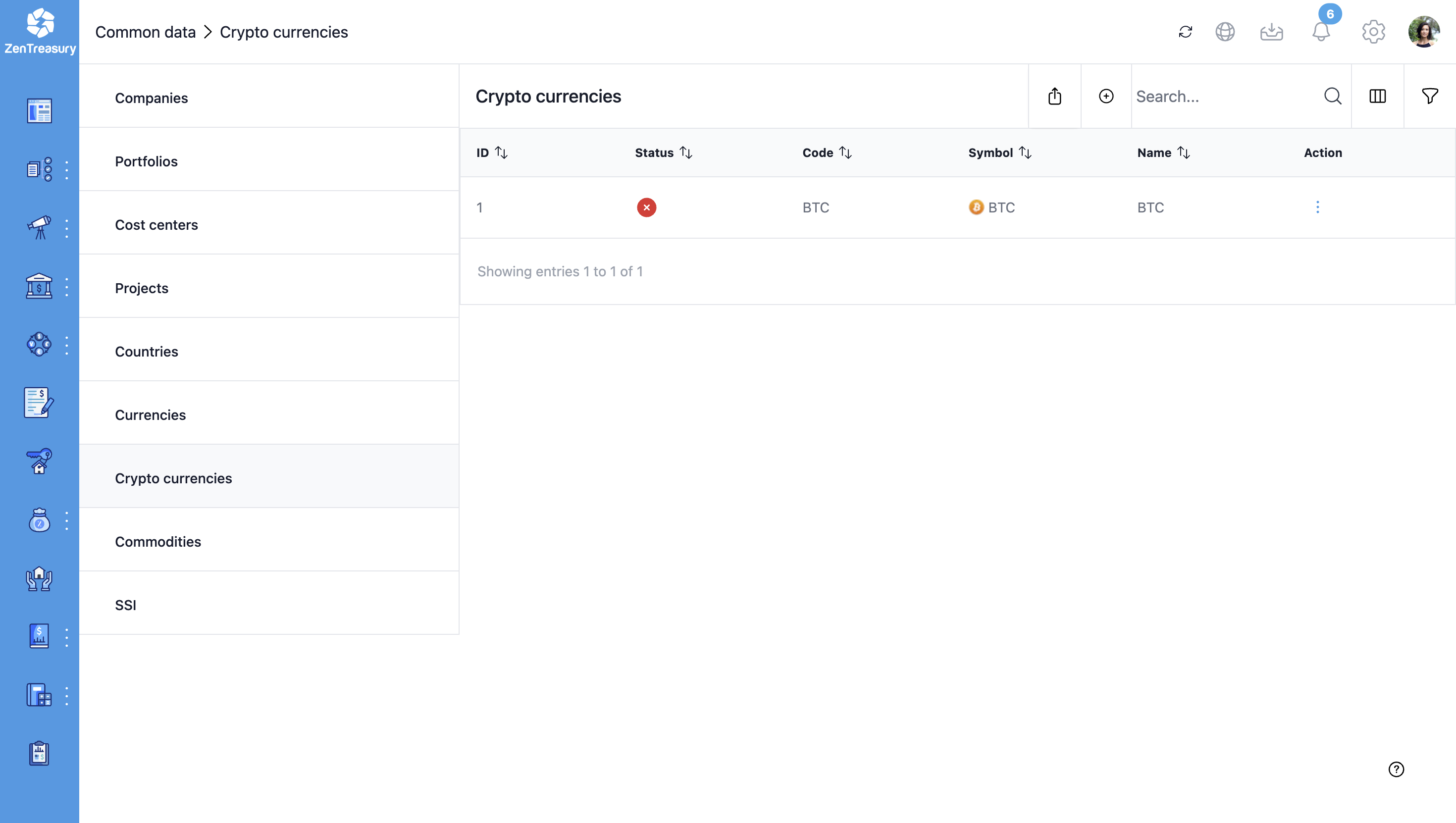
- Cryptocurrecies are supported. Navigate to Settings> Common data > Crypto currencies.
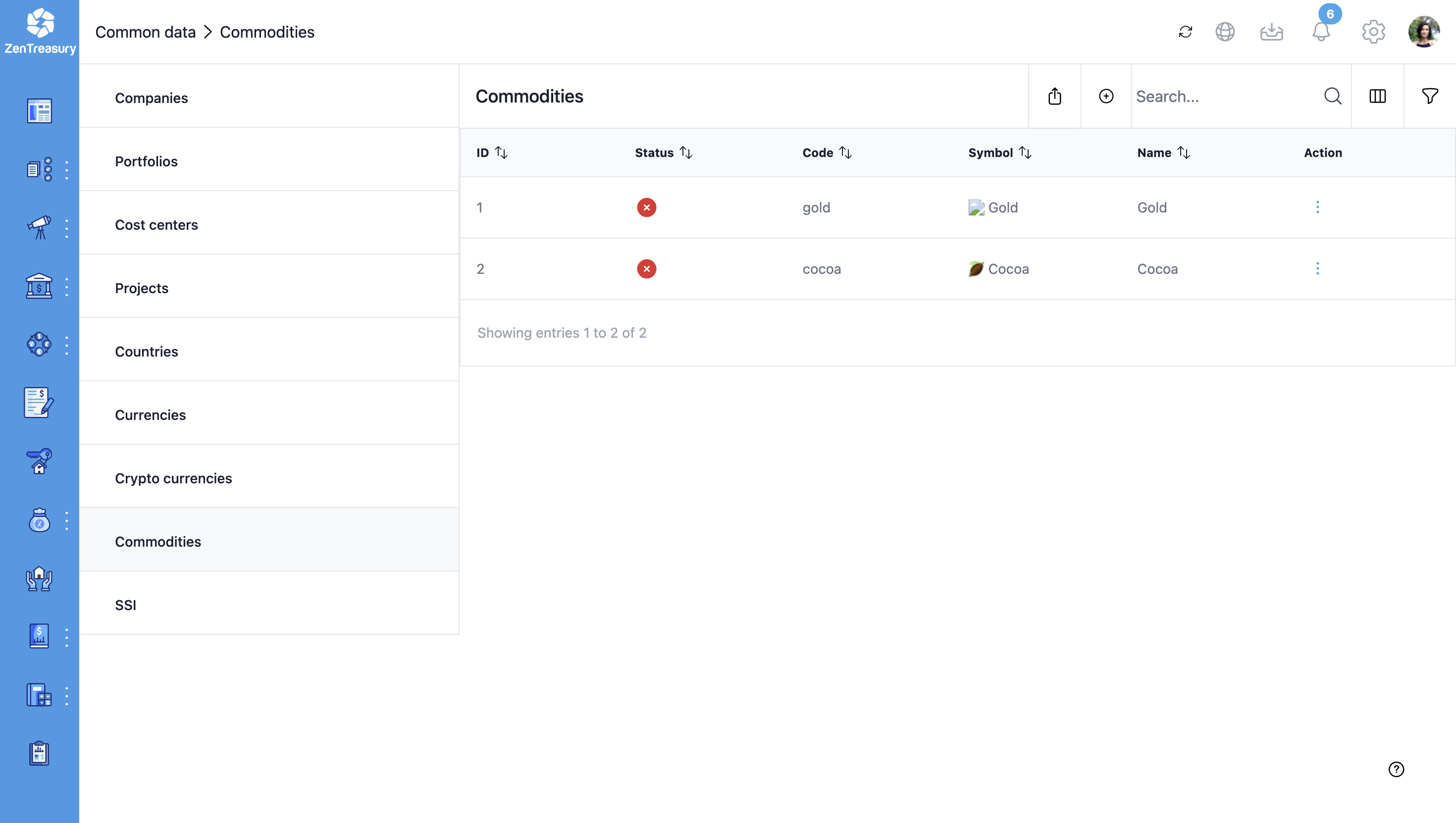
- Commodities are supported. Navigate to Settings> Common data > Commodities
Other Functionality Differencess
- In the new ZenTreasury version, the Customer Reference field has stricter validation rules. If you use the Customer Reference field, each contract must have a unique value in this field. If multiple contracts share the same Customer Reference value, you might encounter an error when you will do changes to the contracts that do not have a unique Customer Reference. We suggest to review all your contracts already before migrating to new ZenTreasury version and ensure that the Customer Reference field is either left empty or contains a unique value for every contract.
- In the old ZenTreasury system, accounts were filtered only by currency. In the new ZenTreasury version, accounts are filtered by both currency and entity for all contract types — including Lease, Loan, FX, and Guarantee. This means that If you haven't added an account for a specific entity in a particular currency, you won't be able to select that account when creating a new contract in the new ZenTreasury system. For existing contracts migrated from the old system, if the linked account is not associated with the same entity, it may not be visible. In such cases, you can easily create or link the account using the "Add Account" button and creating new account for it.
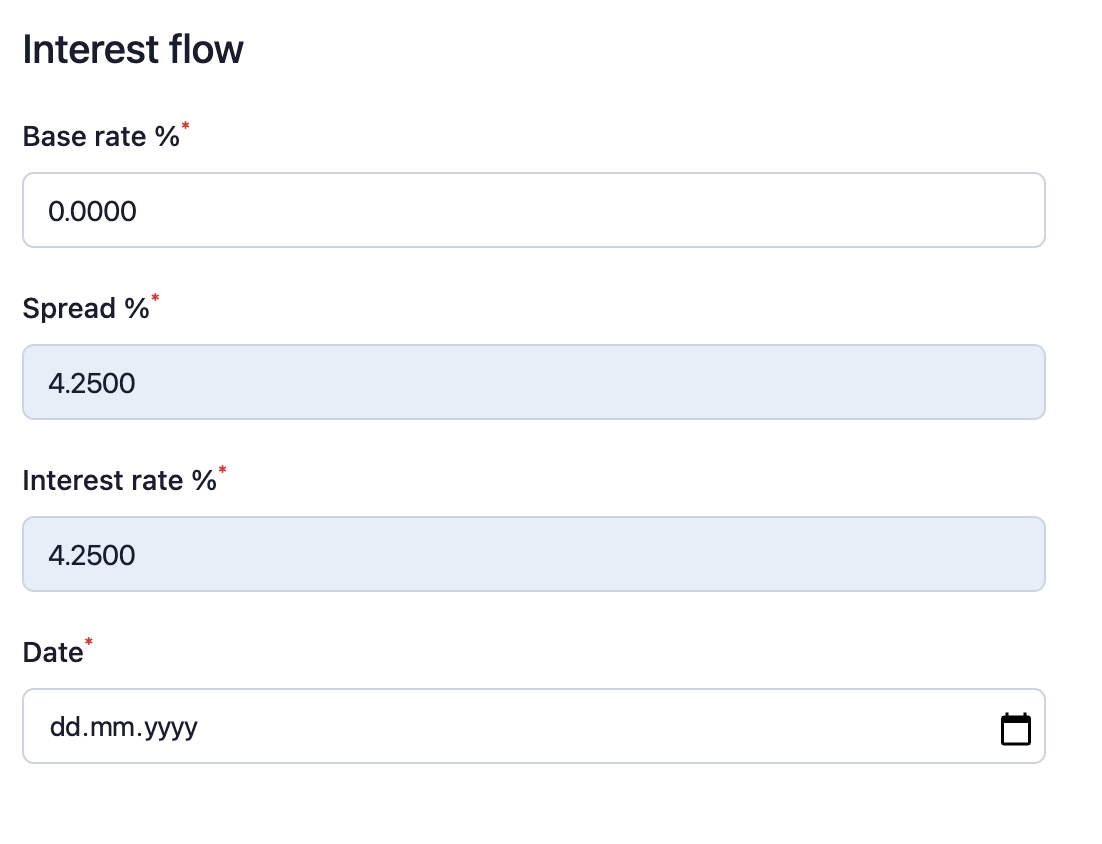
- When creating a floating loan, in the new ZenTreasury system we have the new interest flow addition text box that is a mandatory field to fill out when creating/copying a loan agreement.
Was this article helpful?
That’s Great!
Thank you for your feedback
Sorry! We couldn't be helpful
Thank you for your feedback
Feedback sent
We appreciate your effort and will try to fix the article