ZenTreasury offers advanced tools for user rights management, enabling precise control over what each user can see and do within the system. This guide will walk you through accessing and configuring these settings.
1. Open Settings from the main menu and select User Data to access the user management area.

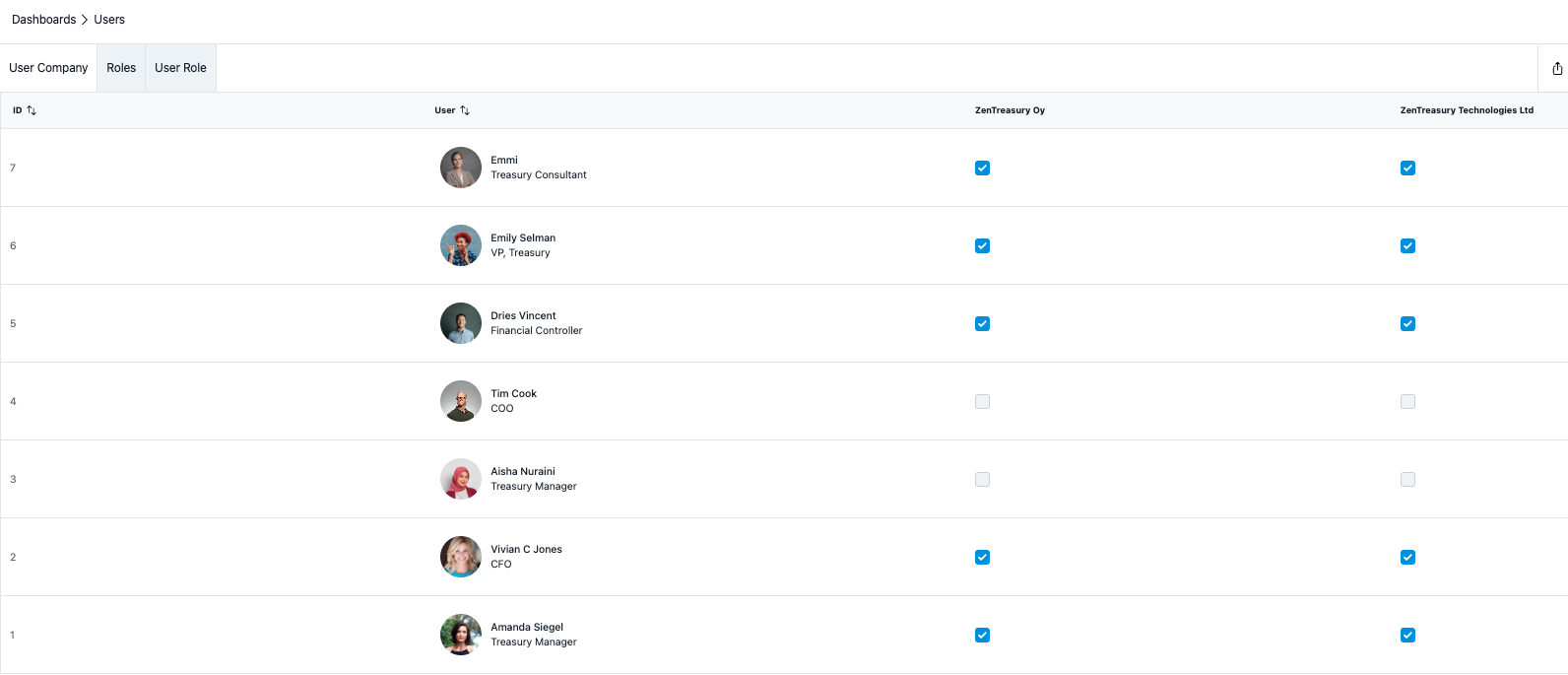
2. On User Company tab you can assign the rights to see data of each company separately. This way for example the Controller of each entity can only see the data regarding their own entity and not others, whereas the Admin and for example CFO can see the data of all entities. When adding another entity, the rights to access the entity data has to be added here.
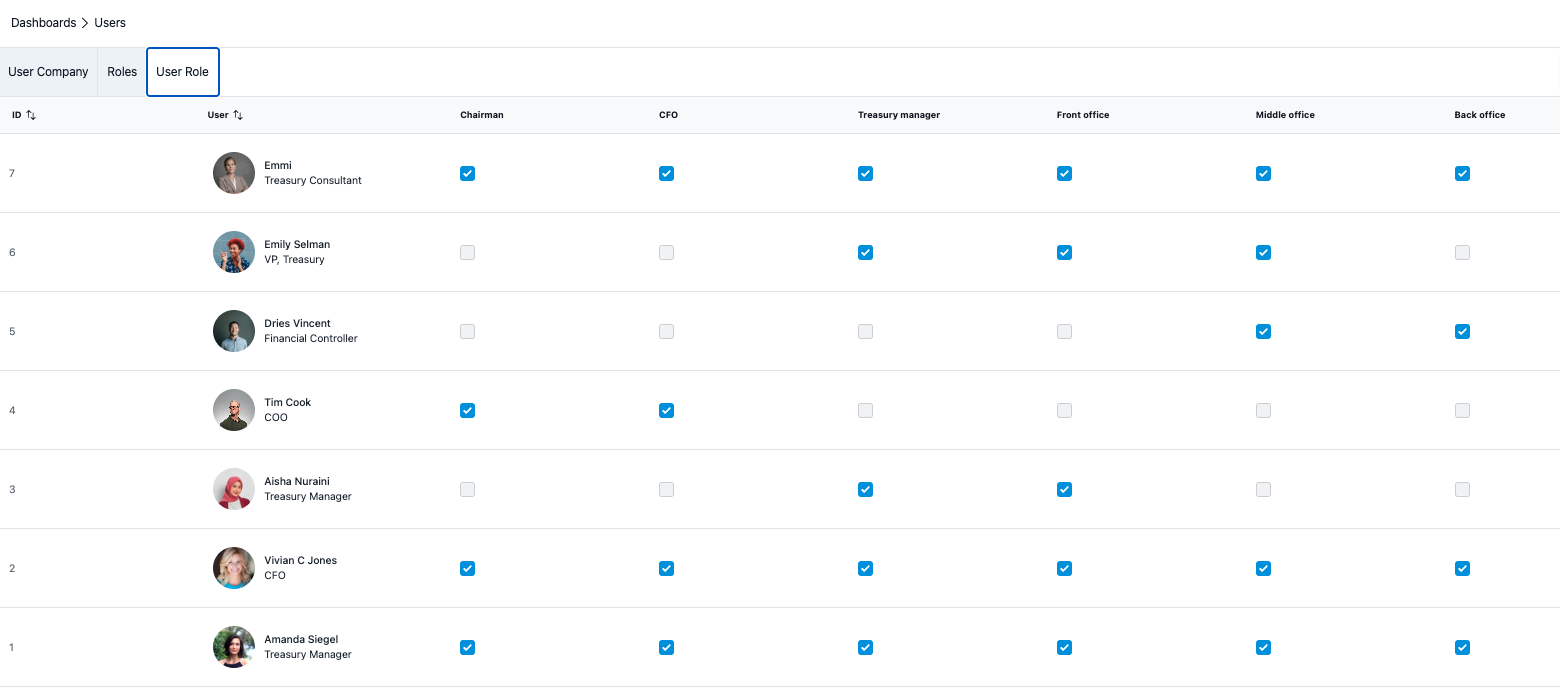
3. Assign different roles to users in the view below. Each role has specific rights within ZenTreasury. Detailed information about each role can be found in the 'User Roles' article, located under the Settings category.
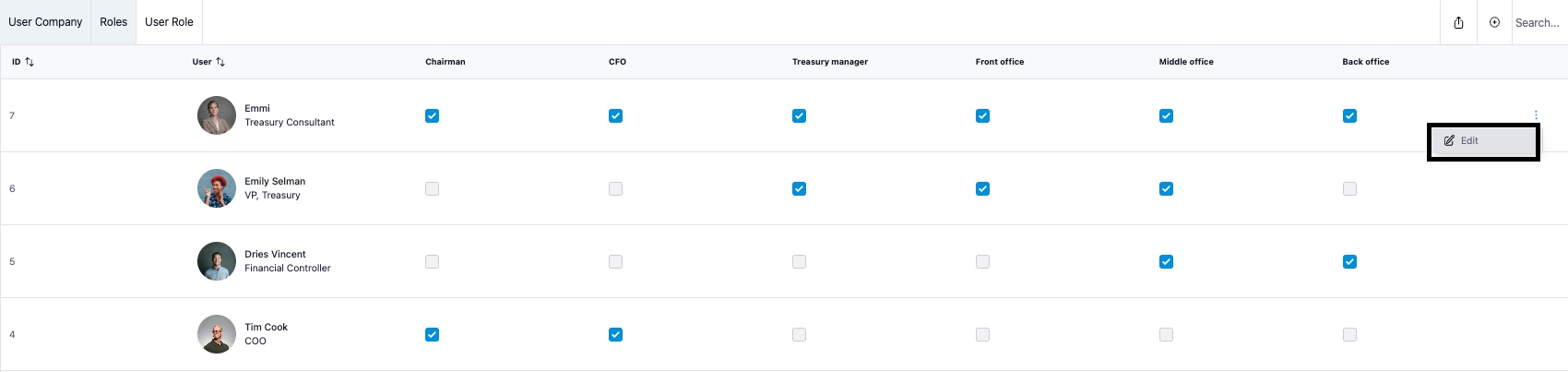
4. Admin can edit the profile data of each user via the view below by selecting the three dots at the end of the row of the user in question and selecting 'Edit'.
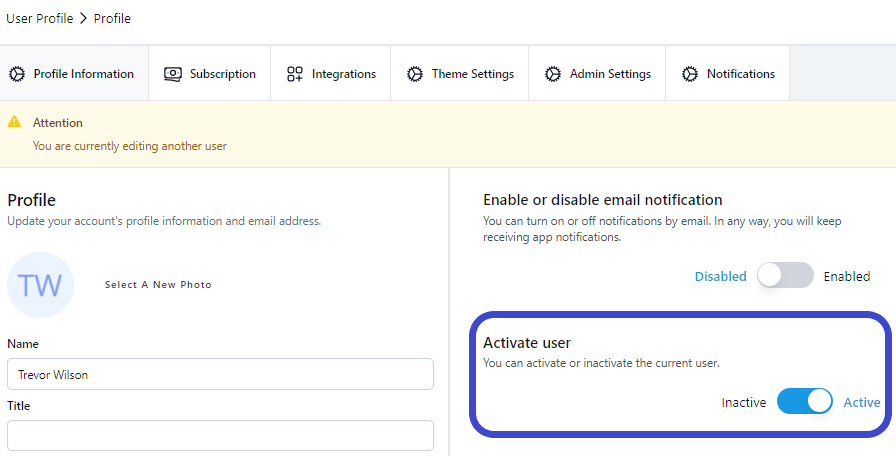
Managing user status
From the user profile view admin can make the user in question active or inactive. Deleting a user profile is not possible.
Was this article helpful?
That’s Great!
Thank you for your feedback
Sorry! We couldn't be helpful
Thank you for your feedback
Feedback sent
We appreciate your effort and will try to fix the article