This article explains how to set up the ZenTreasury MCP connection so your AI assistant can read your treasury and lease accounting data and answer questions in plain language.
Once connected, you can ask your AI assistant things like:
- Which loans are maturing in the next 90 days and what are the refinancing amounts?
- What is our total FX exposure in EUR and USD this month, and do we have hedges in place?
- Which guarantees are expiring in the next six months and what are the annual fees we are paying on them?
- What is the total right-of-use asset value and remaining lease liability across all active leases?
Your AI can only read your data. It can never change, add, or delete anything in ZenTreasury.
How to set up MCP in ZenTreasury
- Contact us at support@zentreasury.com to request your access to the developer settings. This allows you to have the MCP settings visible and is required before you can start using the MCP connector.
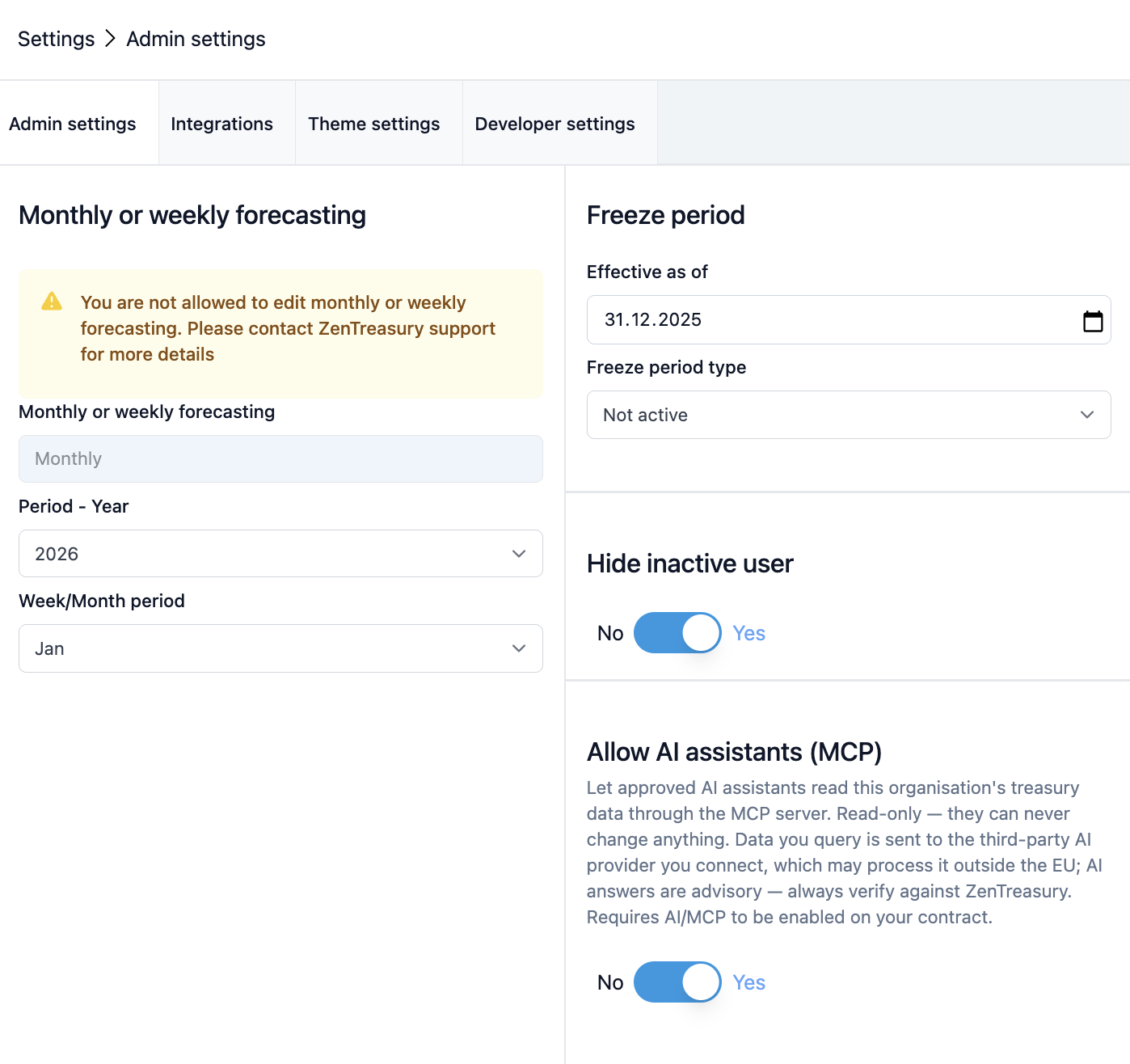
- Once we have enabled the access, the 'Allow AI assistants (MCP)' option will appear under Settings > Admin settings, as shown below.
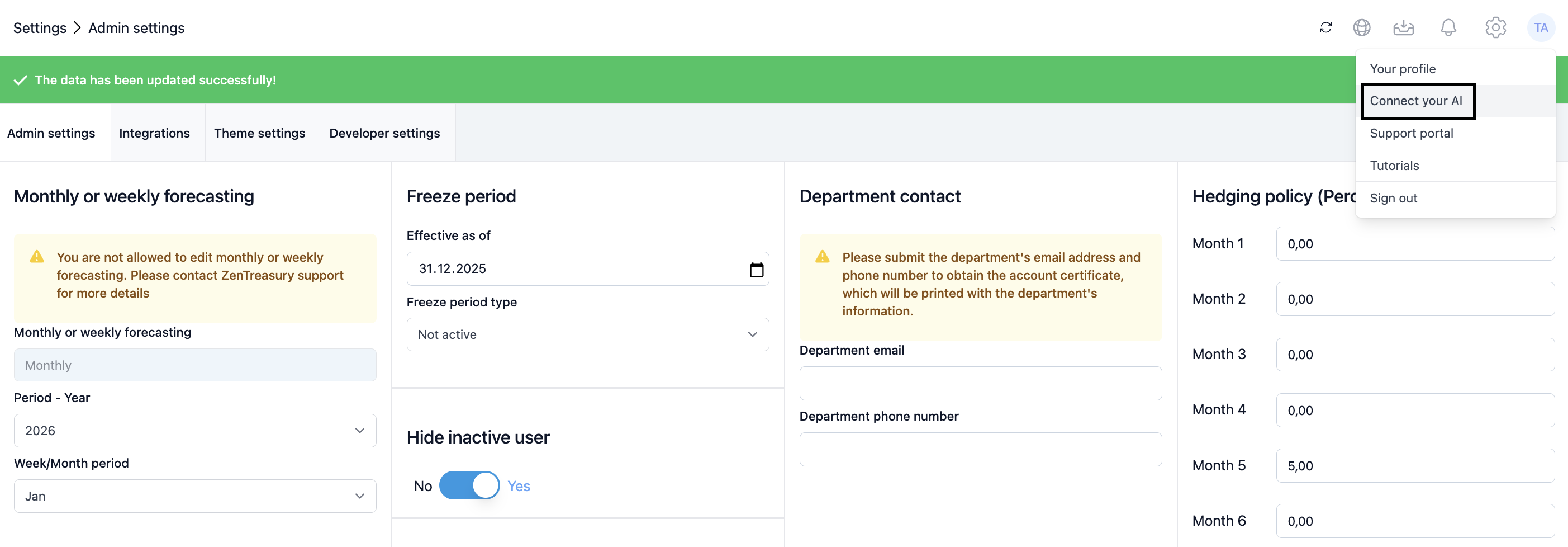
- After your administrator has granted access, go to your profile and open the “Connect your AI” section to begin the setup.
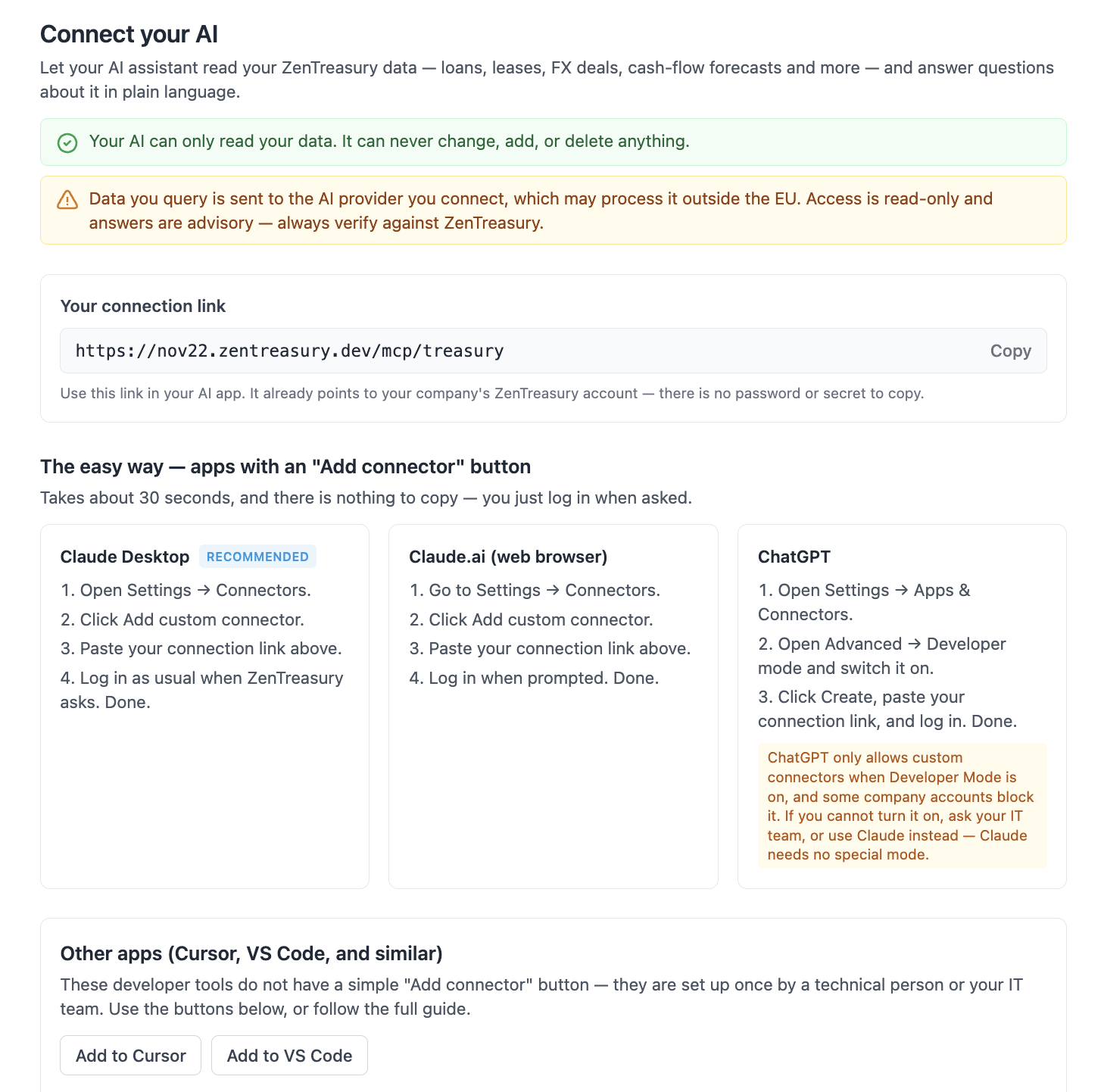
- Next, follow the on-screen instructions to connect MCP to your chosen AI assistant. The setup page includes provider-specific steps for Claude, ChatGPT, Copilot, and others. Just follow the instructions and you are good to go.
If you have any questions about the setup, our support team is happy to help. Reach out to us at support@zentreasury.com.
Was this article helpful?
That’s Great!
Thank you for your feedback
Sorry! We couldn't be helpful
Thank you for your feedback
Feedback sent
We appreciate your effort and will try to fix the article