Enabling Two factor Authentication (2FA) on Your ZenTreasury Account
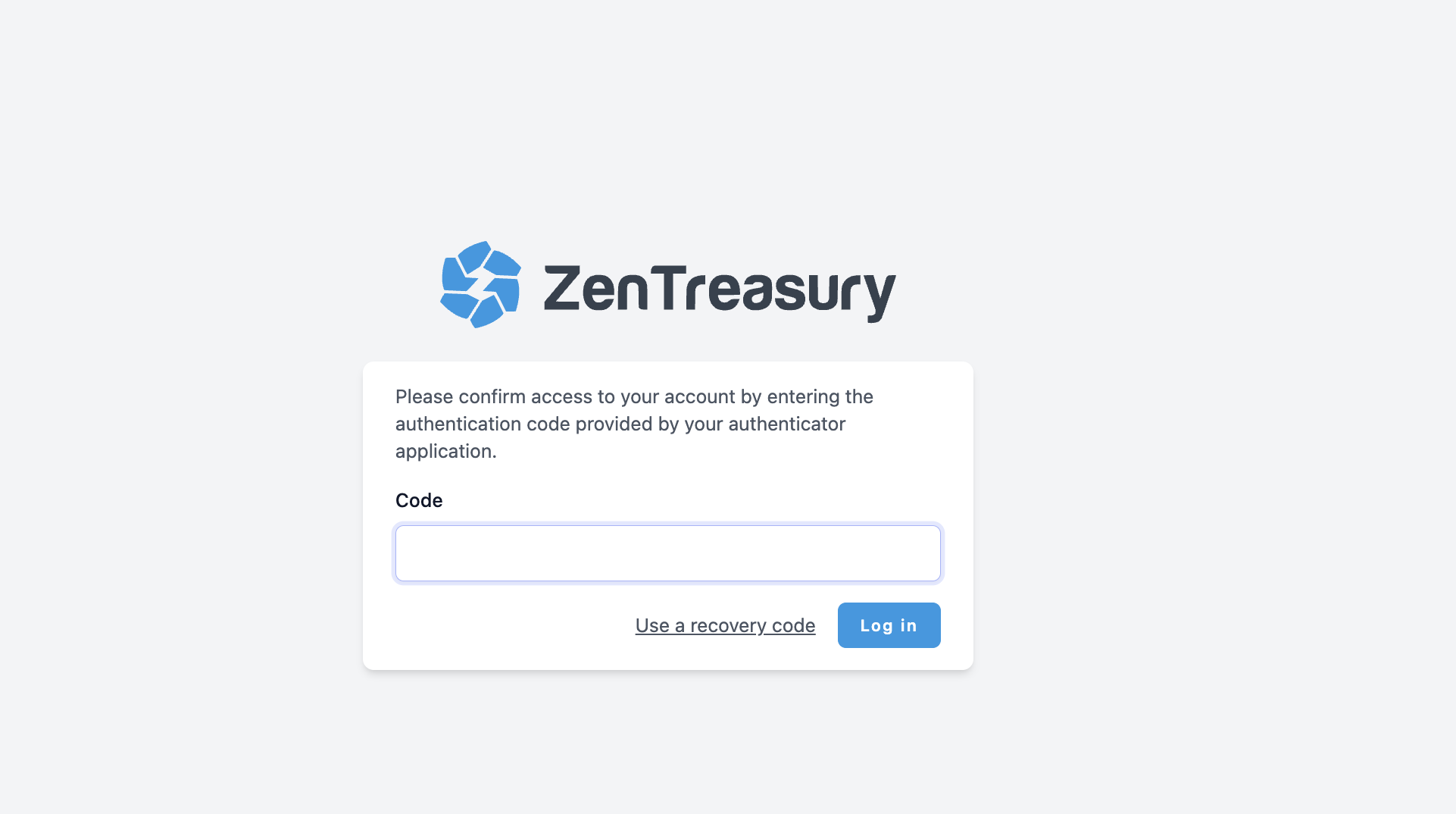
Two Factor Authentication (2FA) provides an extra layer of security to your ZenTreasury account. Once enabled, you will be required to enter a time-based token from your mobile authenticator app along with your password when logging in.
How to Enable Two Factor Authentication
Step 1: Access Your Profile
- Log in to your ZenTreasury account.
- Click on your name or avatar in the top right corner.
- Go to Profile Settings.
- Click on "Manage two factor authentication".
Step 2: Activate 2FA
1. Click on ''Enable'' button.
2. Confirm by entering your password and follow the instructions.
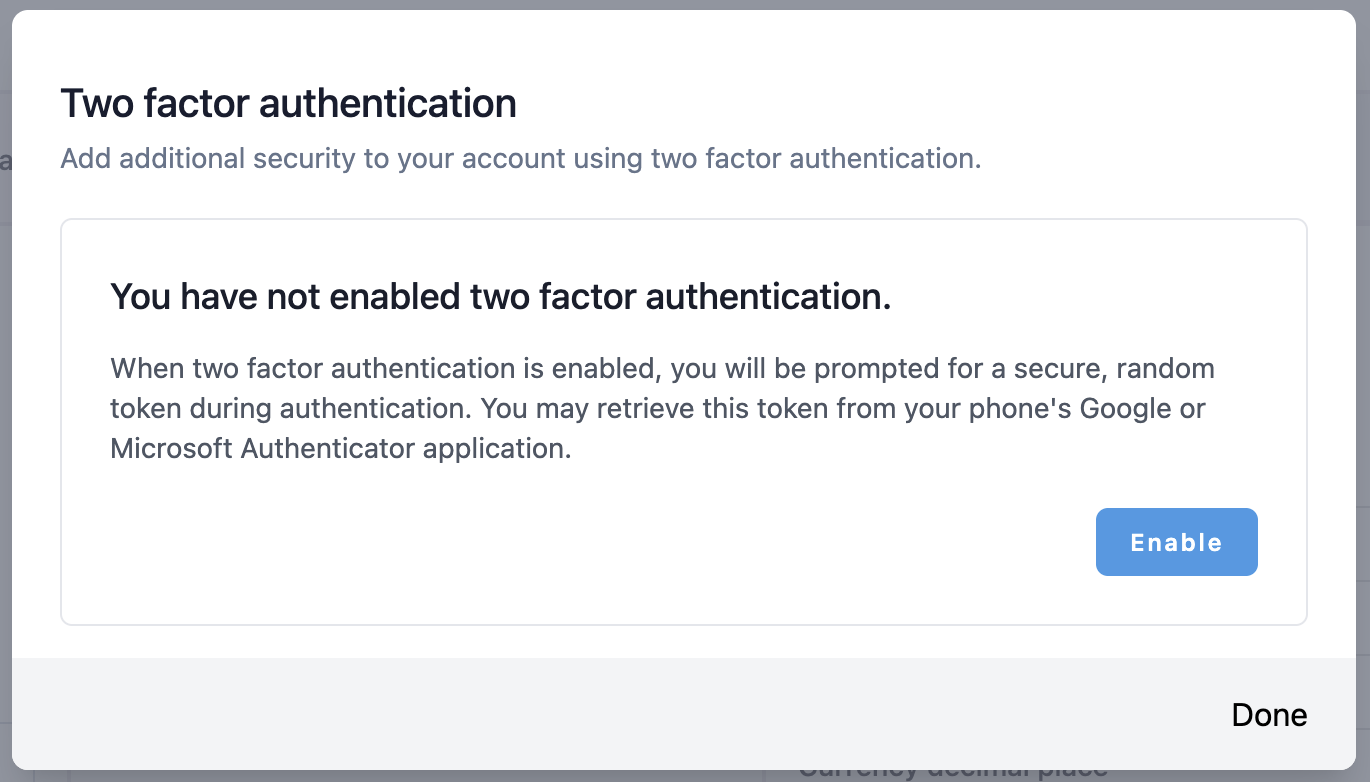
Once you're in the Two Factor Authentication modal:
- Click Enable Two Factor Authentication.
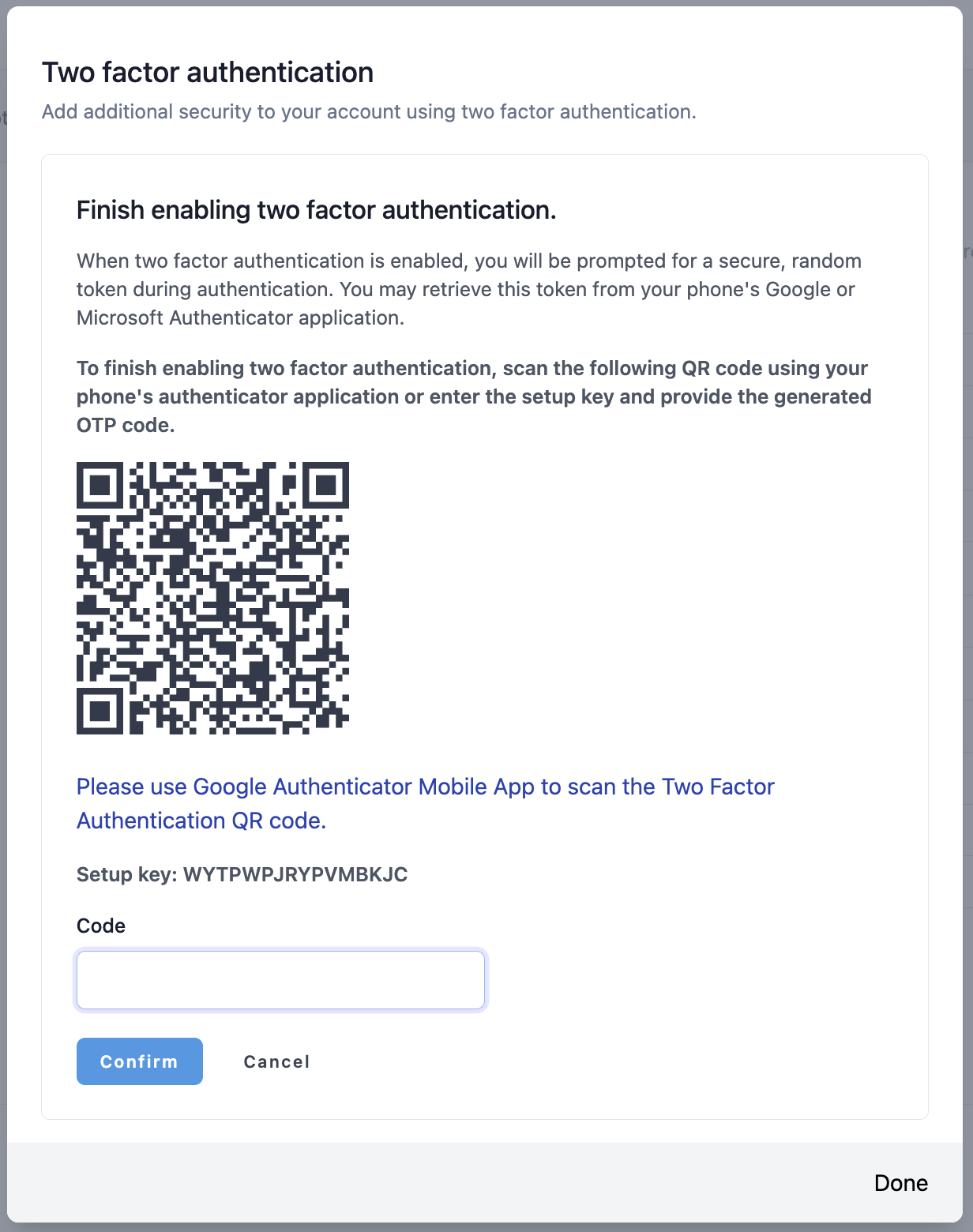
- You’ll be prompted to scan a QR code using a TOTP-based mobile app such as:
- Google Authenticator
- Microsoft Authenticator
- Enter the verification code generated by your app to complete the setup.
Step 3: Save Your Recovery Codes
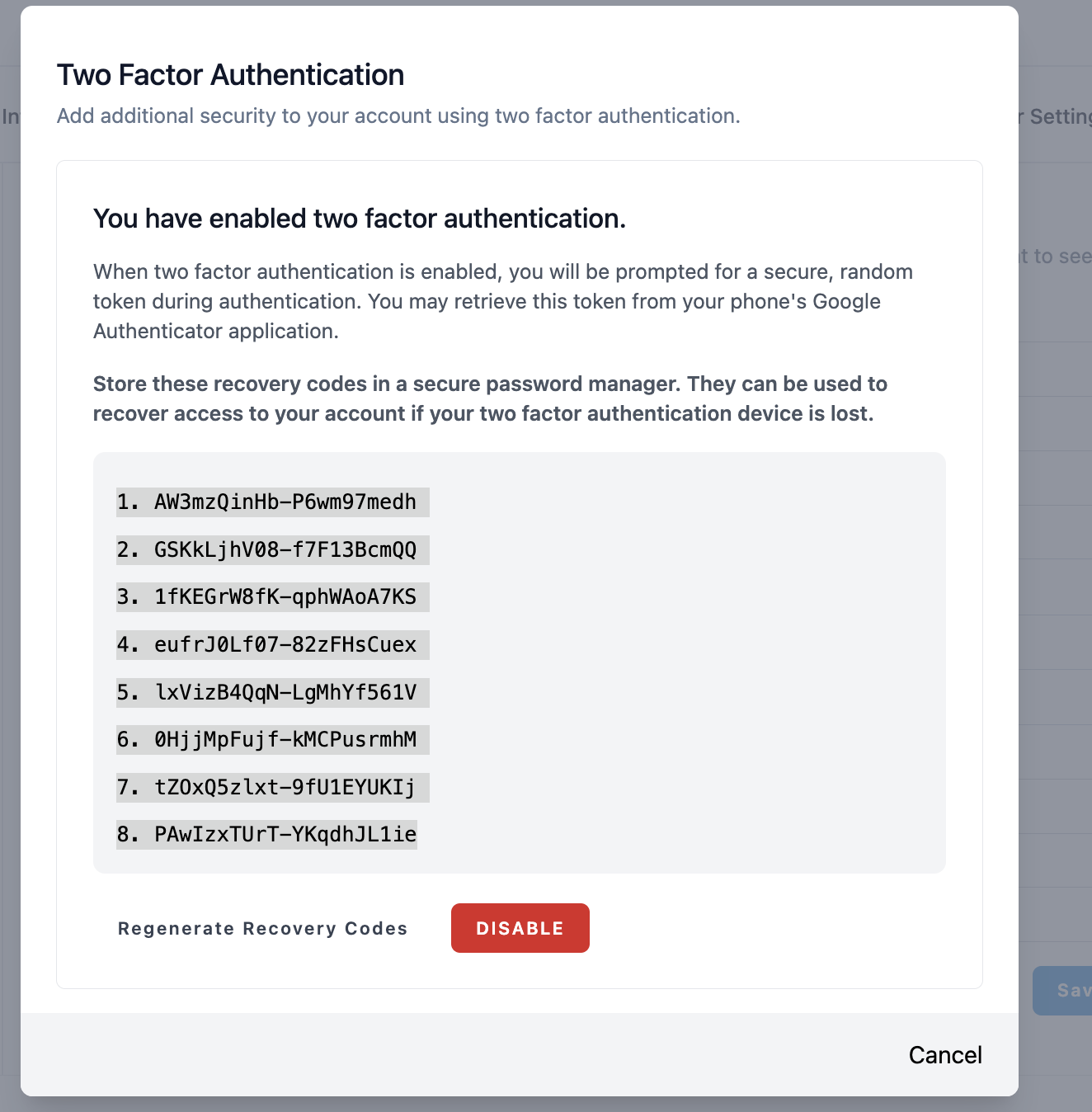
After activation, you will see 8 recovery codes like this:
1. r8btX5znEm–SeEueCPWZb
2. g1Dy6DAtgj–VDRFFhYICQ
...
8. xJMWtxGQj2–s2UIBrPGod
Important: Store these codes in a secure password manager. They can help you regain access to your account if you lose access to your mobile device.
Please note:
- You can choose to Regenerate recovery codes at any time.
- To disable 2FA, click the red Disable button.
- Recovery codes are single-use. Once used, they become invalid.
- If you reset your phone or uninstall your authenticator app, you will need a recovery code to log in.
- ZenTreasury Support cannot recover your 2FA tokens. Please store your codes securely.
Was this article helpful?
That’s Great!
Thank you for your feedback
Sorry! We couldn't be helpful
Thank you for your feedback
Feedback sent
We appreciate your effort and will try to fix the article