Before entering any trade finance agreements, you must have created the relevant Entity, Counterparty, Portfolio, Cost Center, Bank Accounts and Trade Finance Types to proceed with creating Trade Finance Agreements.
New trade finance agreements can be imported via excel, created manually, or by copying an existing one and changing the needed information.
Excel import for Trade Finance
Click ‘Import’ in the Trade Finance register page. 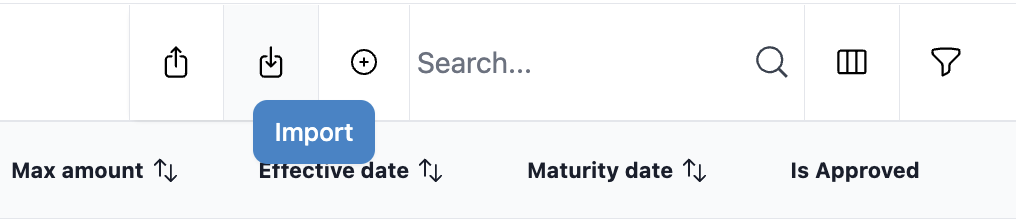
Following this step, from the ‘Download sample’, you can get the import excel template that you can use for the import.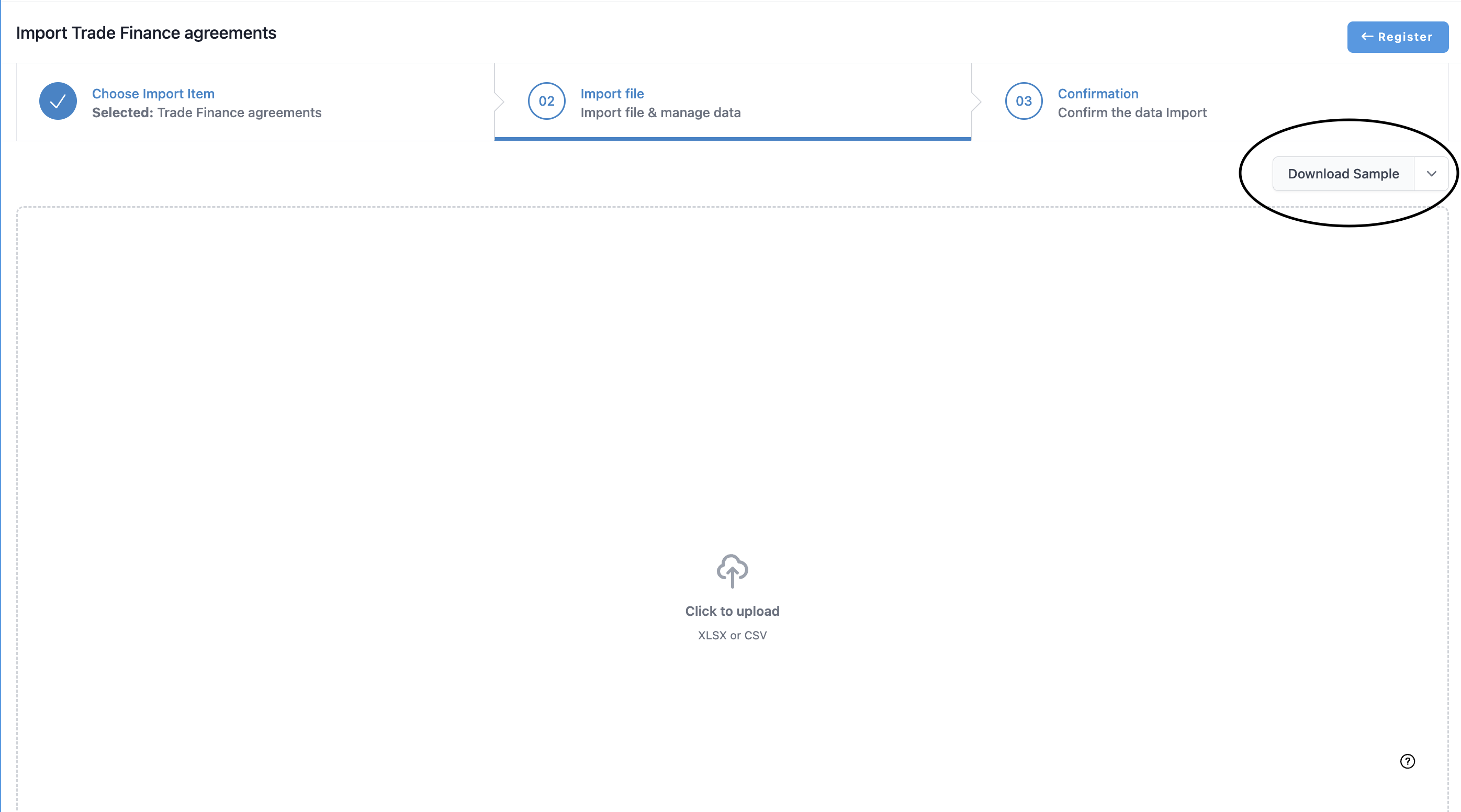
If you have an agreement without an end date and you want to import the agreement using Excel, please note that Excel import requires an end date. You need to put a date there, and following the import go into the agreement in question and click "No end date"- tab active.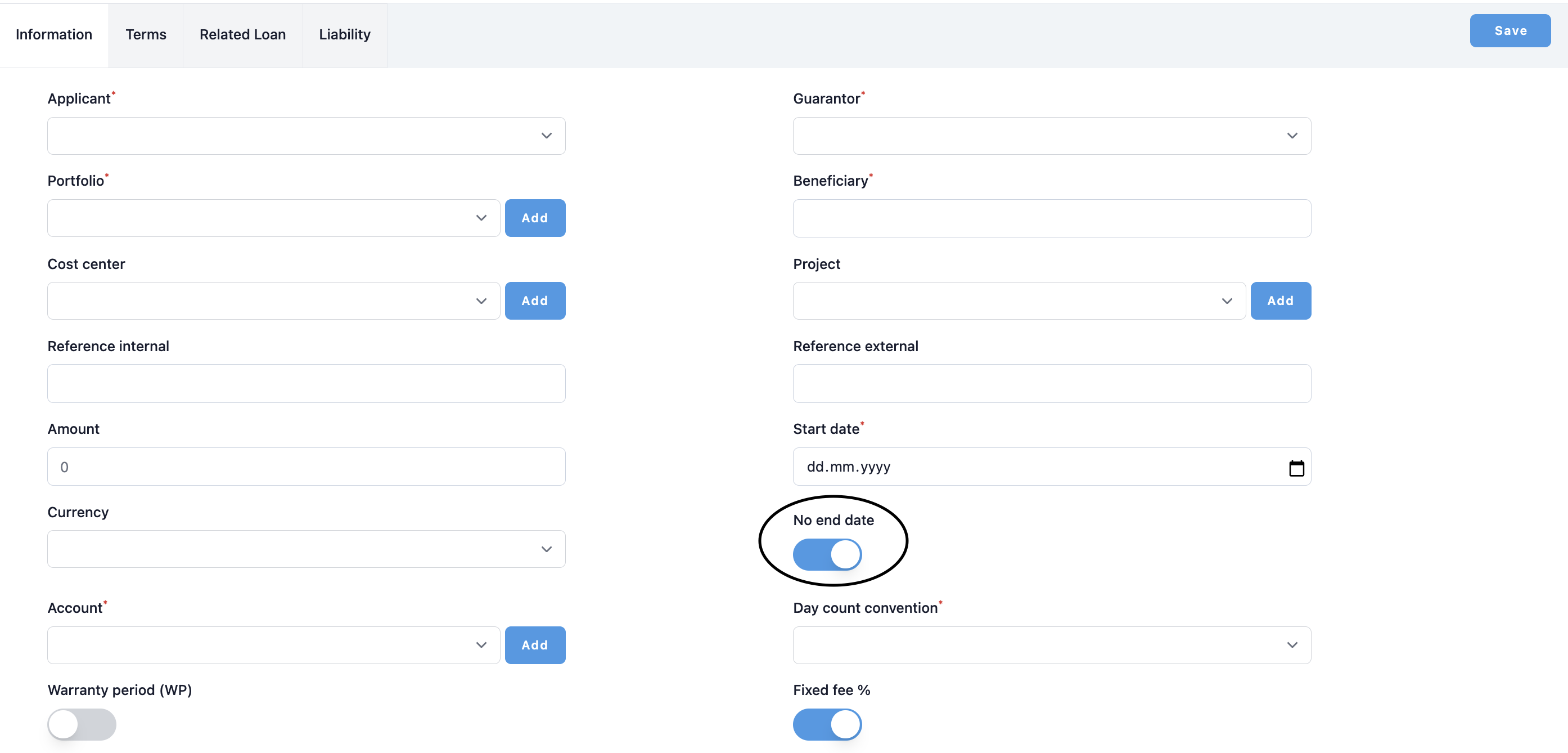
You can bring up to Trade Finance agreements at once. Check that the date formats are correct: yyyy-mm-dd. The Account column means the bank account name. All trade finance agreements will be imported with the Status of 'Issued', in the order of the numbers that come into the reporting. You can change it if you wish to do so.
Once you have filled in all your trade finance agreements and saved the file into your computer, check the file for readability; then click import.
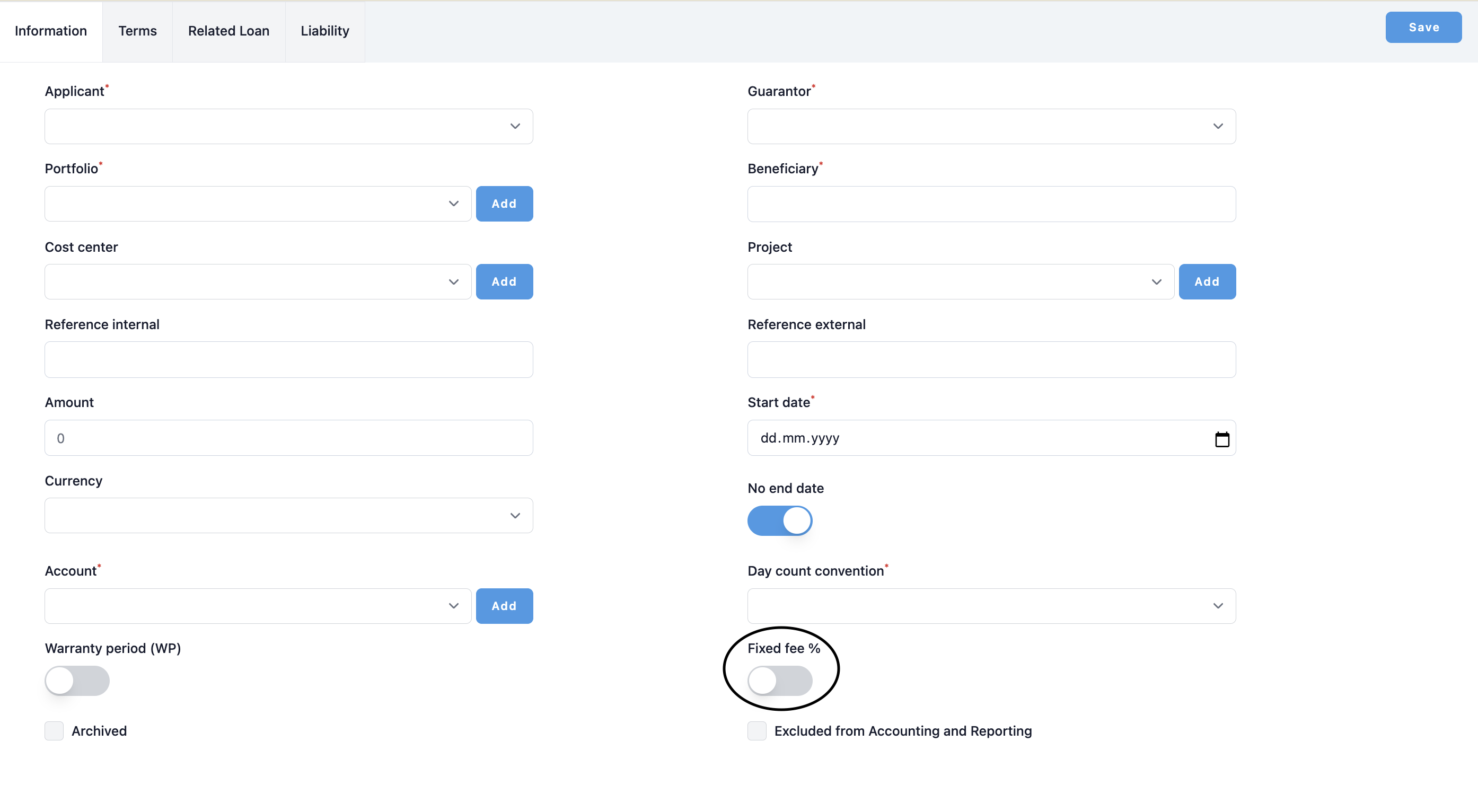
Trade finances will come with Fixed fee rate active from import. If you want to also manage the agreement fee payments in the system and you have an agreement where the fee can change during agreement period you just need to deactivate the Fixed fee tab and and an additional Fee table opens up into the agreement where you can manage fee rates during agreement period.
CREATING AGREEMENTS MANUALLY
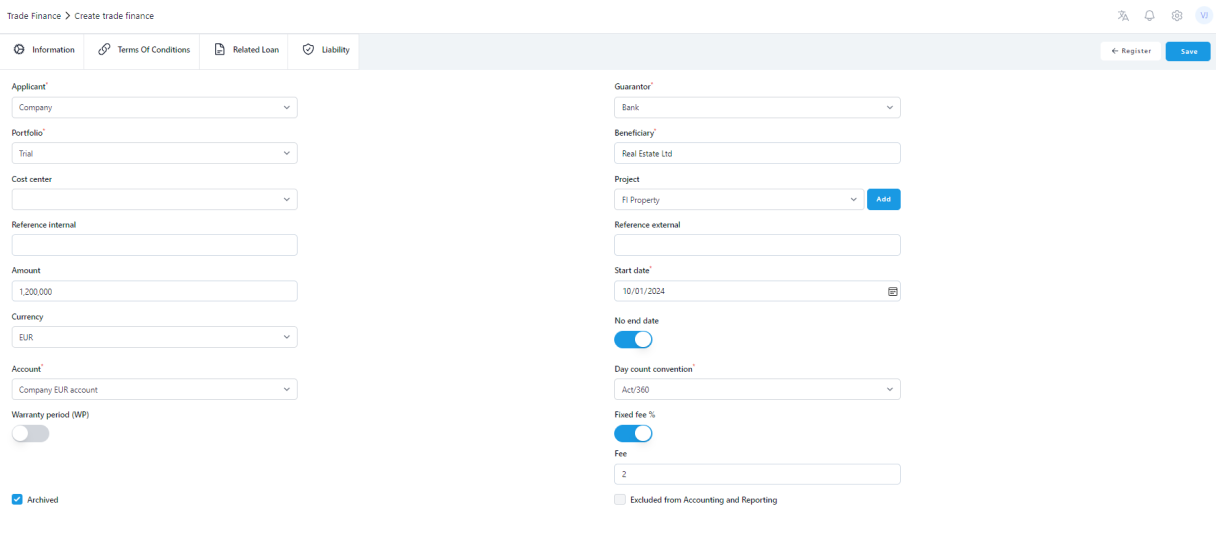
Go to Trade Finance module > Register. Click the + icon to add a new trade finance product.

1) Choose a Trade Finance type from the drop down list. (Trade Finance types are created in Settings - Common Data - Instruments - Trade Finance type)
2) Choose an Applicant from the drop down list. (Applicant created in Settings - Common Data - Companies (must be Internal (i.e. not External) and Counterparty)
3) Choose a Guarantor from the drop down list. (Guarantor created in Settings > Companies - must have Counterparty ticked when creating)
4) Enter a Beneficiary name.
5) Choose a Portfolio from the drop down list. (Portfolio created in ‘Settings > Portfolios’)
6) Choose a Cost Center from the drop down list. (Cost center created in Settings > Cost centers)
7) Enter the Project Name, if needed.
8) Choose the Status drop down menu. Status "Issued" is the only status that brings the numbers into the reporting. Forecasted, Submitted and Approved are used in the guarantee approval flow if you want to manage your agreement approval flow.
9) Enter the Reference Internal, if needed.
10) Enter the Reference External, if needed.
11) Enter the guarantee Amount.
Choose the Currency (CCY) from the drop down menu.
Choose the account that is receiving the transaction from the → ACCOUNT dropdown menu.
12) Choose the End date from the calendar.
WP amount, WP type and WP start date are not currently used in the reporting, so you can leave those unticked.
13) Choose Act/360, Act/365, 30/360, 30/365 or Act/Act from the drop down menu, if you will create a payment flow for the agreement. The system will calculate the fee using the interest rate set for this agreement and with this 'Day count convention'.
14) Fixed fee. If you want to also manage the fee payments in the system and there can be only one fixed rate for the fees then activate this. If you don't activate this then after save a fee table opens up into the agreement where you can manage fee rates during agreement period.
If there is no 'End date' in the agreement, choose 'No end date' as active.
TERMS AND CONDITIONS
On the Terms and Conditions tab you can add free text regarding the agreement.
RELATED LOAN
On Related loan tab when you push the button to the right to activate the feature, it is possible to select from the Loan & MM dropdown the loan id related to the agreement in question.
LIABILITY
Under the liability sheet you can give the guarantee different types of liability characters. There are 10 types of characters to choose from. These are not linked to any reporting, but you can just specify these items under the liability sheet.
TRADE FINANCE FLOWS
Payment schedule can be used for tracking the fee payments of the Trade Finance agreement. Fee is calculated either from fixed fee box or from fee table view.
Start by choosing "Generate flows". Further explanations in the lines below:

Calculation start date - this is where you define the first start date for the fee period. The system will enable the Start date automatically.
End date of first interest calculation period - this is where you define on which day the first fee period ends.
Fee payments - In this dropdown you can choose the fee payment method after the first fee period (start - end date), for example quarterly or yearly.
Fee payment day - This is the actual payment day (calendar day) of the fee.
Fee payment month - this is where you need to specify the fee payment day on and select it to be the Same month as the end of date of the fee period or Next month (+1M) or Two months later (+2M).
Please also remember to check after the creation of the last fee period. If the period is not completely specified, the system will not calculate a fee for it automatically. Then, you need to go into the final payment and add the fee calculation days into the last fee period.
Calculation end date - This is the date when the system ends fee payments. Even though the agreement wouldn't have an end date, it is required for the calculation. It is possible to extend the chosen end date later as per needed.
Click 'Generate' for the fee flows to be calculated.
In the example below it shows quarterly fee flows based on the fixed fee amount selected on the main page of the agreement.
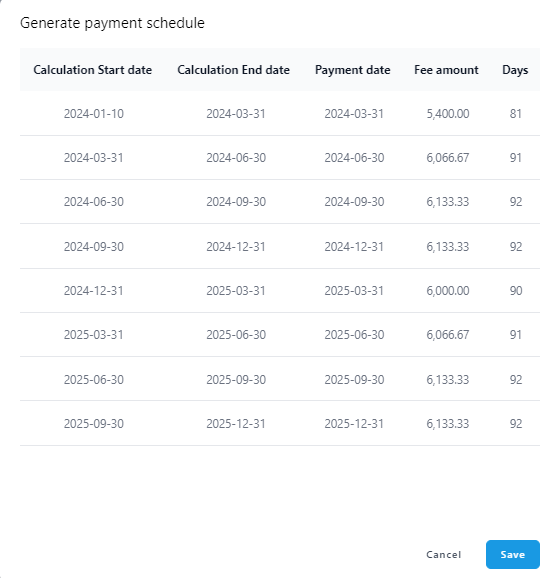
Click 'Save' to confirm the fee flows.
If you are not happy with the result then you can clear all and redo the flow to get it correct.
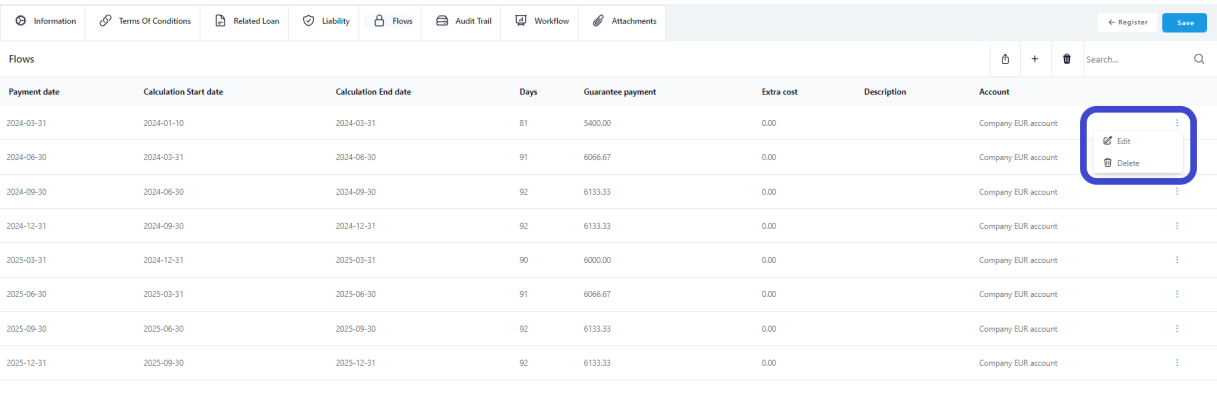
Following the creation, you can modify the single payments from "edit" (three dots at the end of the payment row in question) and then change the fields available. Changing the actual fee amount in one payment is not possible. For that you need to delete the flow in question and create a new single payment flow by clicking the + icon.
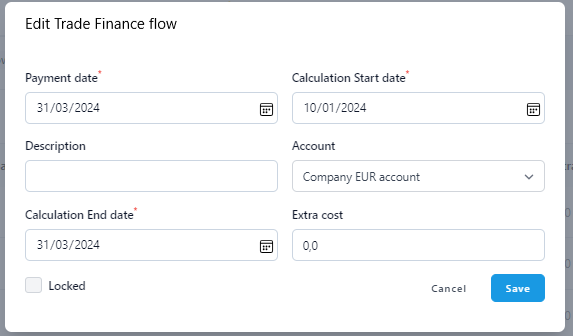
It is possible to adjust all fields in the view and also lock the flow in question so it can't be cleared later when for example using 'Clear all' function. NOTE that in case you need to change the amount of the actual fee, you need to delete the flow in question and create a new individual flow manually.
AUDIT TRAIL
In the audit trail you can view on a very detailed level all the changes made into the agreement.
APPROVAL FLOW
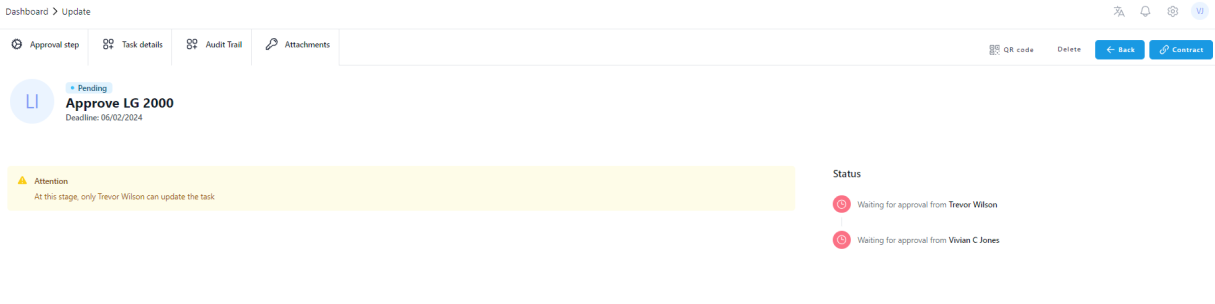
If there is an active approval flow for the Trade Finance, it will be visible here.

By clicking the 'Edit' link you will be taken to the approval flow task in question and can see the status of the approval chain for the agreement.
ATTACHMENTS
This is where you can save documents in excel, pdf, jpg, jpeg and png up to 5mb. Characters a-z A-Z 1-9 or - _ are only allowed in attachment file names.
Usually, Archived and Excluded from Accounting and Reporting will both be unselected. Tick both boxes if you would like to move a lease to archive before maturity, and you don't want it to appear in your reports or accounting. Note that in that case the agreement shows only in the register or archive.
After filling up the needed information click 'Save' and the new trade finance agreement shows in the register.

Was this article helpful?
That’s Great!
Thank you for your feedback
Sorry! We couldn't be helpful
Thank you for your feedback
Feedback sent
We appreciate your effort and will try to fix the article