ZenTreasury allows users to create payment schedules for various modules such as trade finance, loans, lease, and forecast. Depending on the module, the required data for the schedule builder may vary. This guide outlines the steps to create a payment schedule, particularly focusing on tracking fee payments for Trade Finance agreements.
Creating a payment schedule
Step1: Select "Generate flows".
Step 2: Enter schedule details:
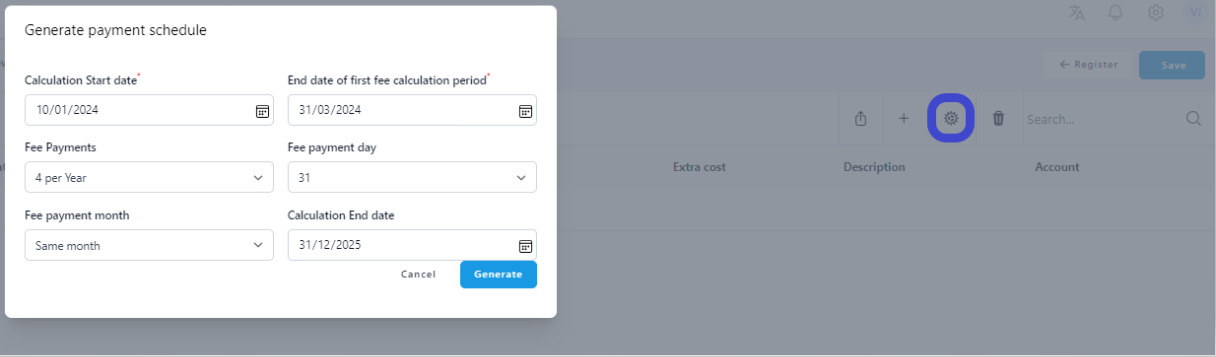
Calculation start date: Set the initial date for the fee period. The system will automatically activate the start date field.
End date of first interest calculation period: Define the end date for the first fee period.
Fee payments: Use the dropdown menu to select the fee payment frequency after the first fee period (start - end date), for example quarterly or yearly.
Fee payment day: Specify the exact calendar day the fee payment is due.
Fee payment month: Indicate whether the fee payment day falls on the same month as the fee period end date, the next month (+1M), or two months later (+2M).
NOTE: Ensure the last fee period is fully specified; otherwise, the system won't automatically calculate a fee for it. If necessary, manually add the fee calculation days into the last fee period.
Calculation end date: Set the final date for fee payments. This date is required for calculation purposes but can be extended later if needed.
Set the final date for fee payments. This date is required for calculation purposes but can be extended later if needed.
Step 3: Click 'Generate' for the fee flows to be calculated.
In the example below it shows quarterly fee flows based on the fixed fee amount selected on the main page of the agreement.
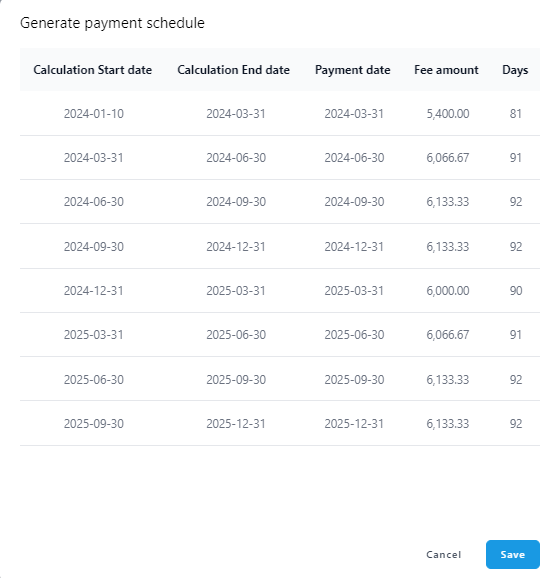
Step 4: Once satisfied with the generated fee flows, click 'Save' to confirm.
Adjusting a payment schedule
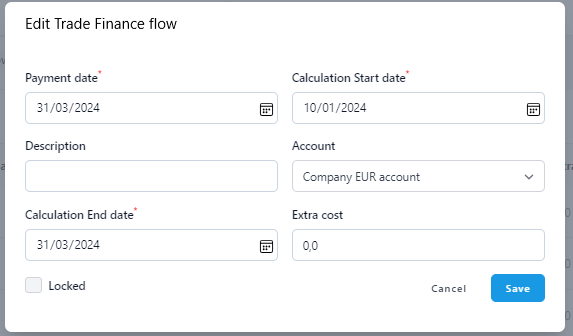
- Modifying Payments: If the generated schedule doesn't meet your requirements, you can clear the entire schedule and start over. To modify individual payments, click 'Edit' (visible as three dots at the end of the payment row) and adjust the fields as necessary. Note that changing the actual fee amount in a single payment isn't possible directly; you would need to delete the current flow and create a new one by clicking the '+' icon.
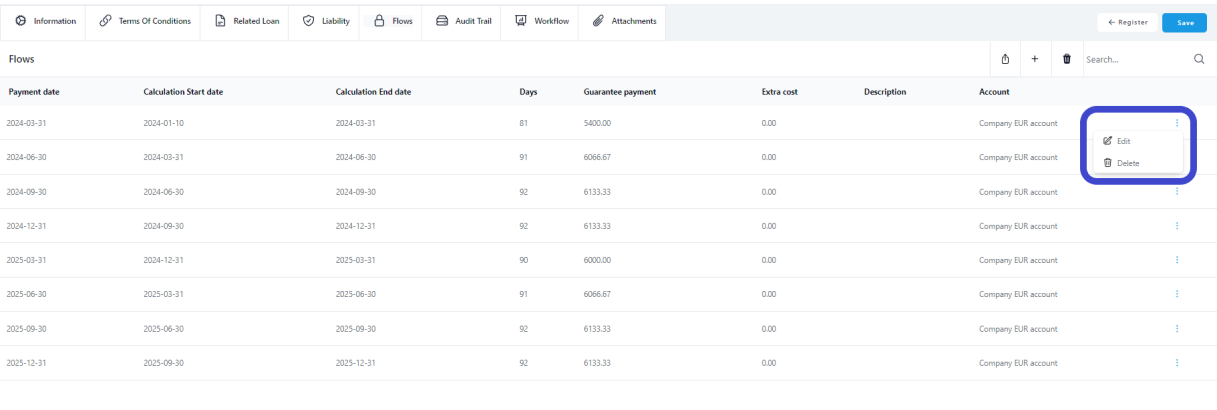
- Locking Flows: You can adjust all fields in the payment view and lock specific flows to prevent them from being cleared by the 'Clear all' function. Remember, if you need to change the fee amount, the existing flow must be deleted, and a new one created manually.
Was this article helpful?
That’s Great!
Thank you for your feedback
Sorry! We couldn't be helpful
Thank you for your feedback
Feedback sent
We appreciate your effort and will try to fix the article