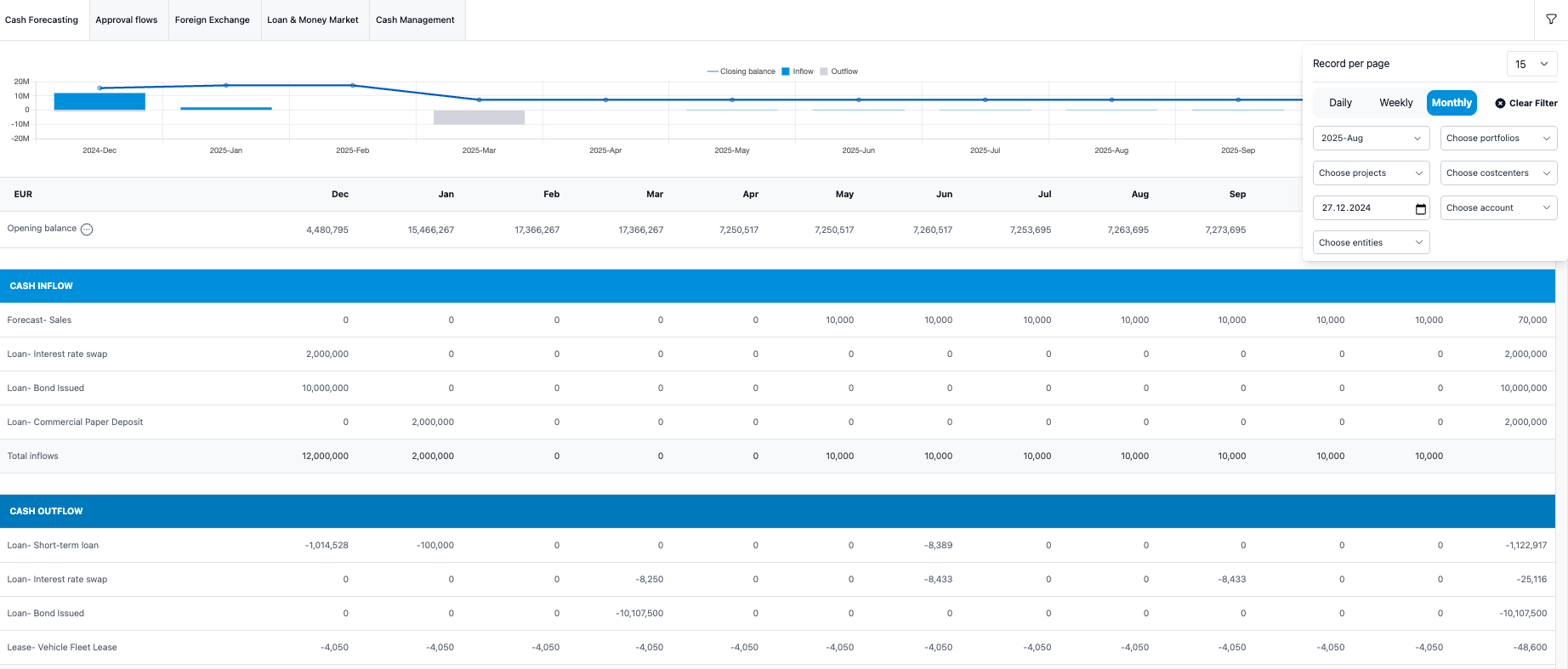
Create a summary of the transactions that impact the cash forecast (unless you choose to exclude certain forecast flows, which is possible). These transactions will be displayed in the Dashboard module under the Cash Forecasting tab. Below is an example of the Cash Forecasting register.
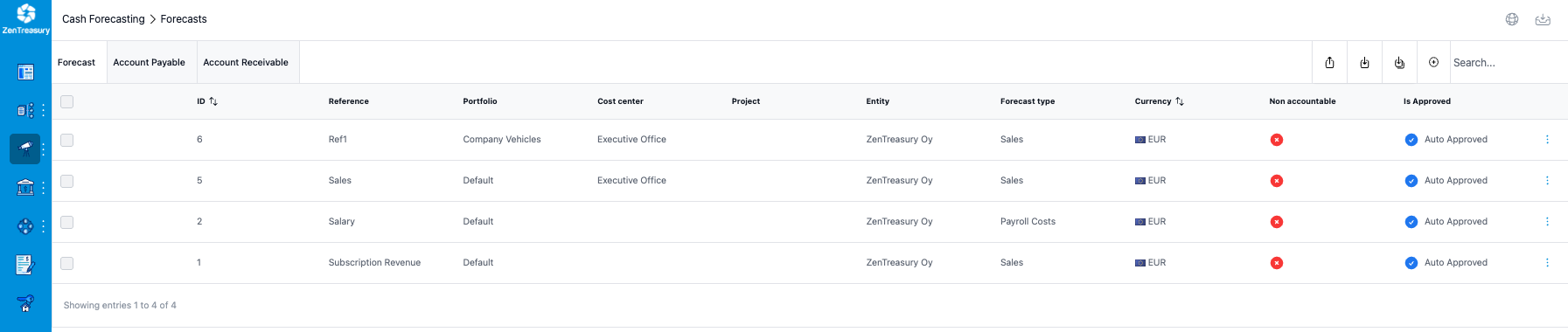
Step 1: Creating a forecast
Add the type of the forecast item from the + sign on top right.
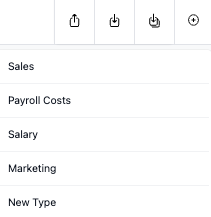
Step2: Fill in the needed fields and click 'Save'.

The Register view opens where you can see the forecast you just created.
Step 3: Create the actual flows
1) Select the created forecast, click the three dots at the end of the forecast row in question and select 'Edit'.

2) Select 'Generate flows' for multiple flows or + icon for adding single flows one at a time (for example if each flow is different).

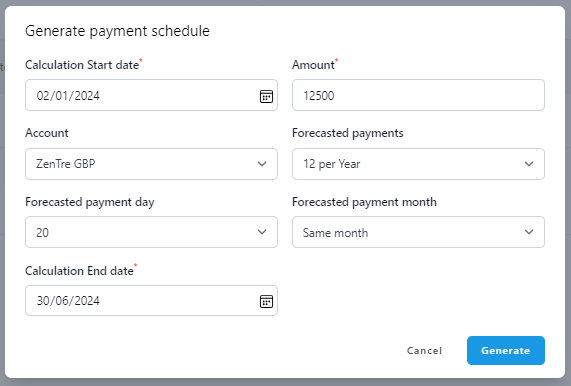
3) Generate payment schedule by adding the account in question, the forecasted payment day, amount, how many payments per year and the forecasted payment month. Click 'Generate'.
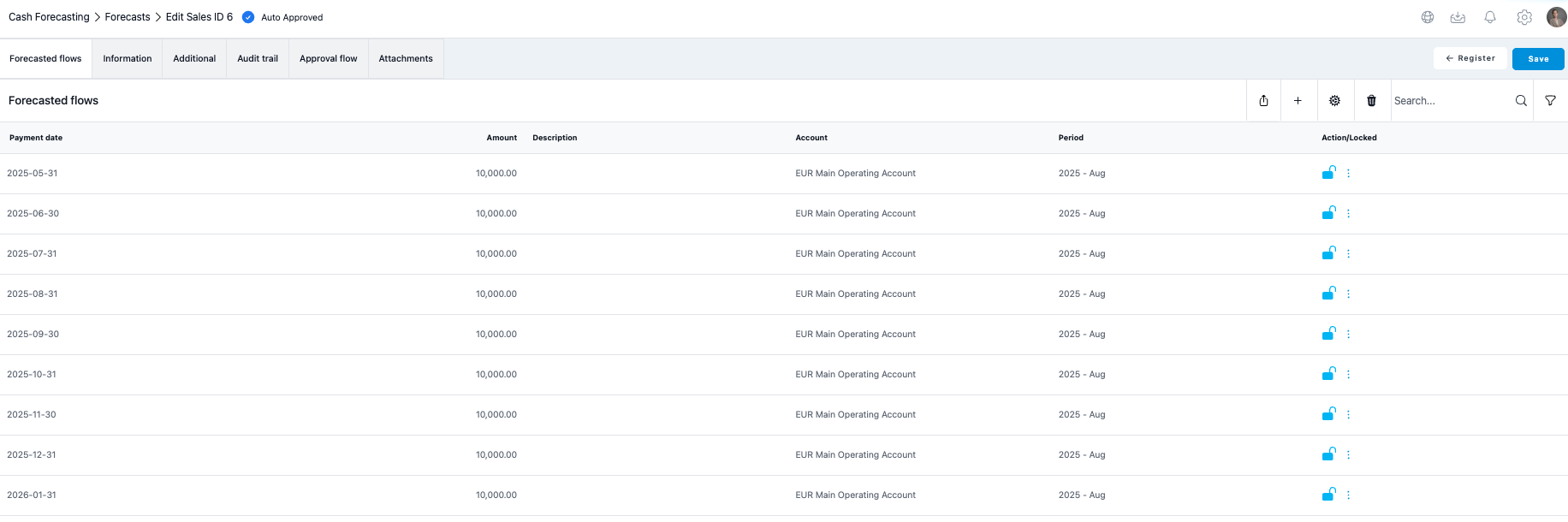
You will see the generated payment schedule.
- Click 'Save' if all looks good or
- Click 'Cancel' if you still need to edit the flow information.
The flow view appears and here it is still possible to edit single flows if needed.
Note that when editing a single flow for the outgoing payments, the amounts will show as negative when automatically generated, but when editing the number can only be positive. The system will update the figure as negative and will show correctly as an expense in the Cash forecasting dashboard.
4) Click 'Save' again to save the generated flows.
Cash Forecasting dashboard view
- Go to Dashboard module and select 'Cash Forecasting' tab.
- Click the filter icon top right.
- Select the entity the forecast was made for.
You can see the just created sales forecast under cash inflow among other flows. The flow chart shows both the account balance and the forecasted inflows and outflows. The flow graph size depends on the amount of the flows in comparison to the account balance.
Was this article helpful?
That’s Great!
Thank you for your feedback
Sorry! We couldn't be helpful
Thank you for your feedback
Feedback sent
We appreciate your effort and will try to fix the article