Step 1:
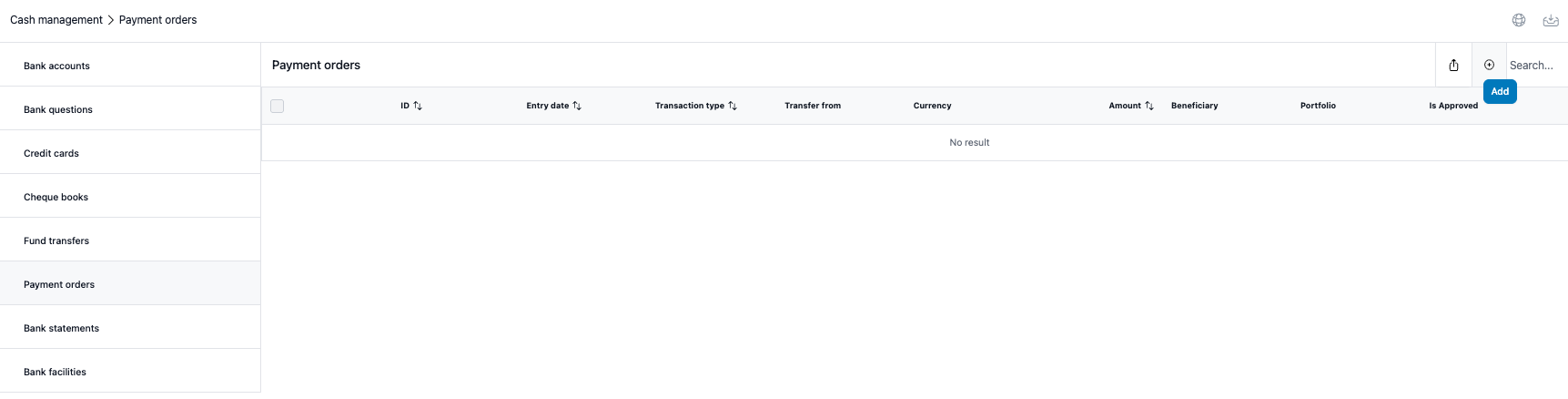
Access the Cash Management module, select the 'Payment order' tab and click the '+' icon located at the top right of the screen to begin creating a new payment order.
Step 2:
On the 'Information' tab, fill in all required details related to Entity, Account and Transfer Data.
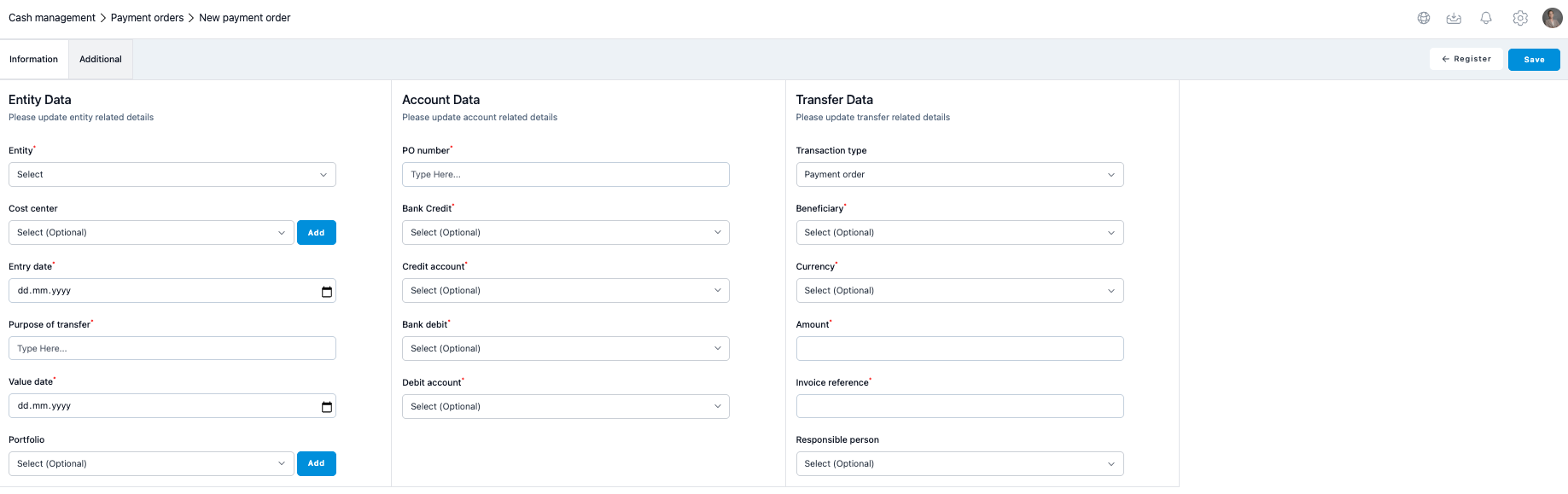
Fill in the needed information. Note that for the payment orders to external counterparties also the external counterparty has to be created under 'Settings-Common Data - Companies' and their account number has to be added in Cash Management - Bank accounts as the Beneficiary and Credit account fields are dropdown selections so the data has to be already in the system.
When the fields have been filled, click 'Save' unless you want to add more information in 'Additional' tab.
Step 3:
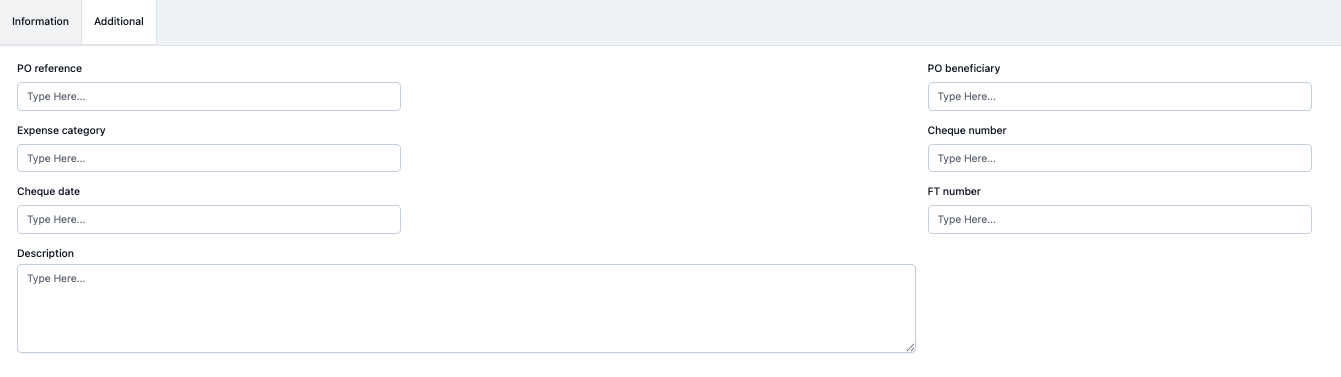
Under Additional tab there are more fields for the additional information. The fields are not obligatory, but can be filled if needed. When you have filled the information, click 'Save'.
Step 4:
Return to Register and select the payment order you just made, at the end of the row click the three dots and select 'Edit.
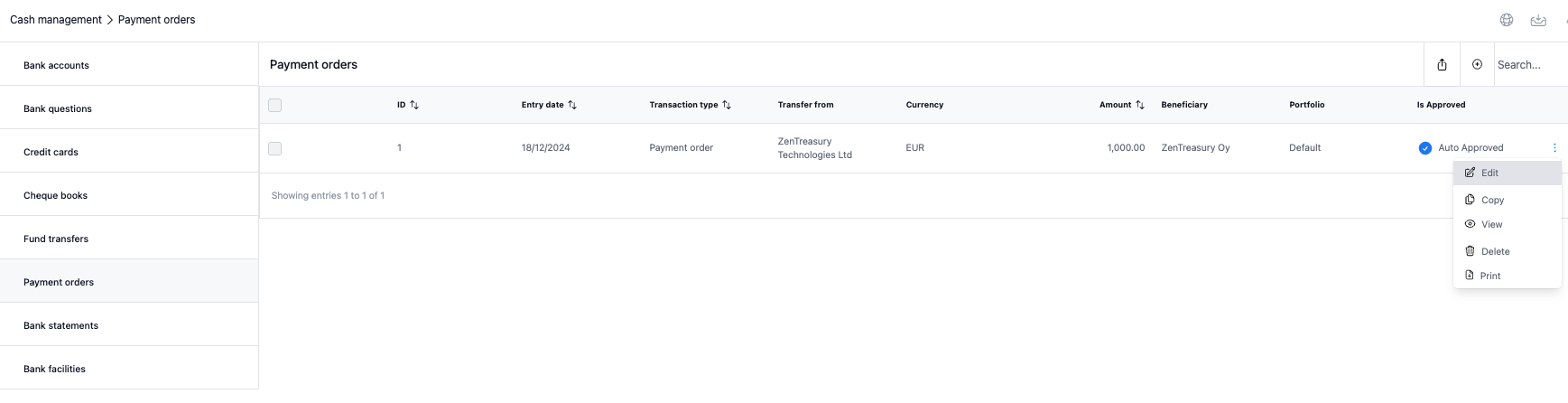
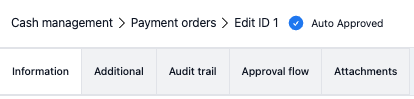
There are now additional tabs available:
Audit Trail
In the audit trail, you can see all the changes made into the agreement on a very detailed level.
Approval flow:
If there is a approval flow related to the payment order, it will show here as a link to the Dashboard Approval Flows.
Attachments:
Attach documents (Excel, PDF, JPG, JPEG, PNG) up to 5MB. Use only alphanumeric characters and hyphens/underscores in file names.
Was this article helpful?
That’s Great!
Thank you for your feedback
Sorry! We couldn't be helpful
Thank you for your feedback
Feedback sent
We appreciate your effort and will try to fix the article