With the ‘Loans and Money Market module’ you can manage all your debt interest rate products such as external loans, inter-company loans, deposits, bonds and money market loans (e.g. commercial papers).
First, you must have created a relevant Entity, Counterparty, Portfolio, Cost Center, Bank Accounts and loan instrument types to proceed with creating a loan agreement. Debt instrument type with LOAN or INV name start defines whether you’re borrowing or lending.
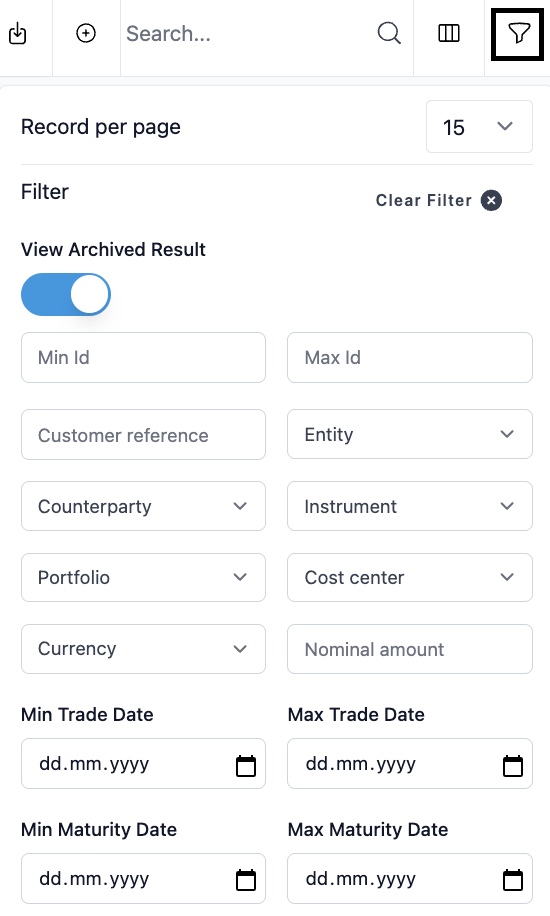
New loan agreements can be created manually or copying an existing one. When a loan agreement expires it is archived. All matured agreements can be found from the main loan register view and by activating the 'View Archived Results' from the filter.
CREATING A LOAN AGREEMENT
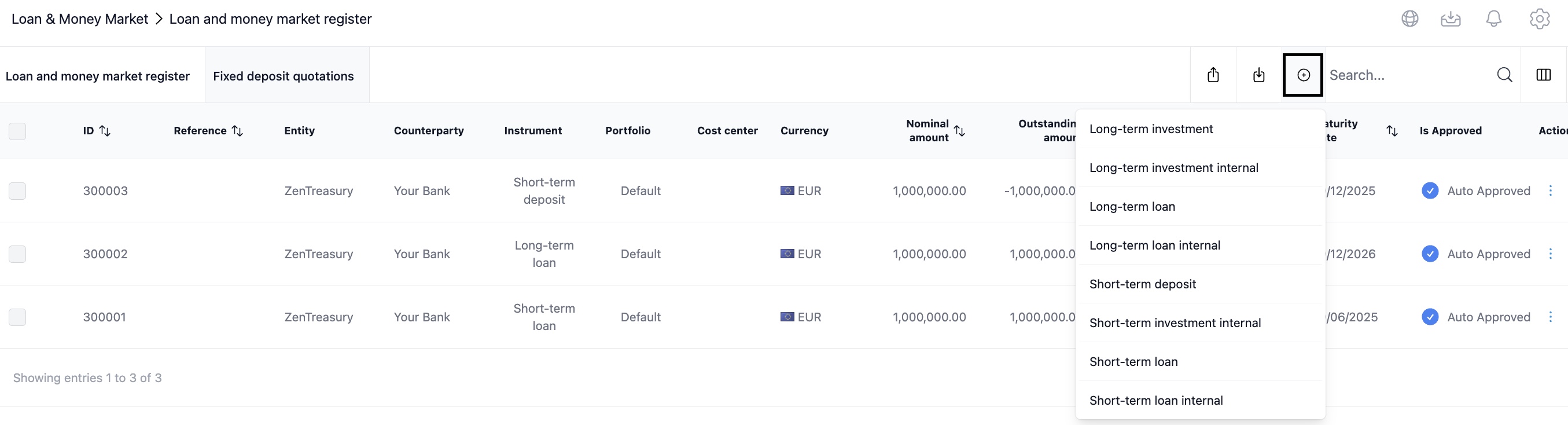
When creating a loan agreement, you first have to go and select the instrument for your agreement from the list when clicking on the plus sign:
Fill in the details of the loan:
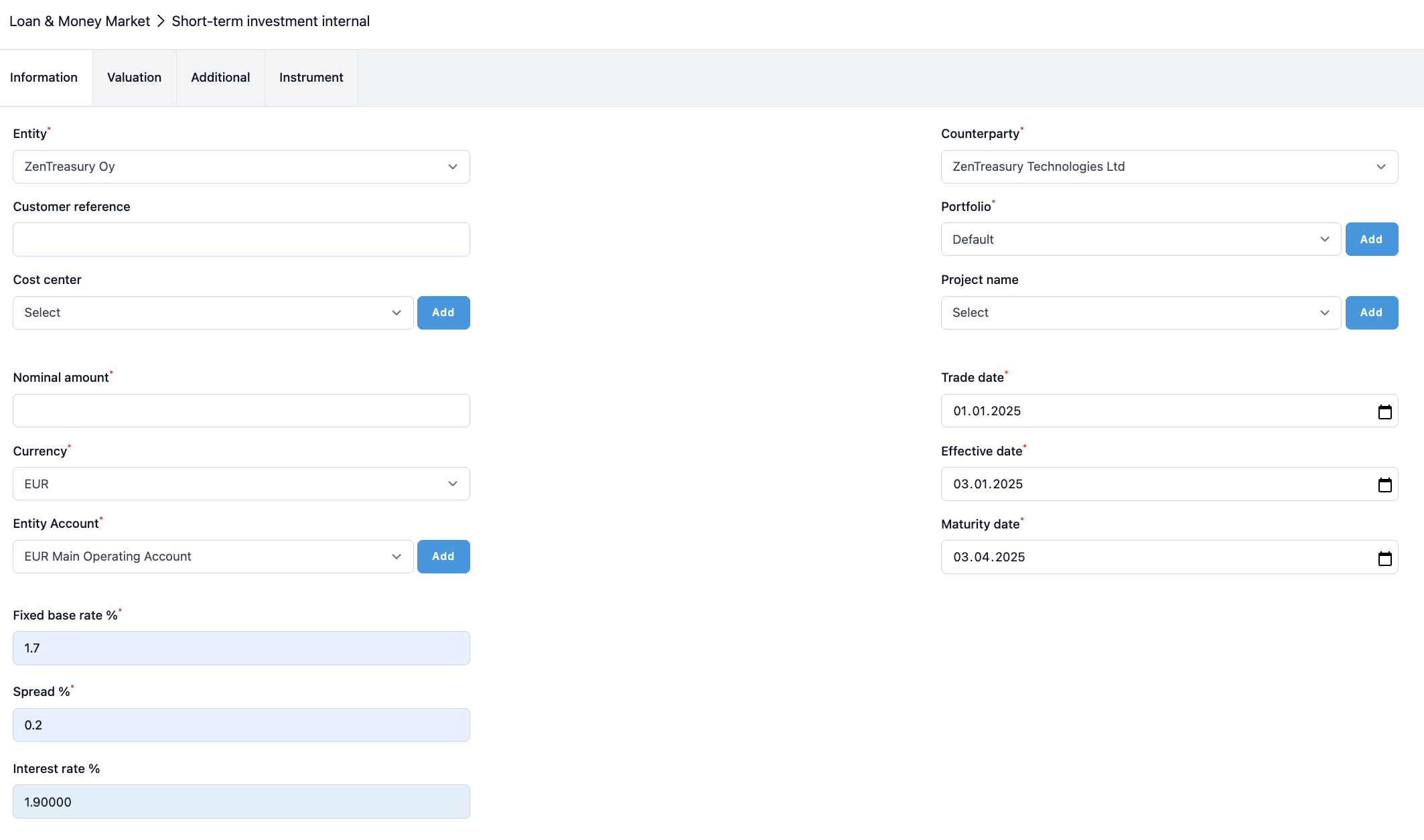
1) Choose company from the 'Entity' dropdown list
2) Select the counterparty from the 'Counterparty' dropdown list
3) Enter the customer reference in the ‘Customer Reference’ box, if you wish. This is a reference that you can use to identify the transaction. This field is also visible in the loan register view. For example, you can put here a recognisable loan agreement number.
4) Choosing one 'Portfolio' helps to categorise your data in reports.
5) If you need a 'Cost Center' in your reporting or accounting, choose one.
6) Enter the transaction amount in the 'Nominal amount' field.
- Choose the Currency of the agreement
- Choose the default account that will be used for the first cash flow from the Entity Account dropdown list (You can change the account for future deal flows)
7) Choose the 'Trade date' (the date when the agreement is signed)
9) Choose the 'Effective date' (the date when the first payment happens)
9) Choose the 'Maturity date' (the end date of the agreement)
Next, depending on your loan instrument type, fill in the details for the interest. If you have selected an instrument with fixed interest rate enter the fixed rate into the 'Fixed base rate %' space and add the details to 'Spread %'. 'Interest rate' is then automatically calculated by the system by adding the fixed base rate and spread.
If you are creating a loan instrument with floating interest rate, you will be choosing the floating base rate from the dropdown menu instead. This way you select the interval for your loan and allow the system to automatically update interest on the fixing dates. Despite the automation, the first interest rate is always inserted manually.
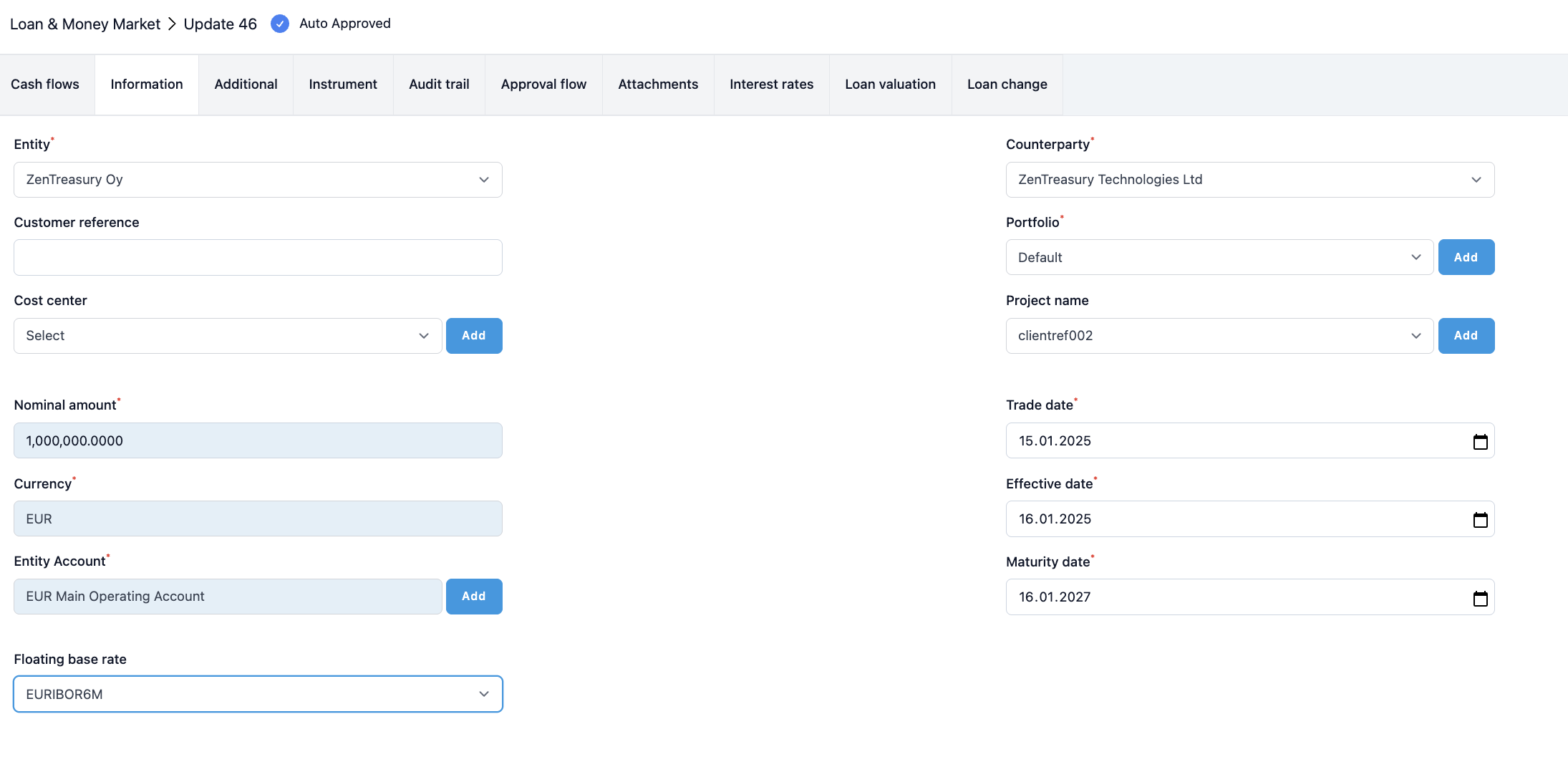
In order to feed the system with right interest rate, the base rate has to be saved in the system for the exact interest rate fixing date. In case your company doesn't use any automated market data integrations, the rate can be added manually by navigating to Settings -> Market Data -> Money market rates.
When the fixing date rate can be found from the money market rate register, the system automatically updates the interest rate for your floating interest loan instrument.

When adding the first interest rate for you loan, you navigate to the 'Interest rates' tab on your loan agreement and fill in the interest rate details for the exact interest fixing date for your loan.
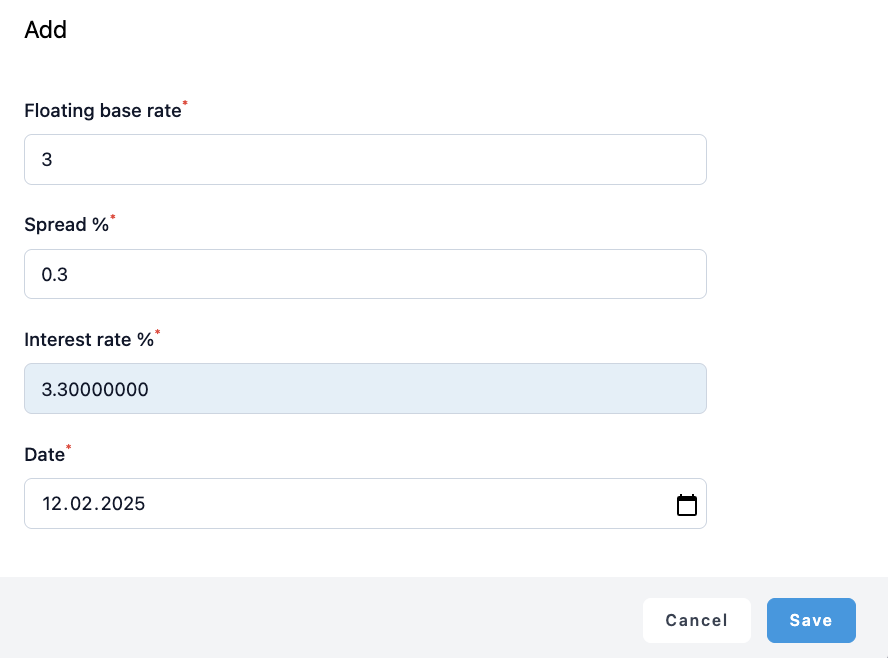

The rate date refers to when the money market data is updated in the loan from the system's 'Money market' table. For all money market rates, the rate is received one day late, which causes the update in the loan to occur one day later. This means that, for example rate EURIBOR3M with interest fixing date of January 15th 2025, the next rate date (covering the 3-month period) will be April 15th 2025, therefore:
- EURIBOR3M rate for April 15th 2025 is received one day later, on April 16th 2025
- Consequently, 'Next rate date' in the system is April 16th 2025, and this updated information will reflect in the loan on April 16th 2025 night time (as automation runs close to midnight).
After setting the first interest rate, you can click 'save' and navigate to the 'Cash flows' tab to see how interest is reflected on the actual flows.
Generating the flows for your loan
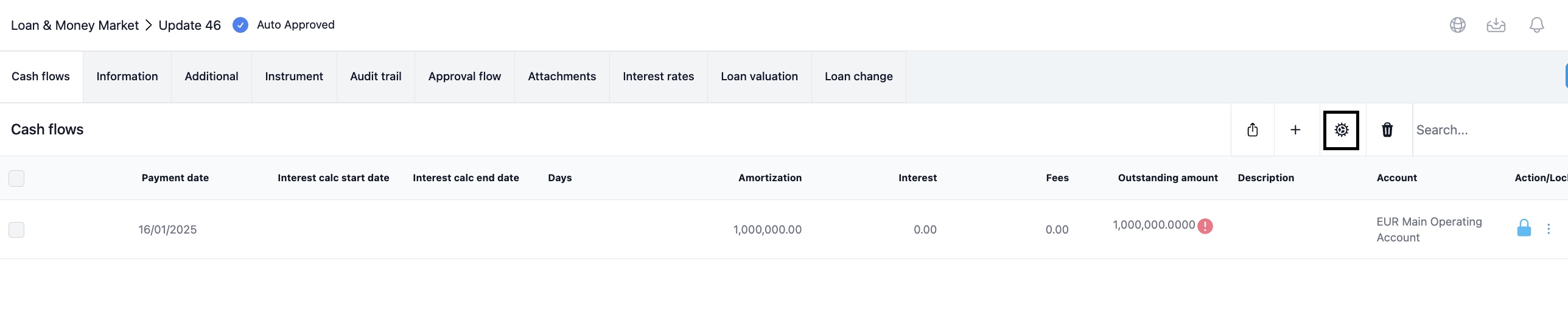
After saving the loan agreement, you can start and create the payment schedule for your loan. Click 'Generate flows' icon to create the payment flows.
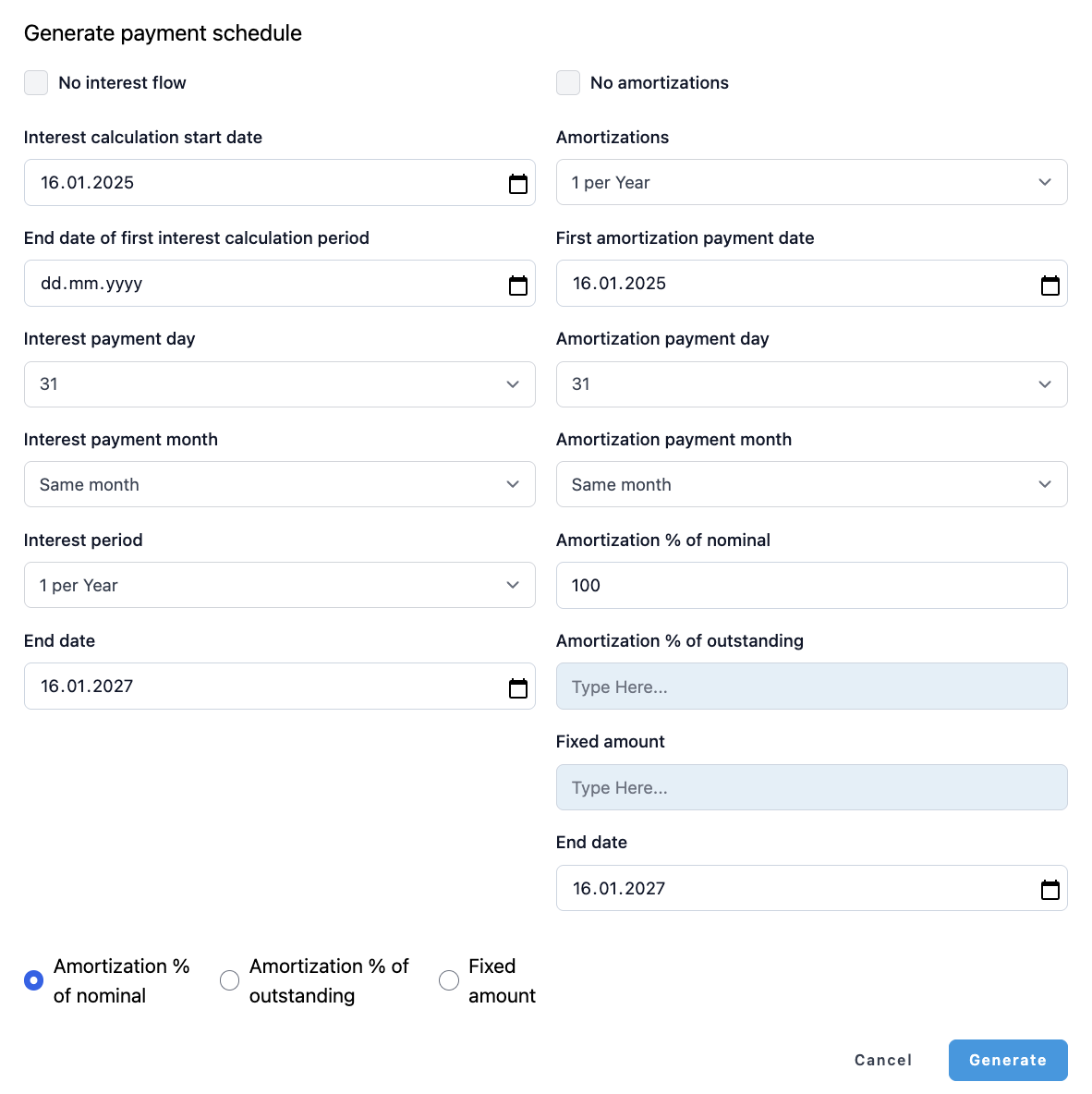
This window opens to be filled with the data based on the loan agreement. The fields are described below the picture.
Interest payments
If you do not wish to create any interest flow, activate 'No interest flow'. Otherwise leave it inactive.
'Interest calculation start date' is where the first interest period starts. System automatically fills the loan effective date as a default here.
'End date of the first interest calculation period' is where you define which day the first interest period ends. If you have 'Last day inclusive in interest calculation' selected on your debt instrument type, the last day is inclusive to the interest calculation. Therefore, if you choose 1.1.2025 as a start and 31.3.2025 as the end date, the system will use 31.3.2024 as included to the interest calculation.
'Interest payment day' is the actual payment day of the interest.
'Interest payment month' is where you specify if the payment is taking place the same, next month, two month later or previous month.
'Interest period' determines how often the interest payments take place.
Please also remember to check the last interest period after creating the cash flows. If the period is not selected in full, the system will not calculate the interest automatically. In this case, you need to go into the final payment flow and add the interest calculation days into the last interest period.
'End date' is the date into which the system ends interest payment calculation. System automatically fills the maturity day as of default here.
Capital payments
If you don't want to create capital repayment flows, activate the option 'No amortizations'. Otherwise leave it inactive.
'Amortizations' is where you define capital payment interval. If the loan is a bullet loan, just choose "On maturity date" and the system will generate a repayment of the debt at the loan maturity.
'First amortization payment date' is set for the date when the first amortization takes place.
'Amortization payment day' is is the actual payment day of the amortization amount.
'Amortization payment month' is where you specify if the payment is taking place the same, next month, two month later or previous month.
There are three ways to define repayments. You can only choose one:
- 'Amortization % of nominal' - This is set as a default option and with 100%. It means that the system will assign each amortization payment with the following calculation -> Nominal amount set to the loan agreement x percentage / the number of payments
- 'Amortization % of outstanding' - This is normally used if you are redoing the amortization schedule, but not from the start. System will calculate amortizations as follows -> Unpaid debt amount at the "First amortization payment date" set to the loan agreement x percentage / the number of payments left
- 'Fixed amount' - With this option, system will create as many amortization payments as you define above with the fixed amount you have set
'End date' is the end of the amortization schedule. System will insert the maturity date of the loan automatically here.
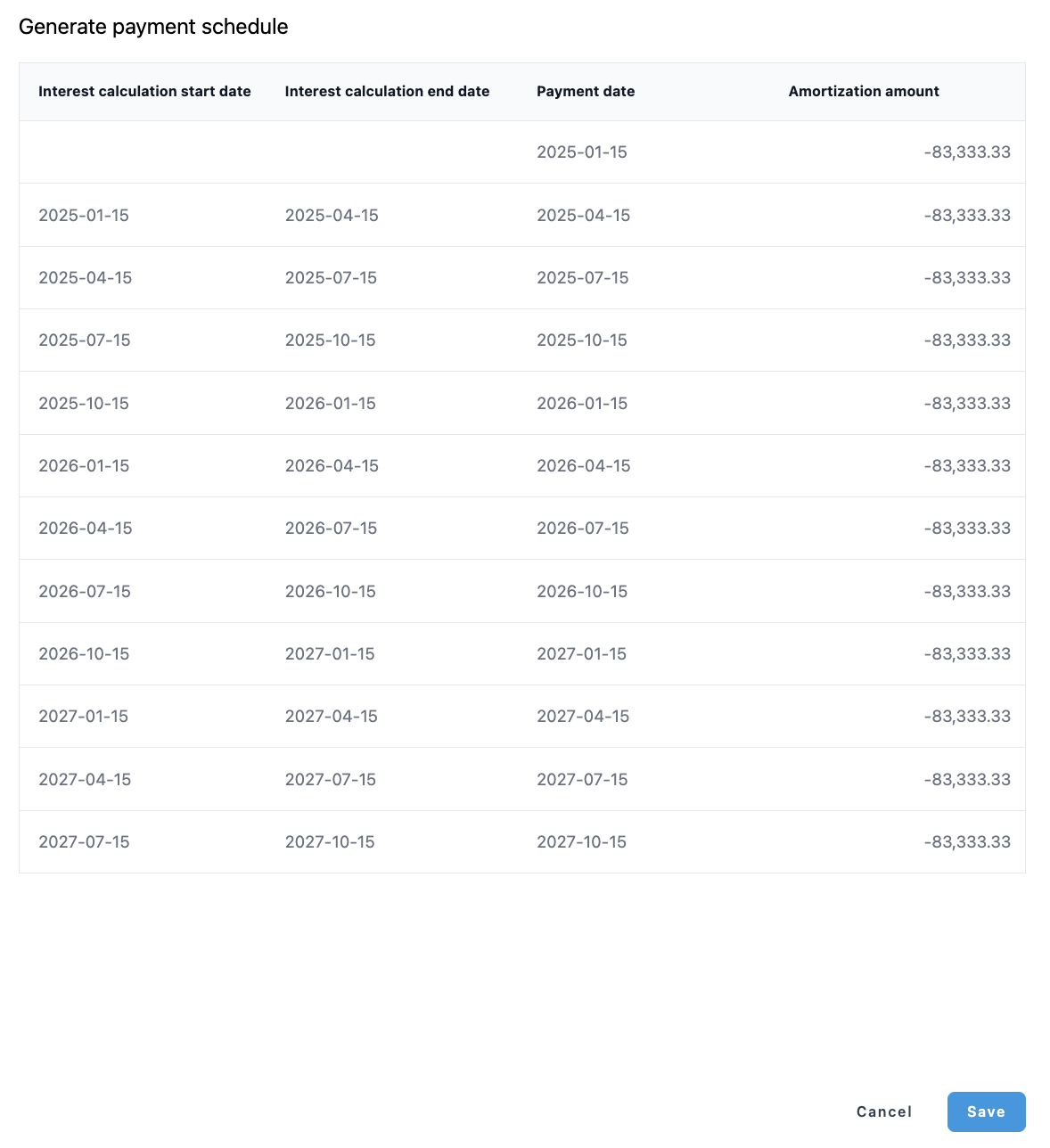
After you have made filled in the required fields, you can click "Generate" and "Save". System will save the flows into the "Cash flows" page of the agreement.
Modifying cash flows after creation
If you are not happy with the cash flows you have created, you can clear all and redo the flows.
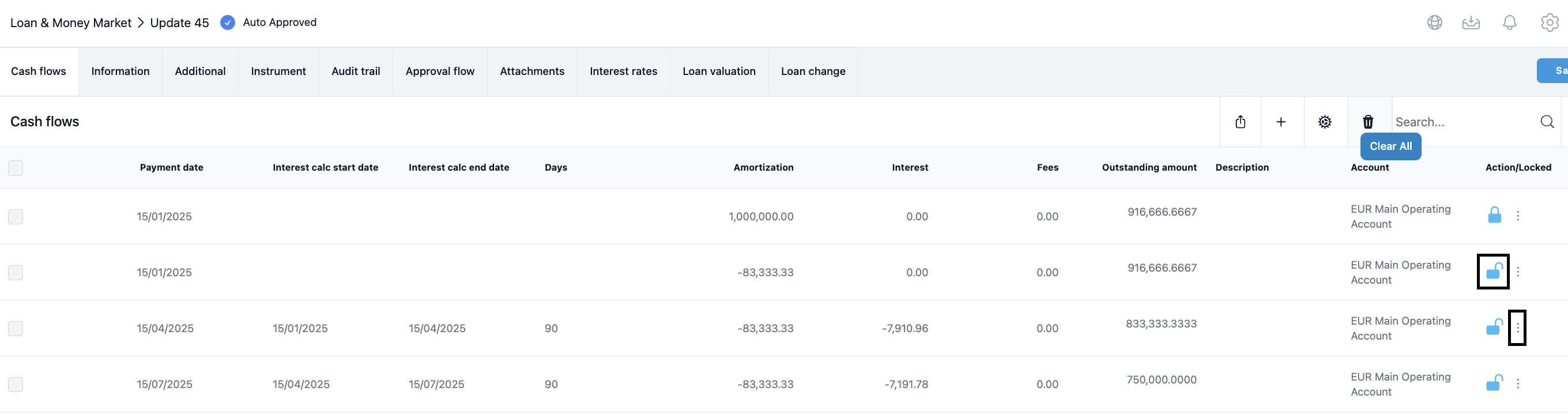
You can also lock payments by clicking the lock icon on individual cash flow row and delete the rest. This way you can be sure that the locked flows won't be deleted.
You can also modify a cash flow from the three dots icon on each row and then change, for example, the payment amount.
Payment flows can be also deleted at once from the 'Loan change' sheet that opens up after you created one payment flow using the generator. If you have generated flows more than once, you can see them as an individual rows. You can therefore select the generation you want to delete.

Creation of a single payment
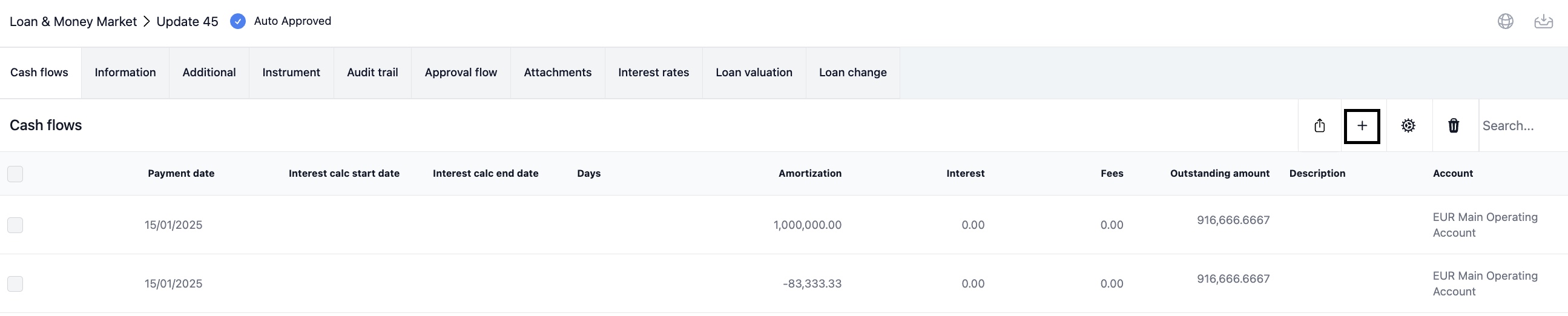
You can create single interest payments or capital payments by clicking 'Add flow'. This can be particularly useful if you have a credit facility that you use occasionally, or if you have an intercompany loan where the payments are not scheduled.
Capitalising interest
After you have created your payment flow, where you have interests, you can go into that interest payment and capitalise it back to your loan balance. This is done by entering the amount that you want to capitalise into "Capitalise interest". If the interest amount is negative, fill in the amount as negative amount.

Postponing part of the interest
If you want to postpone the total interest payment, you can just change the original payment date to a future date. If you want to postpone only a part of the interest, put that part of the interest into the "Postpone interest" box, and specify the interest payment date into "Postpone interest date". If the interest amount is negative, fill in the amount as negative amount.
COPYING A LOAN AGREEMENT
When you copy a loan agreement you copy the basic information of the agreement. After checking that everything is fine, you need to create the loan payment flow for the copied loan.
AUDIT TRAIL
In ‘Audit Trail’ you can view on a very detailed level all the changes made into the agreement.
ADDITIONAL
You can write additional things you need to remember out of this agreement into the "Text" field.
‘Confirmation means’ is the method of the confirmation of the loan in question.
The following text boxes are for accounting users: Internal order, tax, RoU asset number and stage. You can save text or number information to these, and have them as one column in your accounting template. Use it when you import data into your ERP/Accounting system. You can also use the fields Bank, Issuer and Fee to insert additional information on your loan.
Usually, ‘Move to archive before maturity’ and 'Excluded from Accounting and Reporting’ will both be unselected. Tick both boxes if you would like to move a lease to archive before maturity and you don't want it to appear in your reports or accounting.
By activating the 'No capital flow' tab, you prevent capital payments from going into reporting or accounting. If you have an instrument where you need only realised interest postings, activate this option.
By activating 'Calculate valuation', you enable the system to calculate loan valuation using discounting method you have chosen to your instrument type. After activation, you need to go to the 'Loan valuation' sheet in this agreement. There, you need to specify the yield curve for the loan valuation and also, if needed, add a premium on top of the interpolated interest from the yield curve.
The reference rate quotations has to be set in the Market Data -> Money market rates table for this specific yield curve (for the date you want to have a valuation out of the system). The valuation will then appear in the Loan valuation report and in accounting.
ATTACHMENTS
This is where you can save documents in excel, pdf, jpg, jpeg and png up to 5MB. Characters a-z A-Z 1-9 or - _ are only allowed in attachment file names.
Was this article helpful?
That’s Great!
Thank you for your feedback
Sorry! We couldn't be helpful
Thank you for your feedback
Feedback sent
We appreciate your effort and will try to fix the article