If you have floating rate loans (and want the system to update the interest rates for you), or if you want to evaluate your loans using the discounted cash flow method, you need to have interest rates in the register. The register can be found from Settings - Market Data - Money market rates. The rates can be added one at a time or multiple rates can be imported at once with Excel or Csv.
Adding a money market rate manually
New rates can be created from “Add”-tab, import from excel, or if you have existing rates, simply copy them and change the data.

There is a comprehensive list of Tenors already available in the system, but if the needed one is missing, you can add them in Settings - Market Data - Reference rate. Optionally from this view you can also click Market Data bread crumb on top and you will already have the Market Data options visible to select the Reference rates option.
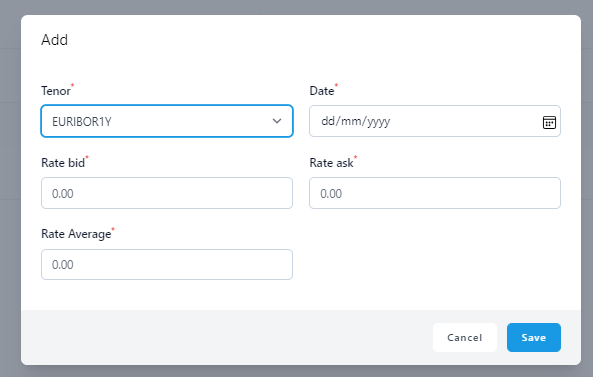
Fields in the rate table
Tenor: This is the reference rate for the MM Rate.
Date: Date of the market quote.
Rate bid: This is the bid side of the MM rate of the day. If you are only inserting an average rate, you can put both Bid and Ask at the same rate.
Rate ask: This is the ask side of the MM rate of the day. If you are only inserting average rate, you can put both Bid and Ask at the same rate.
Rate average: This is the average of the MM rate of the day.
Rate import via api: Interest rate market data needs to be obtained from a third party data provider. ZenTreasury has the api connection possibility for automatic updates for the rates. If you wish to have the rates automatically updated, please contact Support at support@zentreasury.com and please note that for the rates to be imported there has to be equivalent Tenor (Reference rate) in the system.
Importing the rates with Excel
Step 1: Click the 'Import' icon on the top right
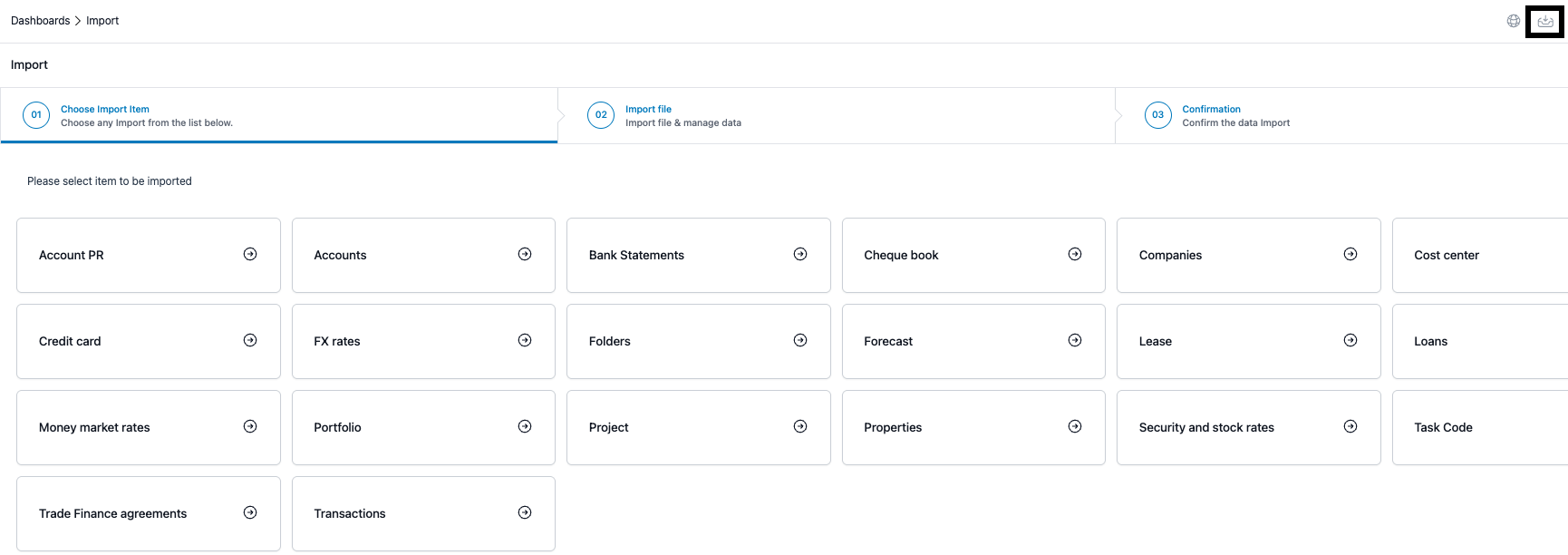
Step 2: Click 'Download Sample' and select Excel for Excel import.

Download the sample file and delete the sample data on the first row. The Tenor name has to match the name in the system to be imported correctly. The tenor names can be checked from Settings - Market Data - Reference rate.

The rates can include more digits, it will show as two decimal digit on the register, but the exact amount will show if you open the details of a specific rate. Once you have filled in all the data you want to import, save the file on your computer.
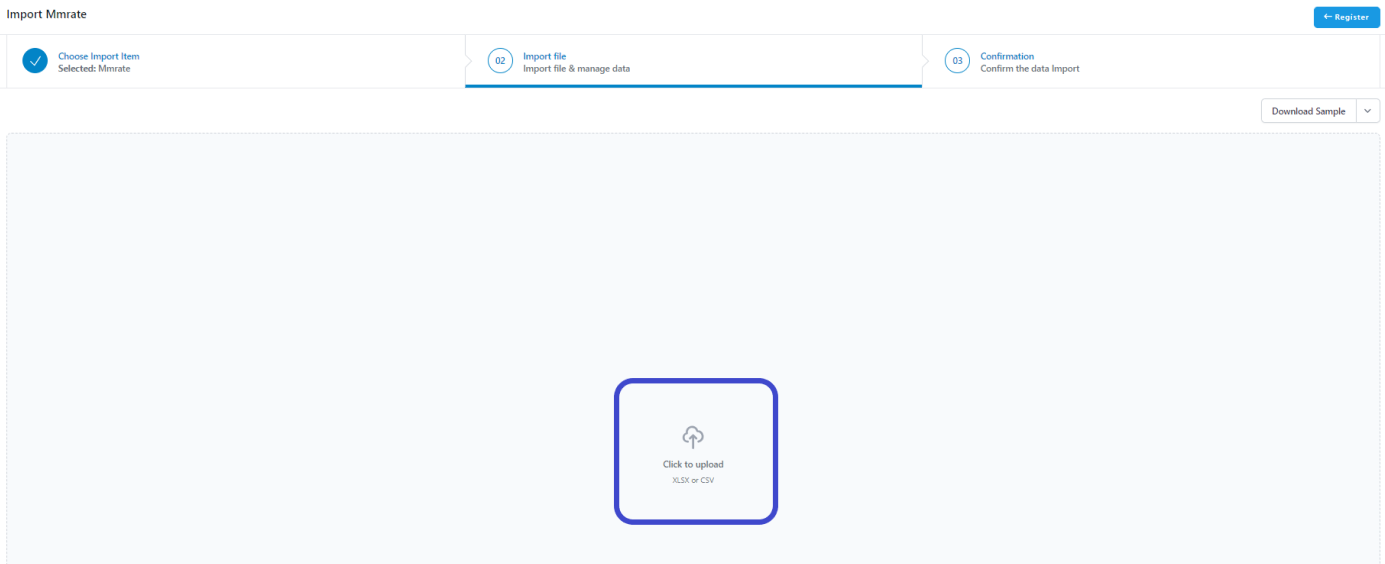
Step 3: Click 'Click to upload' area on the screen and the computer folder window will open. Select the correct folder and file you want to import and click 'Open'.
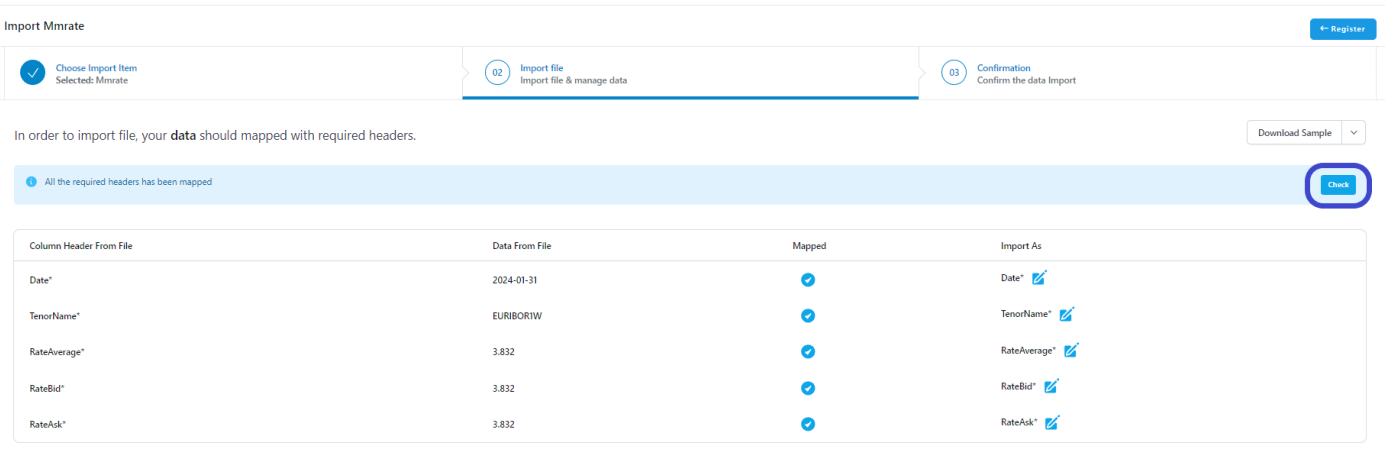
Step 4: The mapping view opens. If no headers of the Excel file have been changed, the mapping is done automatically. Click 'Check' button on the top right. If there should be any errors, the error message will tell the reason for the error, for example a missing Tenor name, if it is not already in the system.
Step 5: Import the file
After the automatic file check up, following view opens, click 'Import'.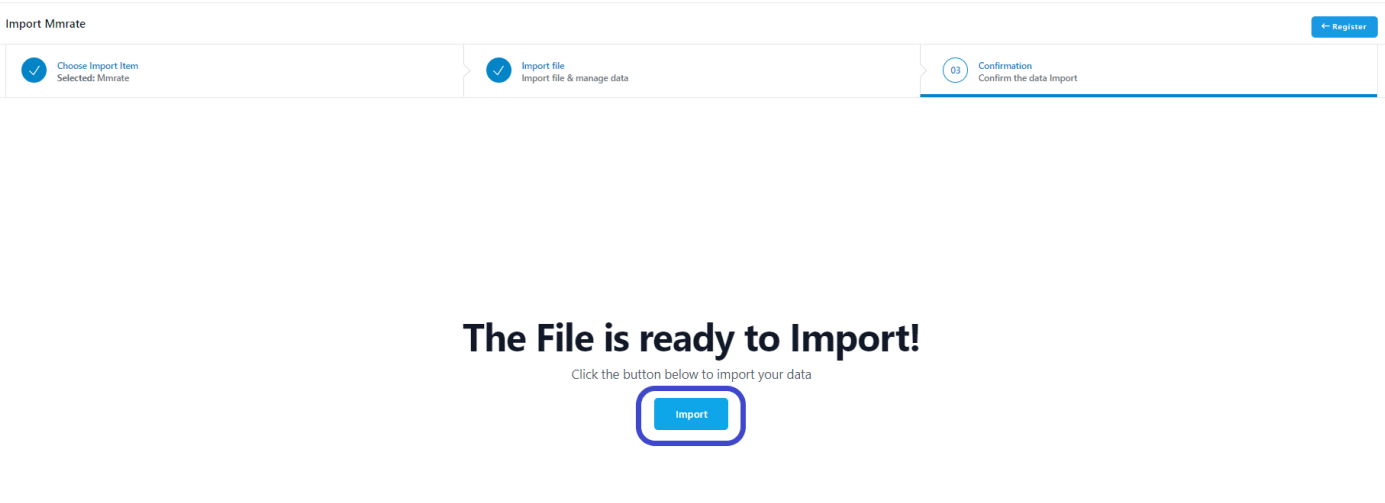
You will be directed to the main import view and if you refresh the browser, you will see the notification appearing in the notifications icon to show the status of the file import. When the notification has stopped spinning, the rate import status will show if the import succeeded and you can return to the register.

Was this article helpful?
That’s Great!
Thank you for your feedback
Sorry! We couldn't be helpful
Thank you for your feedback
Feedback sent
We appreciate your effort and will try to fix the article