If you have any cross currency agreements where an entity and an agreement are in a different currency, or when you have multiple entities in different base currencies and want to have a look at numbers in some consolidated currency, you need to have FX rates in Foreign exchange rates register. The register can be found in Settings - Market Data - Foreign exchange rates.
FX register
In the FX register view you will have a summary view of all your currency pair rates. New rates can be created by
1) clicking the + icon (circled in blue)
2) importing them as Excel or Csv (circled in purple) or
3) if you already have rates or copying an existing rate and changing the data in the copied rate.

Fields in FX rate details view
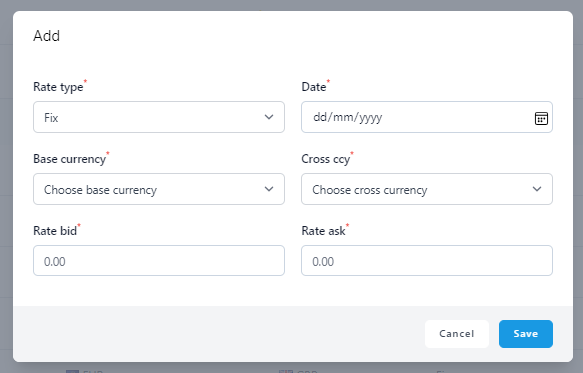
Rate type
If you are inserting a closing rate (fixing rate), just select Fix. Other selections are for forward rates (used for FX hedge valuations).
Date
This is the date of currency pair quote.
Base currency
This is the base currency in the pair that you are inserting.
Cross currency
This is the cross currency in the pair that you are inserting.
Rate bid
This is the closing/forward bid side of the pair. If you are only inserting an average rate, you can put both bid and ask at the same rate.
Rate ask
This is the closing/forward ask side of the pair. If you are only inserting average rate then you can put both bid and ask at the same rate.
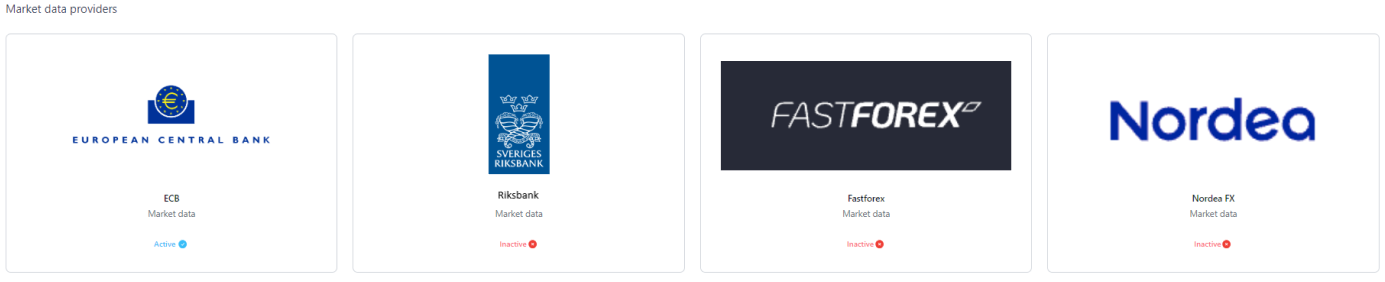
Rate update
The market rates can be updated on working days via API. The current APIs are free of charge unless the data provider charges for the rates, in which case the cost will be invoiced. The API setup is in your profile view under Integrations tab.
The currencies you want to receive rates for must be first activated from Settings - Common Data - Currencies.
Importing FX rates
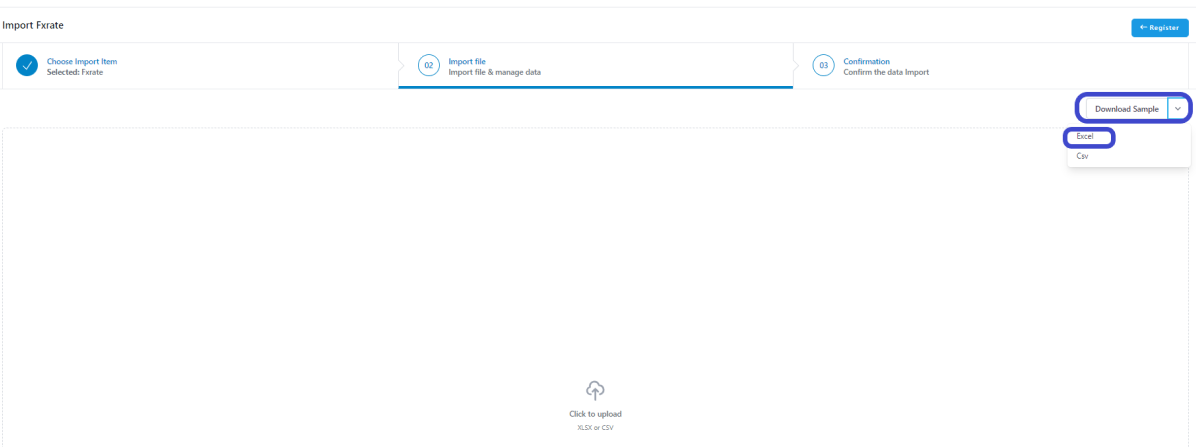
Step 1: Click the Import icon on the top right. It will take you to the Import FXrate view.

Step 2: Download the sample file by clicking 'Download Sample' and select the file type you want to use for the rate import.
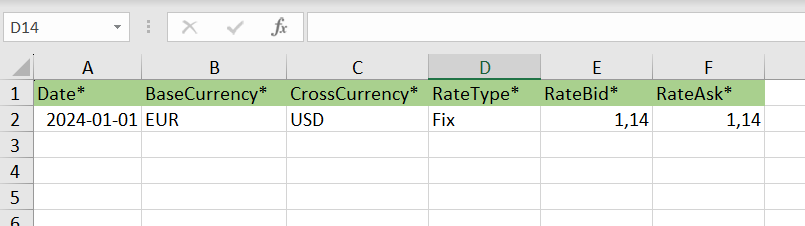
Step 3: Add the rates to be imported by downloading the sample file. Delete the sample data., add the rates you want to import and save the file on your computer.
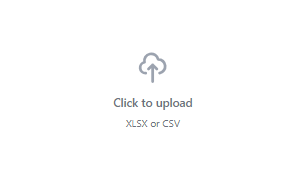
Step 4: Click the 'Click to upload icon on the import screen. It will open the file window on your computer. Select the location and the file you want to import.
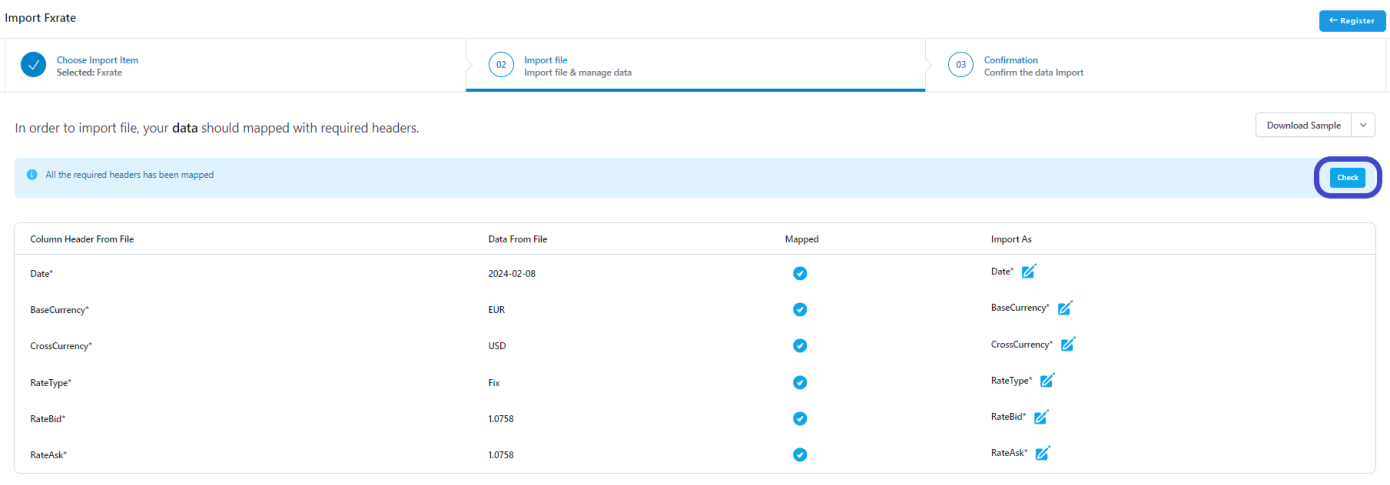
Step 5: Mapping view opens. Everything should be mapped automatically if no changes to the column headers have not been made. Click the 'Check' button on top right.
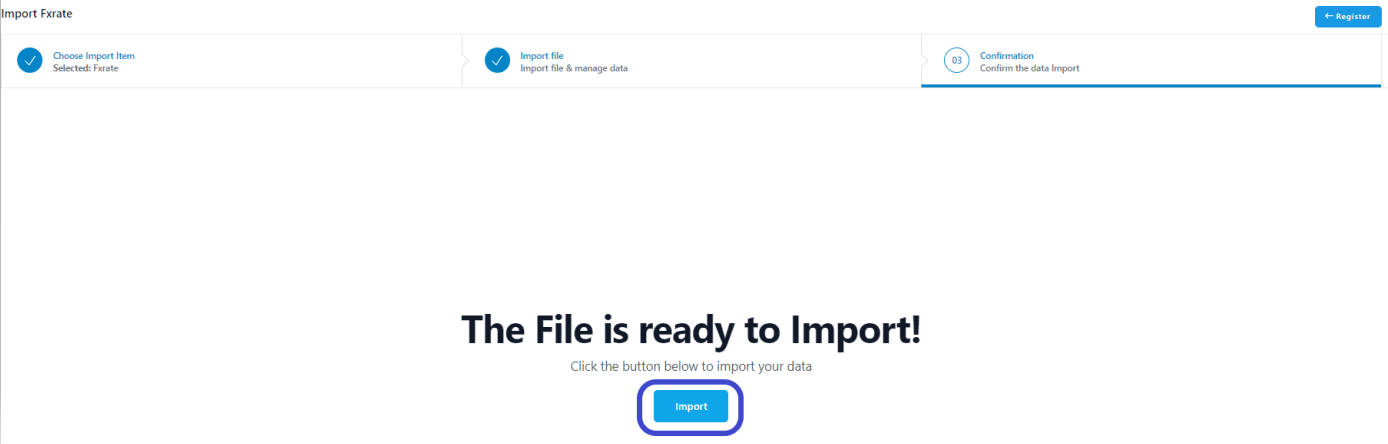
Click 'Import button' to start the import.
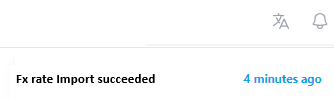
Step 6: The main import view opens up. Refresh the screen and you will see the notification of the import status on the top right.
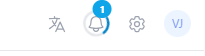
When the icon has stopped spinning, the rates have been uploaded in the system.
Step 7: Editing a single rate.
The imported rates will show in the register view. The main view shows two decimals, but the more accurate figure can be seen when you select the three dots at the end of the row of the currency in question and select 'Edit' option. This is also where you can edit a single rate if there would have been a mistake in importing file or for other reason want to edit the rate.

When you have done editing, click 'Save'.
Was this article helpful?
That’s Great!
Thank you for your feedback
Sorry! We couldn't be helpful
Thank you for your feedback
Feedback sent
We appreciate your effort and will try to fix the article