Prerequisites:
Make sure the following items are available and set up properly.
- Internet Connectivity
- Power BI License
- Power BI Desktop: Download and install Power BI Desktop from here
STEP 1
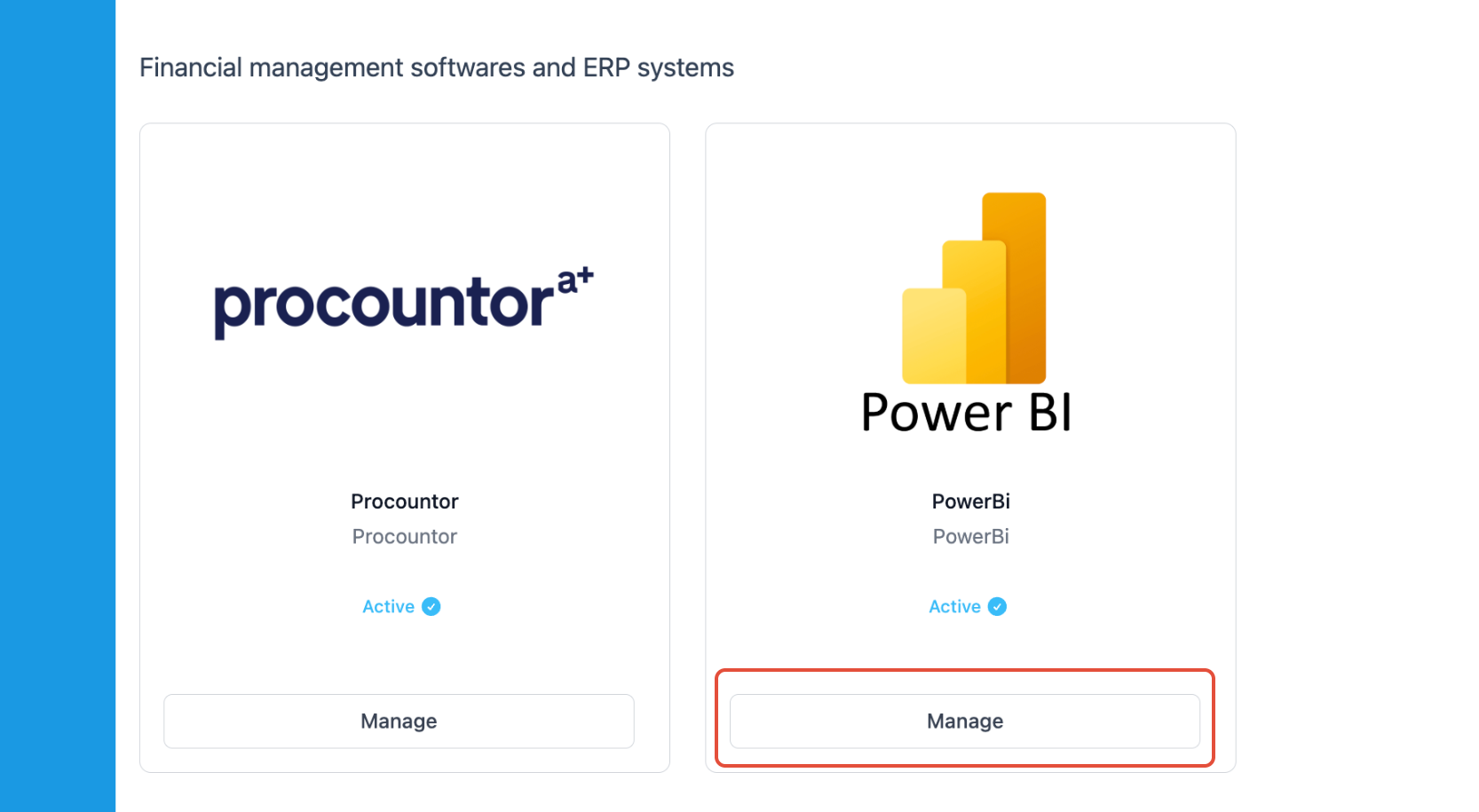
Navigate to Settings > Admin Settings > Integrations > Powe BI and click Manage and follow the instructions. Download the Power BI Template File available in your ZenTreasury environment.
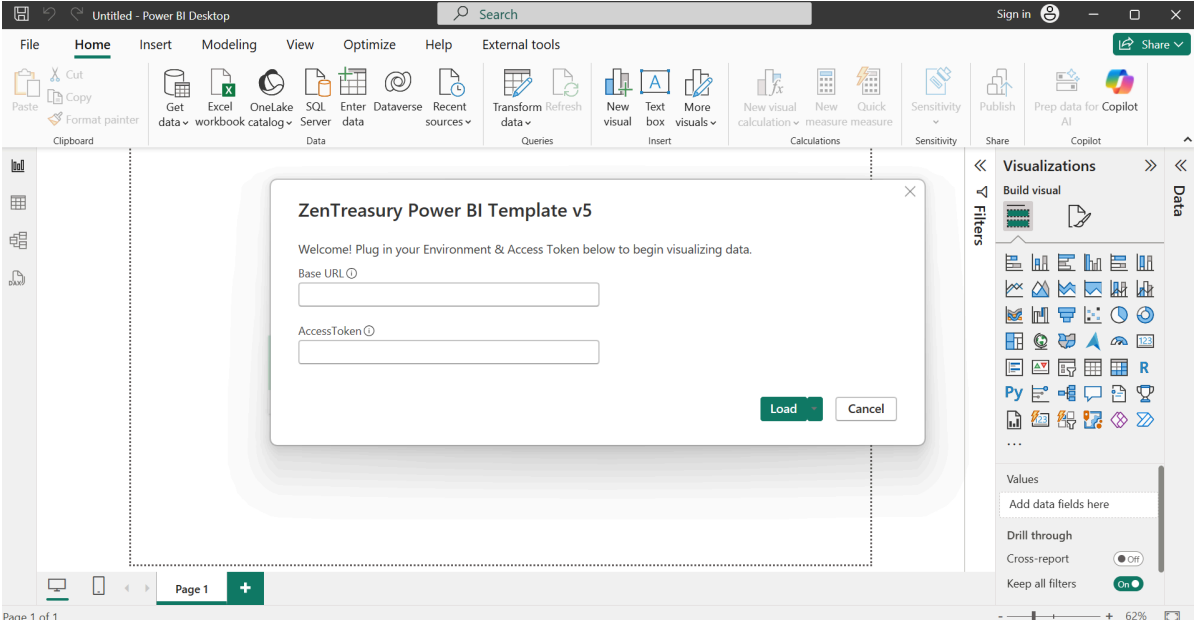
Double-click the downloaded Powe BI Template File(.pbit) to open it. Below is a snapshot of how the screen should look like.
STEP 2
Insert API Access Credentials:
- Base URL: https://yourenvironmentdomain.zentreasury.eu/api/v1/
- AccessToken
How to generate AccessToken:
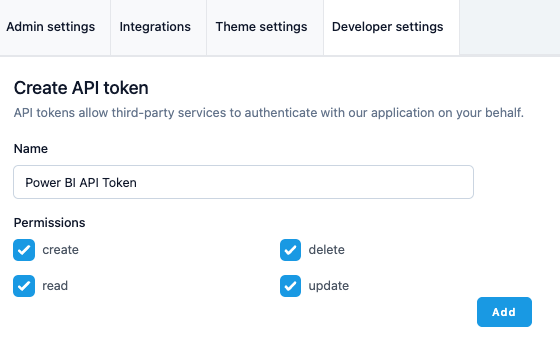
1. Go to Developer Settings
2. Enter a token name, select permissions, and click "Add"
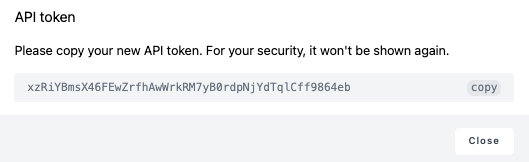
3. Copy the generated token and insert in AccessToken field in your Power BI pop-up window.
Below is a snapshot of parameter input screen with tooltips that show you example value. 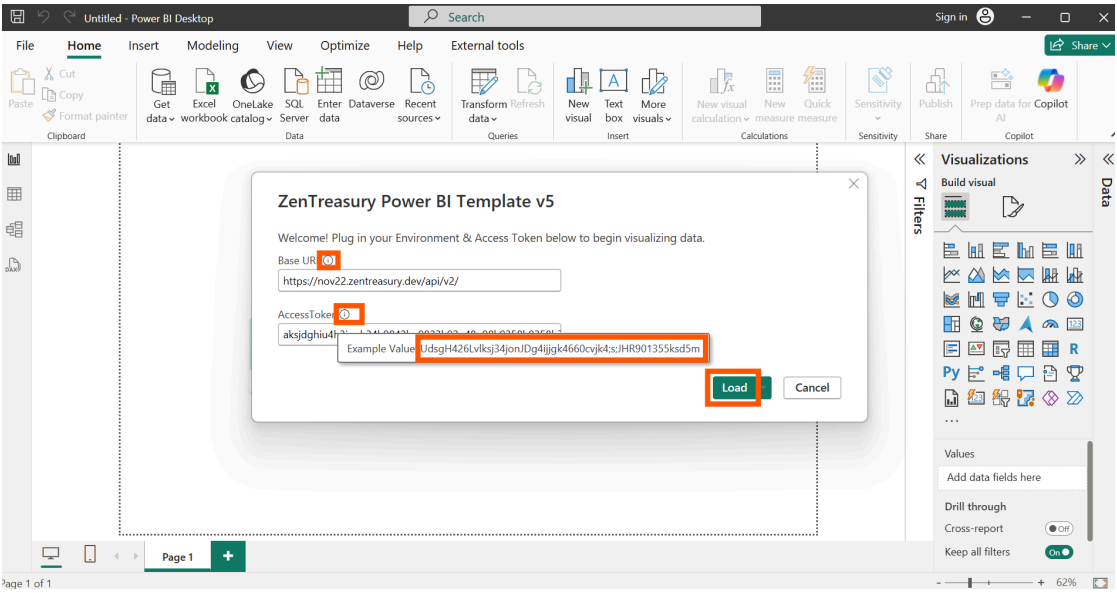
Click Load button and wait for the data to be loaded.
STEP 3
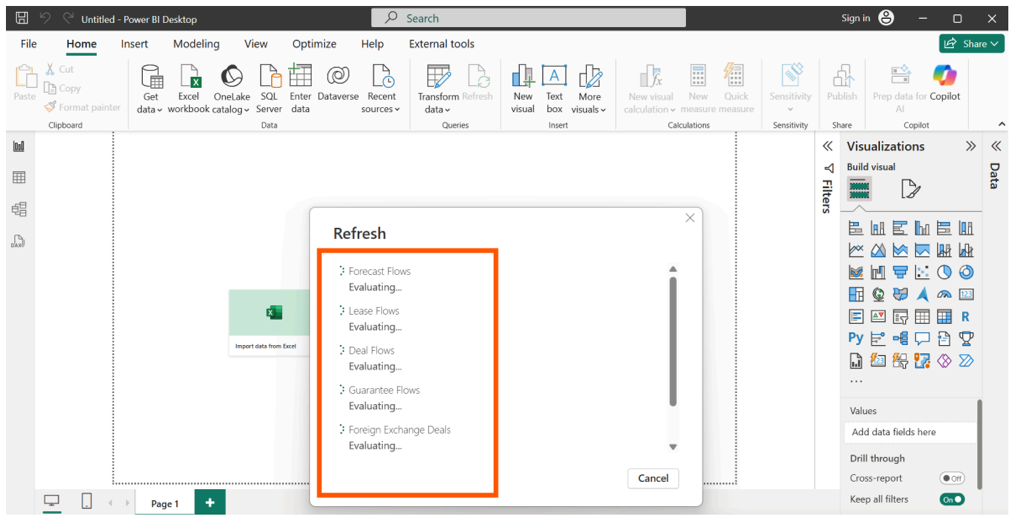
Power BI will begin loading and refreshing data. This may take a few seconds and up to 30 minutes, depending on the dataset size. If the process fails or stalls, please contact ZenTreasury Support via Support Portal by leaving the support ticket.
Below is a snapshot of how Power BI is showing the “refreshing data” progress.
STEP 4
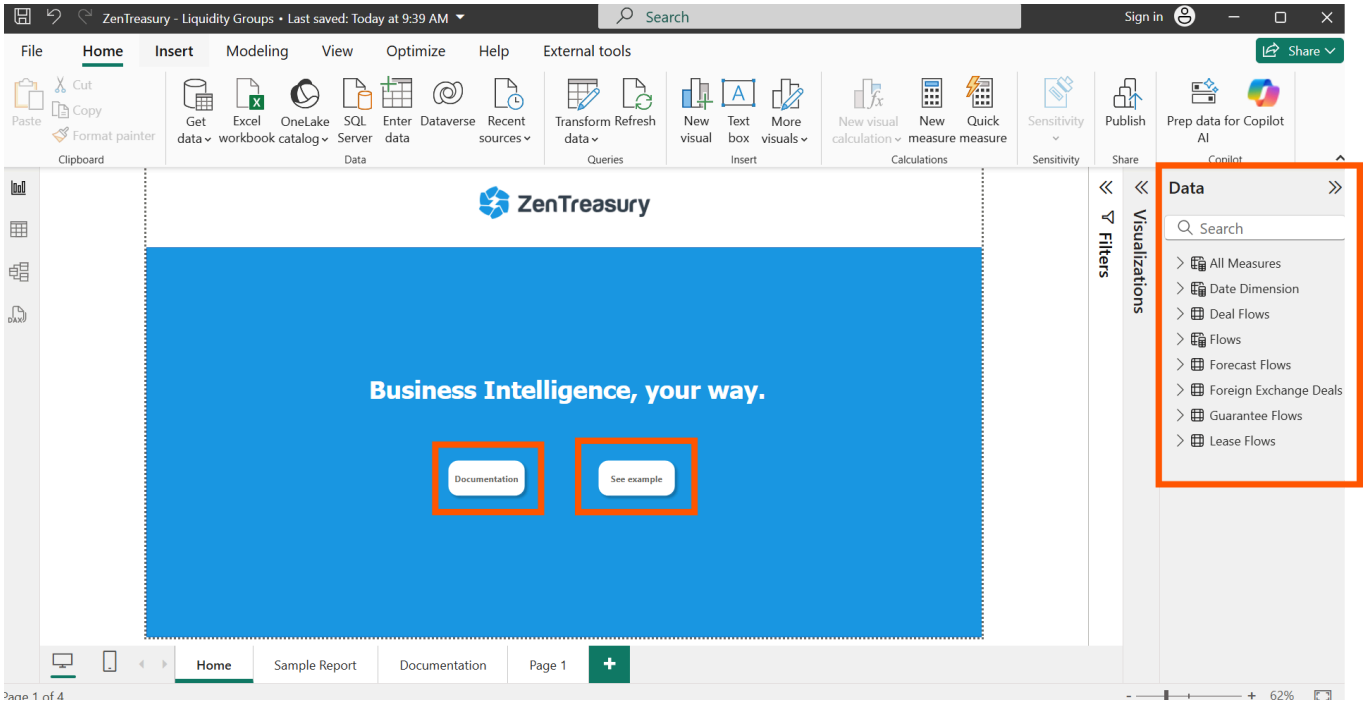
Use Your Power BI. After the data load is ready, you should see:
• Your report canvas
• Tables listed in the Data panel on the right
From here:
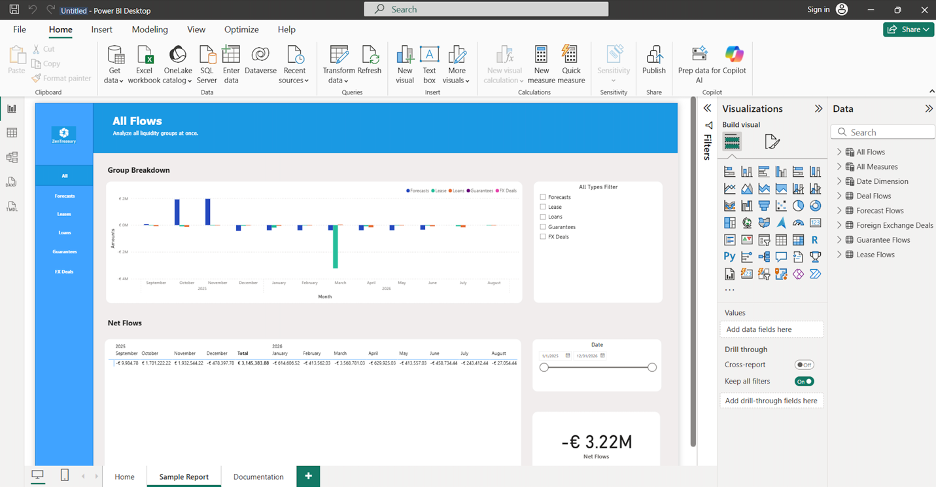
• Ctrl+Click on “Documentation” to learn more.
• Ctrl+Click on “See Example” for dashboard inspiration.
STEP 5
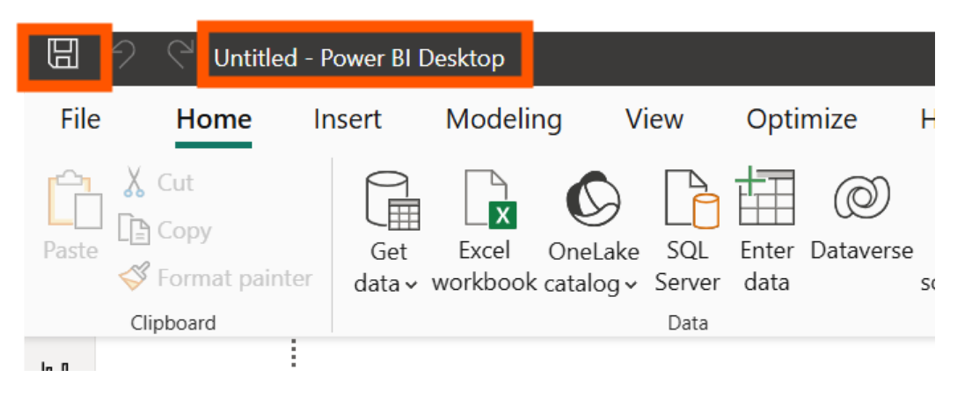
Please remember that your file is not saved automatically. Use Ctrl+S or click the disk icon on the top-left. This saves your report as a ‘.pbix’ file. Now you can publish it to the Power BI cloud service. Below is a snapshot of the toolbar with the save icon.
Was this article helpful?
That’s Great!
Thank you for your feedback
Sorry! We couldn't be helpful
Thank you for your feedback
Feedback sent
We appreciate your effort and will try to fix the article